How to Extract Data from Real Estate Documents Automatically
Learn how to extract structured data from real estate documents automatically, including showing emails, lease agreements, contracts, and property forms.

Real estate teams deal with a surprisingly wide range of documents every day.
Showing emails, lease agreements, purchase contracts, disclosure forms, inspection reports, rental applications, and listing documents all contain data that needs to go somewhere. Often that still means copying information by hand into spreadsheets, CRMs, or property management tools.
That work is repetitive, slow, and easy to get wrong.
In this guide, we will look at how to extract data from real estate documents automatically, which document types are easiest to automate first, what fields are worth extracting, and how to set up an Airparser workflow that turns real estate documents into structured data.
Which real estate documents can be parsed automatically?
Real estate operations are document-heavy, but not all documents create the same automation opportunity.
Some of the most common candidates are:
- showing emails from platforms like ShowingTime, SentriLock, BrokerBay, or MLS systems
- lease agreements
- purchase contracts
- rental applications
- property disclosures
- inspection reports
- listing documents and property forms
Airparser’s real estate parser page already positions the product around exactly these workflows, including showing emails, lease contracts, purchase agreements, and other property documents.
Why automate real estate document extraction?
1. Manual entry slows down response time
In real estate, timing matters. When important data sits inside a PDF or an inbox instead of in the system your team actually uses, response times slip.
2. Document formats vary constantly
One brokerage sends a polished PDF. Another sends a forwarded email. Another sends a scanned attachment. Rule-based extraction breaks quickly when layouts change.
3. The same fields appear again and again
Property address, showing time, lease dates, purchase price, agent details, tenant names, rent amount, and contact information appear across many workflows. That makes these documents strong candidates for structured extraction.
4. The downstream use is usually clear
Most teams already know where the data should go next:
- Google Sheets
- Excel
- HubSpot or another CRM
- Airtable or Notion
- property management software
- webhooks or internal systems
That makes it easier to define an extraction schema around actual business needs instead of extracting data just because it is visible.
What fields should you extract?
The answer depends on the document type.
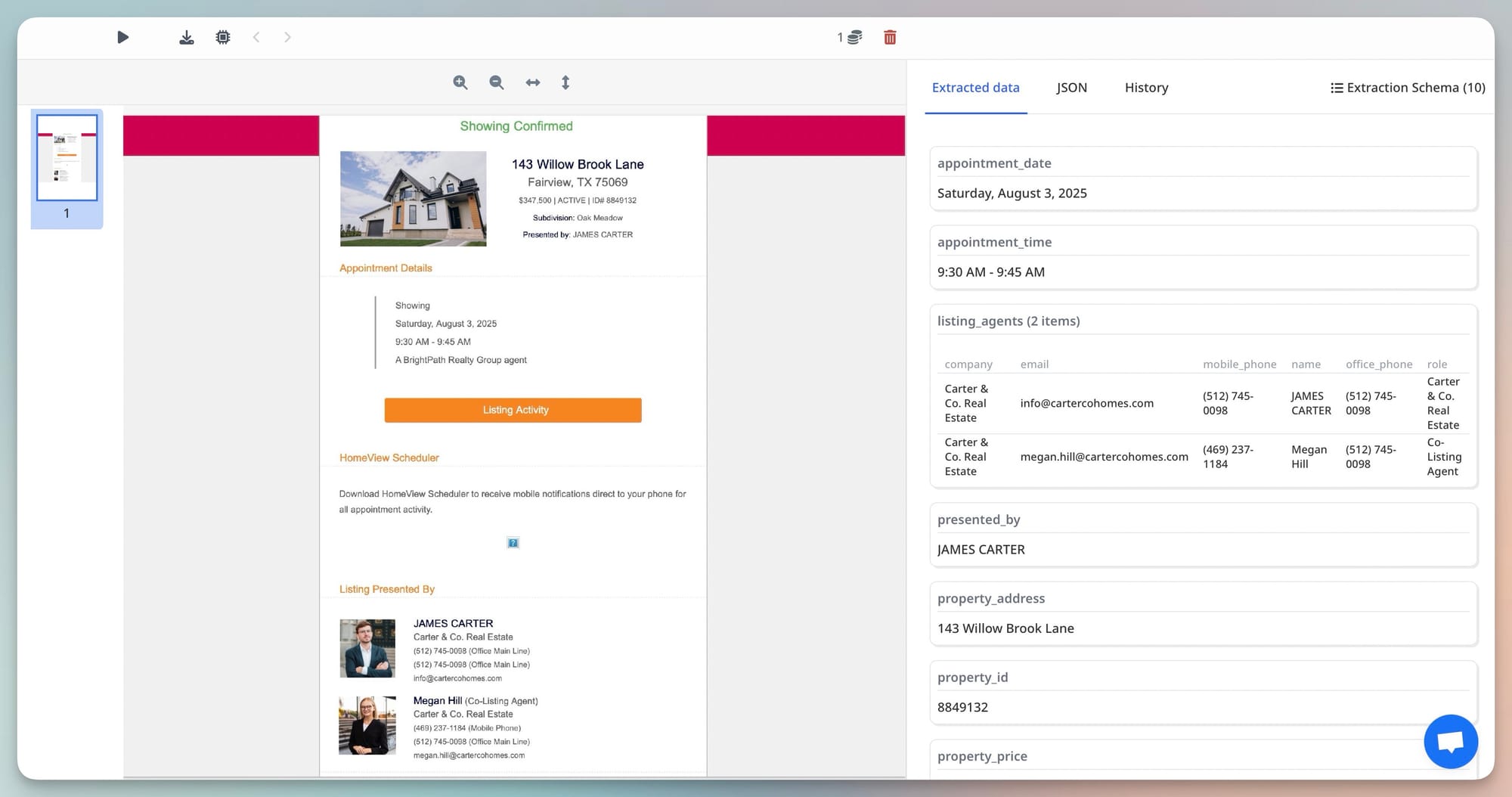
For showing emails
- property address
- showing date and time
- MLS ID
- listing agent name
- agent email and phone
- listing price
- brokerage
- showing status
For lease agreements
- tenant name
- landlord or management company
- property address
- monthly rent
- security deposit
- lease start date
- lease end date
- renewal terms
For purchase contracts
- buyer name
- seller name
- property address
- purchase price
- closing date
- earnest money
- contingencies
- agent or brokerage details
The key is to start with the fields your team actually uses in follow-up workflows, not every field on the page.
Which approach works best?
Manual review
This works only at low volume and quickly becomes a bottleneck.
OCR only
OCR helps when documents are scanned or image-based, but OCR alone gives you text, not structured records.
Template-based parsing
This can work if every document follows the same format, but real estate documents often come from different systems, brokerages, or agents. Template maintenance becomes a hidden cost.
LLM-based document parsing
This is usually the most flexible option when you have multiple layouts, mixed document types, and both scanned and digital files. Instead of relying only on fixed positions, the model can interpret the document and extract the fields you define.
That is one reason Airparser fits real estate workflows well. Its real estate parser page specifically highlights showing emails, lease agreements, purchase contracts, disclosures, and application forms as supported document types.
How to extract data from real estate documents with Airparser
Step 1: Start with one document family
The easiest way to fail is to throw every real estate document into one workflow on day one.
Start with one high-volume document family, such as:
- showing emails
- lease agreements
- rental applications
- purchase contracts
Once that flow is reliable, expand.
Step 2: Create a dedicated inbox
Create a separate inbox for the document family you want to parse. This gives you cleaner samples and a much more focused schema.
If the documents are digital and text-based, the Text engine may be enough. If they are scanned, image-heavy, or visually complex, start with the Vision engine.
Step 3: Upload representative samples
Upload real examples from the workflows you actually handle. If possible, include several document variations. Different brokerages and document systems often structure the same information in different ways.
Step 4: Define the extraction schema
List the fields you want Airparser to extract. Keep the first schema simple and focused on the information your team actually needs downstream.
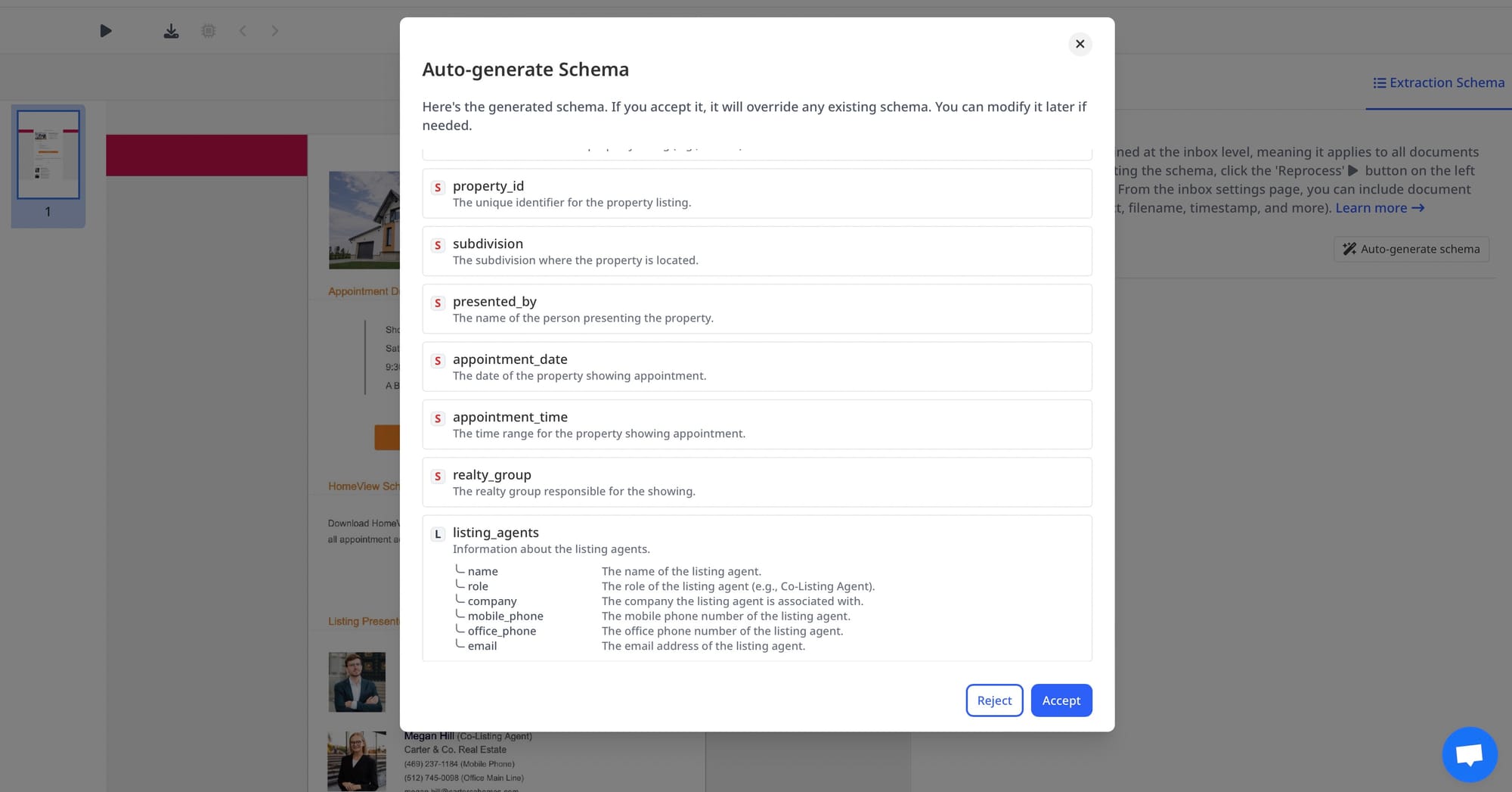
If you want a broader primer on schema design, Airparser has a useful article on creating extraction schemas without prompt engineering.
Step 5: Validate the extracted output
Check whether the extracted data is accurate enough for real use:
- Are names and addresses captured correctly?
- Are dates in a usable format?
- Are buyer, seller, tenant, landlord, and agent roles separated correctly?
- Are prices and financial terms extracted as clean values?
- Are multi-line legal clauses being ignored when they are not relevant?
This is where you turn a promising setup into a practical workflow.
Step 6: Export the data to the right destination
Once the output is reliable, send it where your team works.
Common destinations include:
- Google Sheets or Excel for internal tracking
- CRMs such as HubSpot or Salesforce
- Airtable or Notion for lightweight operations workflows
- webhooks and APIs for custom systems
- automation tools such as Zapier or Make
If your use case is specifically showing emails, Airparser already has a detailed article on parsing real estate showing emails and exporting them to Google Sheets or CRM.
What is the best first real estate workflow to automate?
For many teams, the best starting point is showing emails.
Why?
- they arrive frequently
- the fields are repetitive
- the business value is immediate
- the destination system is usually obvious
After that, a good next layer is lease agreements or purchase contracts, depending on whether your team is more focused on leasing, brokerage, or property operations.
Best practices for better results
Separate document families
Showing emails and lease contracts should not share the same schema. Keep document families separate when the fields and structure are different.
Start narrow
It is better to automate one high-volume workflow well than to create a giant parser that performs poorly across everything.
Focus on operational value
Extract the fields that trigger action. If a field does not drive follow-up, reporting, or routing, it may not need to be in the first version of the schema.
Expect mixed quality inputs
Some real estate documents are clean PDFs. Others are scans, forwarded emails, or mobile-generated attachments. Test against real samples, not just ideal examples.
Design around where the data goes next
The output format matters. If your CRM needs split address fields, design the schema that way. If your operations sheet expects one row per showing, optimize for that structure from the start.
When OCR is not enough
OCR is helpful when the document is scanned or image-based, but OCR alone does not solve the real estate automation problem.
The real goal is not to make the text readable. It is to turn real estate documents into usable records, with the right people, dates, properties, and financial values in the right fields.
That is why real estate automation usually works best with structured extraction rather than OCR alone.
Final thoughts
Real estate document automation works best when you treat it as a workflow problem, not just a text extraction problem.
A practical rollout usually looks like this:
- choose one high-volume document family
- create a dedicated parser inbox
- define the fields your team actually needs
- test against multiple real examples
- export the results into your CRM, spreadsheet, or automation flow
That gives your team something much more useful than raw document text. It gives you structured real estate data that can actually move through your operations.
If you want to start with showing emails, lease agreements, purchase contracts, or other property documents, Airparser’s real estate parser is a strong place to begin.