Why Your PDF Is Not Searchable (And How to Fix It)
Many PDFs are not searchable because they contain scanned images instead of text. Learn why this happens and how to fix it using OCR.

Many people open a PDF and try to search for a word using Ctrl + F. But nothing happens. The search returns no results, and the text cannot be copied or highlighted.
This usually means the PDF is not searchable.
Even though the document looks like it contains text, the content inside the file may actually be an image of text, not real text characters.
This often happens when documents are scanned using a scanner, photocopier, or phone camera. The scanner captures a picture of the page instead of the text itself.
The good news is that this problem is easy to fix using OCR (Optical Character Recognition).
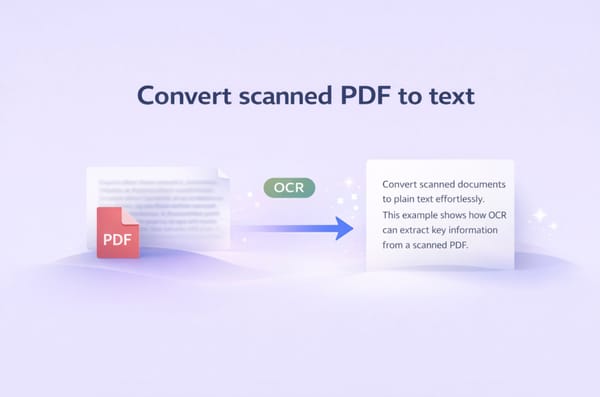
OCR technology detects text inside images and converts it into digital text that can be searched, copied, and processed by software.
You can convert your document using this free OCR tool:
https://ocr.airparser.com/searchable-pdf
In this guide, you’ll learn why some PDFs are not searchable and how to fix them.
What does it mean when a PDF is not searchable?
A PDF is not searchable when it contains images instead of text characters.
This means the document may look like it contains text, but the computer cannot recognize the letters inside the file.
As a result, you cannot:
- search for words using Ctrl + F
- select text with your cursor
- copy and paste text
- extract information automatically
This usually happens because the PDF was created from a scanned document.
Here is a simple comparison.
| PDF type | Content |
|---|---|
| Scanned PDF | Image of text |
| Searchable PDF | Image + hidden text layer |
Searchable PDFs contain a hidden text layer that allows the computer to recognize the text inside the document. This text layer is typically created using OCR.
How to check if your PDF is searchable
If you are not sure whether your PDF is searchable, there are two quick tests you can try.
First, try selecting text with your cursor. Open the PDF and drag your cursor across a line of text. If the text becomes highlighted and can be copied, the document is searchable.
If nothing happens and the entire page behaves like an image, the PDF probably contains scanned content.
Another simple test is to use the search function.
Press Ctrl + F (or Command + F on Mac) and search for a word that appears in the document. If the search returns no results even though the word is clearly visible, the PDF likely contains images instead of text.
In both cases, the solution is to apply OCR.
The most common reasons a PDF is not searchable
There are several common reasons why a PDF might not contain searchable text.
The document was scanned
This is the most common reason.
When a document is scanned, the scanner captures an image of the page, not the text itself.
As a result, the PDF contains images instead of text characters.
Examples include:
- scanned contracts
- scanned invoices
- scanned receipts
- scanned forms
- archived paper documents
In these cases, OCR is required to detect the text inside the images.
The PDF was created from a photo
Many people use their phones to photograph documents. Some mobile scanning apps convert these photos into PDFs, but the file still contains images instead of real text.
Without OCR, the text inside these documents cannot be searched or copied.
The PDF was flattened
Sometimes PDFs are flattened during editing or printing.
Flattening can remove the original text layer and convert the document into an image-based file. When this happens, the text becomes non-searchable.
The PDF was exported as an image
Some software exports documents as image-based PDFs instead of text-based PDFs.
For example, screenshots or graphic exports may produce PDFs that contain only images. This also results in a non-searchable document.
How to make a PDF searchable
The easiest way to fix a non-searchable PDF is to use OCR technology.
OCR analyzes the document image and detects characters such as letters, numbers, and punctuation.
Once the characters are detected, the system converts them into digital text and adds a hidden text layer to the PDF.
The original appearance of the document remains the same, but the text inside the file becomes searchable.
You can convert your document using this free tool:
https://ocr.airparser.com/searchable-pdf
Step-by-step guide
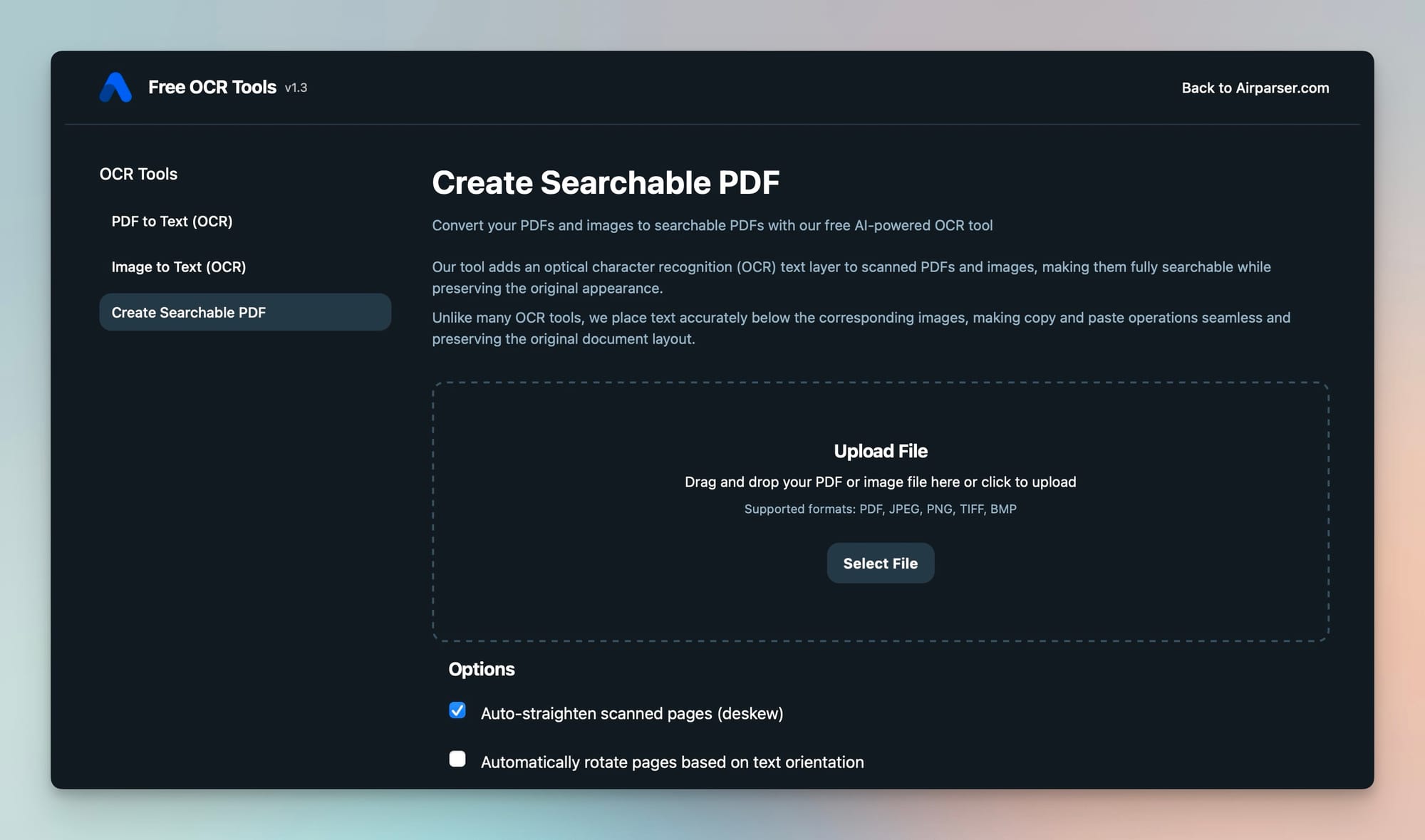
Step 1 — Upload your PDF
Open the OCR tool and upload your document.
The tool supports several file formats including:
- JPG
- PNG
- TIFF
- BMP
You can upload the file by dragging it into the upload area or selecting it from your device.
Step 2 — Run OCR
After the document is uploaded, the OCR engine begins analyzing the pages.
The system detects characters inside the document image and converts them into digital text.
The tool also includes features that improve OCR accuracy.
For example:
- Auto-straighten scanned pages (deskew) helps correct tilted scans
- Automatic page rotation detects page orientation and rotates pages if needed
These features help the OCR engine recognize text more accurately.
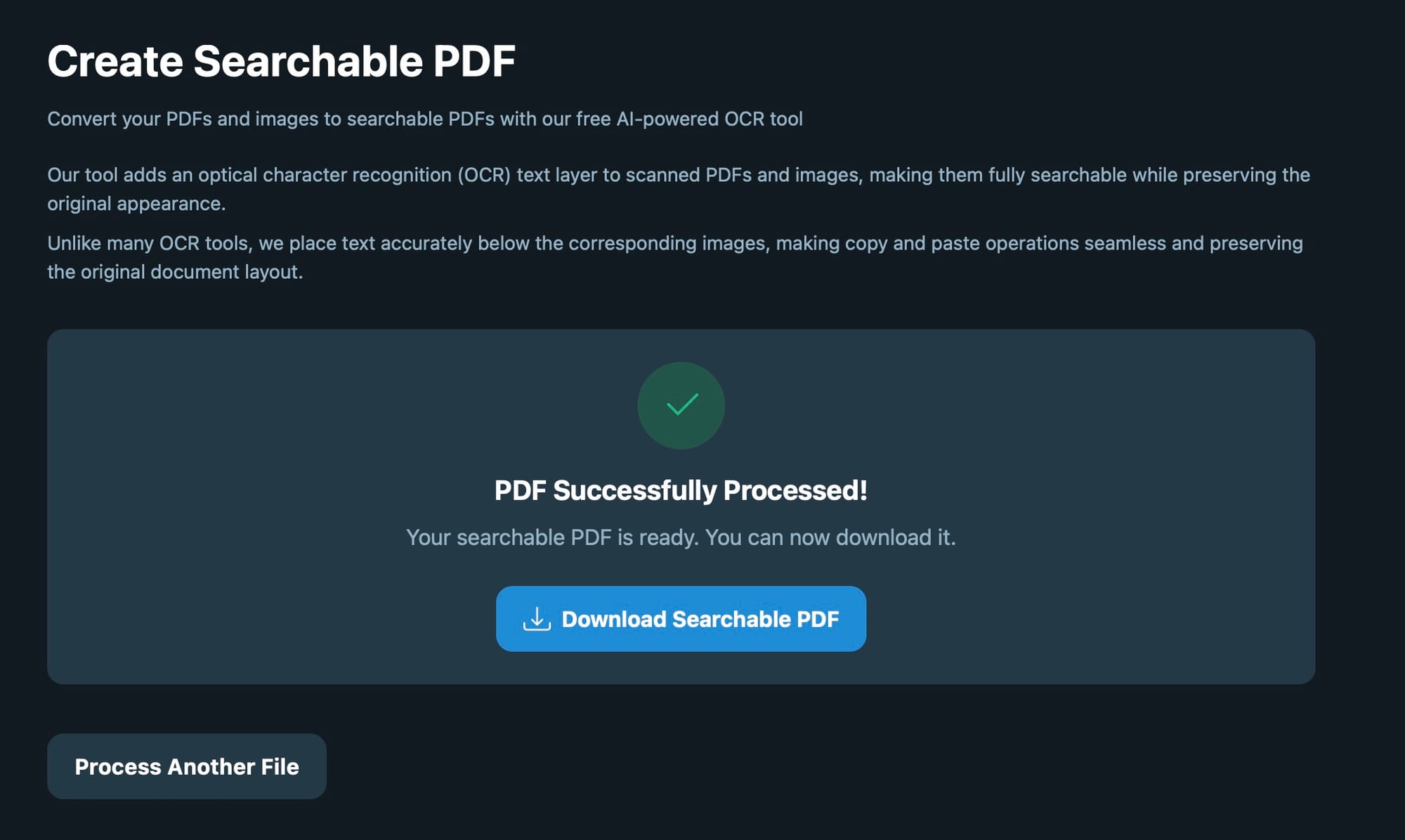
Step 3 — Download the searchable PDF
Once processing is complete, you can download the new document.
The resulting file contains:
- the original scanned page image
- a hidden text layer created by OCR
Now the document behaves like a normal text-based PDF.
You can:
- search text
- select text
- copy and paste text
- highlight content
Common OCR problems
OCR works very well in most situations, but document quality can affect accuracy.
Low-quality scans
Blurry or low-resolution images can make it harder for OCR software to recognize characters.
If possible, scan documents at 300 DPI or higher. Higher resolution usually produces better OCR results.
Crooked pages
If a page is slightly tilted, OCR engines may misinterpret some characters.
Deskew features automatically straighten scanned pages before OCR is applied.
Rotated pages
Sometimes documents are scanned sideways or upside down.
Automatic page rotation detects the orientation of the text and rotates the page correctly before processing.
When OCR is not enough
OCR makes documents searchable, but it does not organize or structure the information.
Many workflows require extracting specific data from documents.
For example:
- invoice numbers
- dates
- totals
- customer names
- email addresses
OCR makes the text readable, but it does not automatically extract these values.
For this type of task, a document parser is needed.
Extract data automatically with Airparser
If you need to extract structured data from PDFs, emails, or images automatically, you can use Airparser.
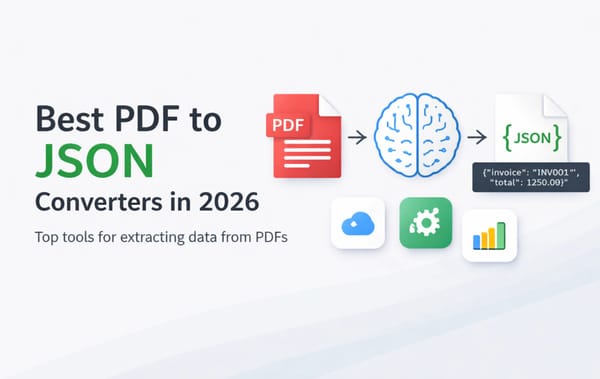
Airparser is an LLM-powered document parser that allows you to define the fields you want to extract.
For example:
- invoice number
- customer name
- total amount
- order ID
- email address
Once the fields are defined, Airparser automatically extracts the information from documents.
The extracted data can then be sent to tools such as:
- Google Sheets
- Excel
- APIs
- automation platforms
This helps automate document-heavy workflows without manual data entry.
Conclusion
Many PDFs are not searchable because they contain images instead of real text.
This usually happens when documents are scanned or created from photos.
OCR technology solves this problem by detecting characters in the image and converting them into digital text.
Once OCR is applied, the document becomes searchable and the text can be copied or extracted.
You can convert your document using this free tool:
https://ocr.airparser.com/searchable-pdf
If you later need to extract structured data from documents automatically, tools like Airparser can help automate the entire workflow.