How to Extract Invoice Line Items from PDFs Automatically
Learn how to extract invoice line items from PDFs automatically, handle tables and multi-line rows, and export clean data to Excel, Sheets, or JSON.

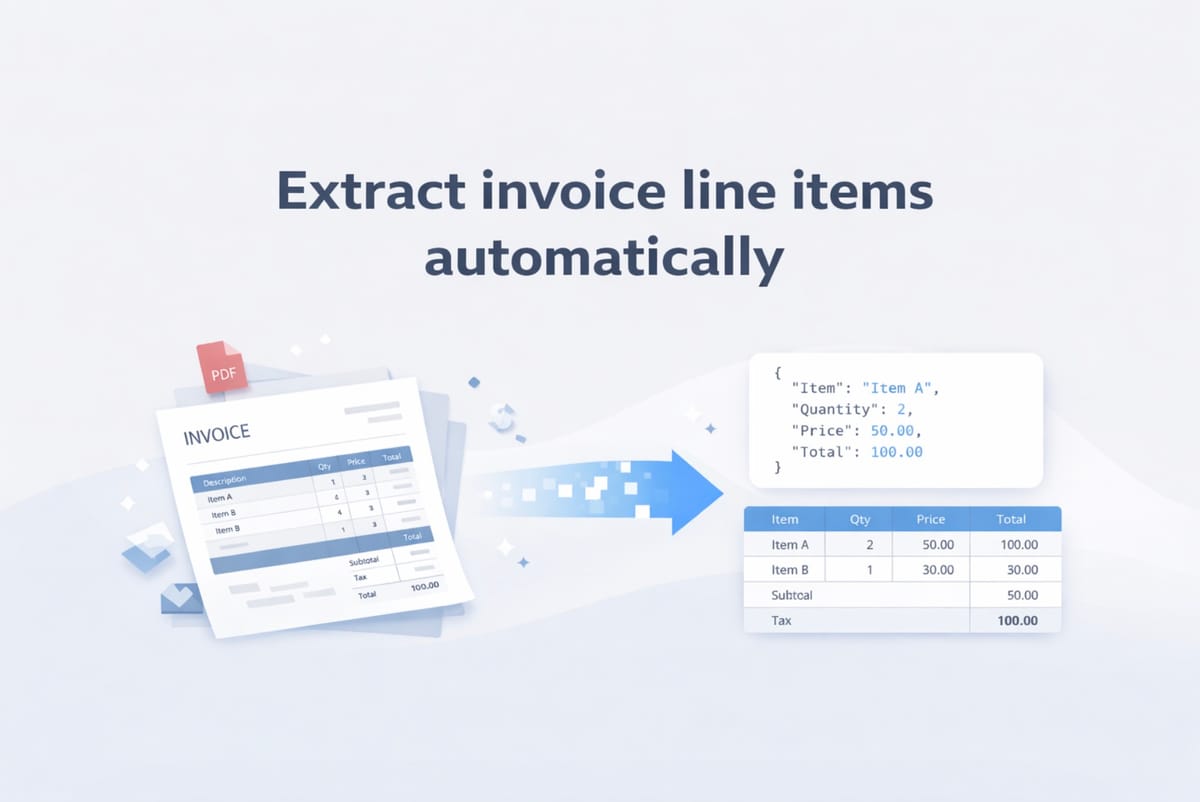
Extracting the invoice number, date, or total from a PDF is usually straightforward. Extracting line items is where most workflows break.
That is because line items are not just text. They are structured rows with relationships between columns such as description, quantity, unit price, tax, and line total. If the parser loses that structure, you do not get usable data. You get a mess of numbers and text that still needs manual cleanup.
In this guide, we will look at why invoice line item extraction is difficult, what approaches work in practice, and how to set up an Airparser workflow that turns PDF invoices into structured rows you can send to Excel, Google Sheets, JSON, or webhooks.
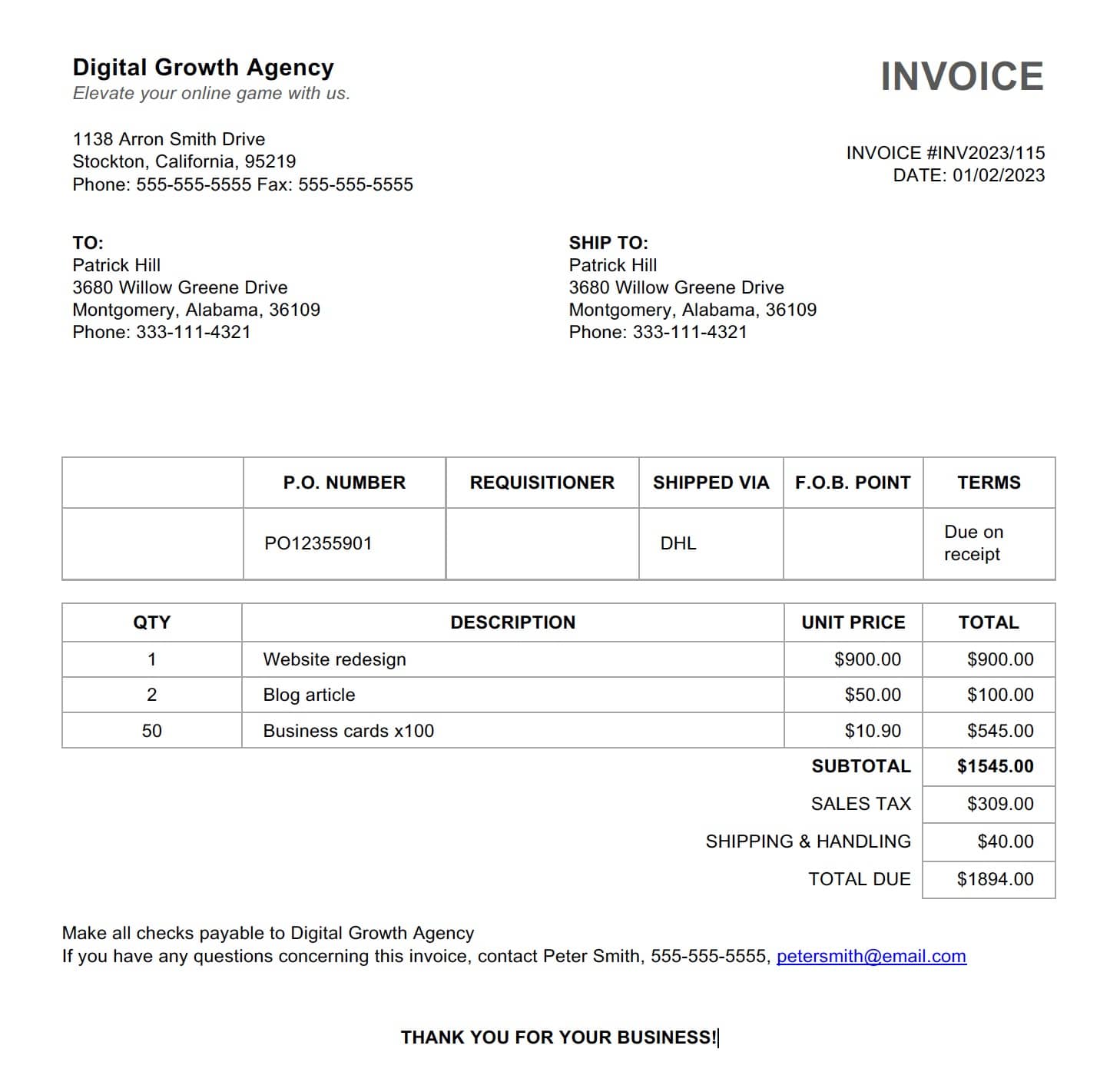
What are invoice line items?
Invoice line items are the repeated rows inside an invoice table. Depending on the vendor, each row may include:
- product or service description
- SKU or item code
- quantity
- unit price
- tax rate or tax amount
- discount
- line total
Unlike top-level invoice fields, line items often span multiple rows, contain wrapped text, or appear in tables with inconsistent spacing. That is why many invoice automation projects work fine for totals but fail when the accounting team needs item-level detail.
Why line item extraction from PDFs is hard
There are four common reasons:
1. Table structure gets lost
Traditional OCR converts a PDF into text, but it often strips away row and column boundaries. Once that happens, it becomes difficult to tell which quantity belongs to which description.
2. Vendors format invoices differently
One vendor uses a clean table. Another uses no borders at all. Another wraps descriptions across two lines. Another puts taxes in separate rows. A brittle rule-based setup can break as soon as the layout changes.
3. Scanned invoices add another layer of complexity
Scanned PDFs may have skewed pages, low contrast, or compression artifacts. Even if OCR reads the text correctly, layout damage can still make row-level extraction unreliable.
4. Nested data is harder than flat data
A total amount is a single field. Line items are a repeating list. Your extraction workflow needs to preserve that repeating structure from the start.
Which approaches actually work?
Manual copy-paste
This works for very small volumes, but it does not scale and introduces data-entry errors.
Traditional OCR
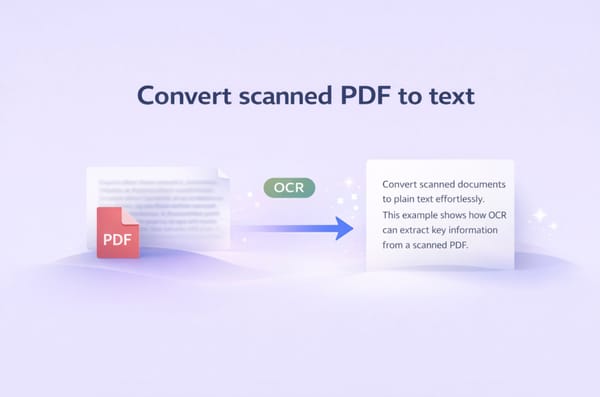
OCR is useful when invoices are scanned, but OCR by itself is not enough for reliable line item extraction. OCR turns pixels into text. It does not reliably understand table relationships.
Template or zonal parsing
This can work well when every invoice follows the same format. The downside is maintenance. If suppliers use different layouts, or change them, your extraction rules need constant updates.
LLM-based document parsing
This is usually the most flexible option when you deal with multiple invoice templates, mixed layouts, scanned files, and repeating rows. Instead of depending on fixed coordinates, the model can interpret the document structure and extract line items as a list.
That is also why Airparser uses LLM-based extraction with both Text and Vision engines. For invoices with important visual structure, the Vision engine is often the better starting point because it preserves layout, tables, and formatting instead of relying only on OCR text.
How to extract invoice line items with Airparser
Step 1: Create an invoice inbox
Create a dedicated inbox for invoices. This keeps similar documents together and makes schema design much easier.
If your invoices are clean, machine-generated PDFs, you can test the Text engine. If they are scanned, image-based, or table-heavy, start with the Vision engine. Airparser notes that Vision is generally the better fit for complex layouts, while Text is better for simpler text-heavy documents and longer files. Airparser also recommends keeping PDFs under 10 pages for best results.
Step 2: Upload a few representative invoices
Do not train your workflow on just one perfect invoice. Upload several invoices with different suppliers, different line counts, and slightly different layouts. This gives you a much better chance of building a schema that holds up in production.
Step 3: Define a schema that includes repeating rows
This is the most important step. Your schema should separate top-level invoice fields from the line item list.
A practical invoice schema might look like this:
invoice_numberinvoice_datedue_datevendor_namecurrencysubtotaltax_amounttotal_amountline_items[]
Then each object inside line_items[] might contain:
descriptionquantityunit_priceline_totalskuif availabletaxif it appears per row
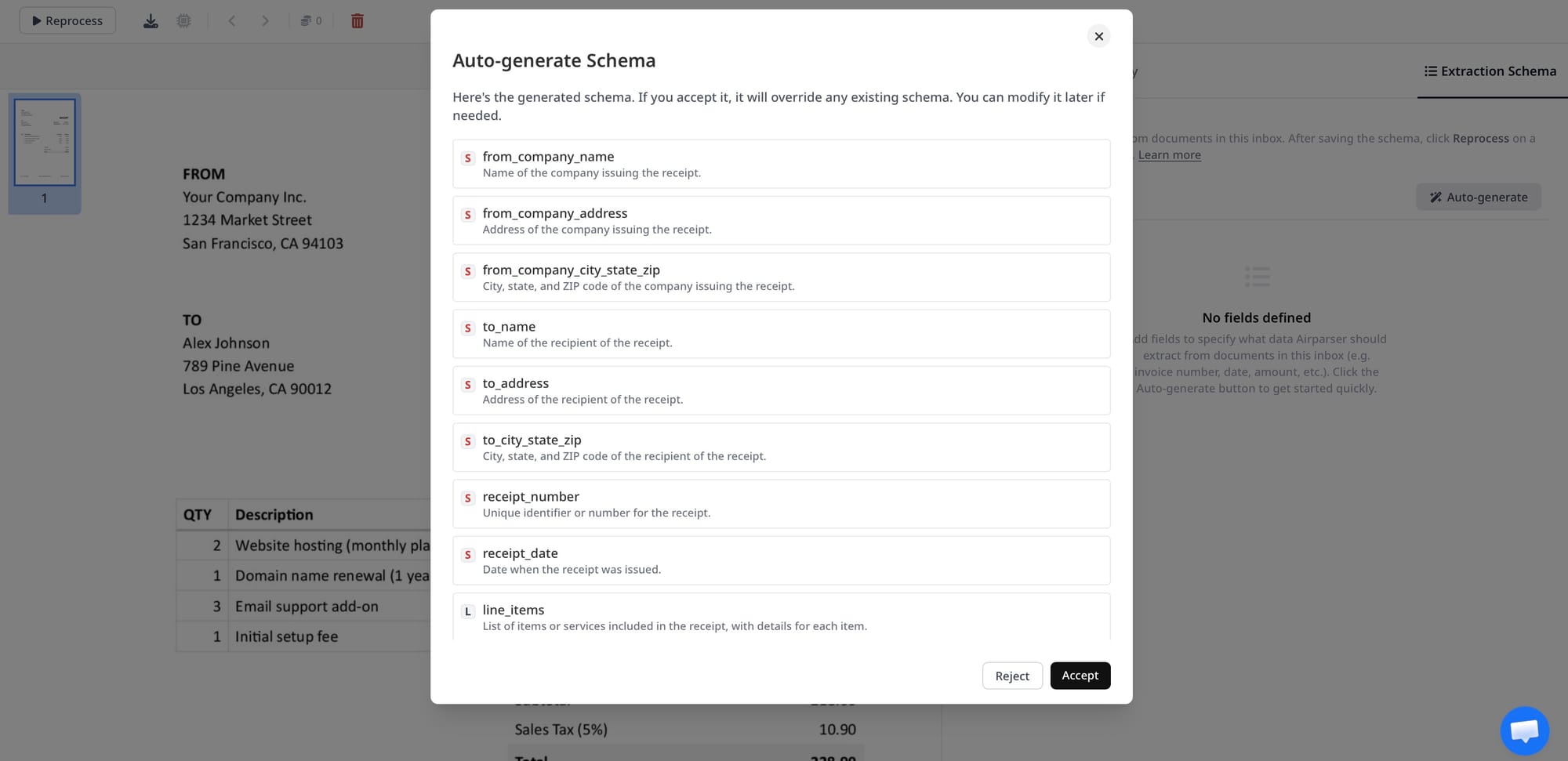
If you want a refresher on schema design, Airparser has a useful article on creating extraction schemas without prompt engineering.
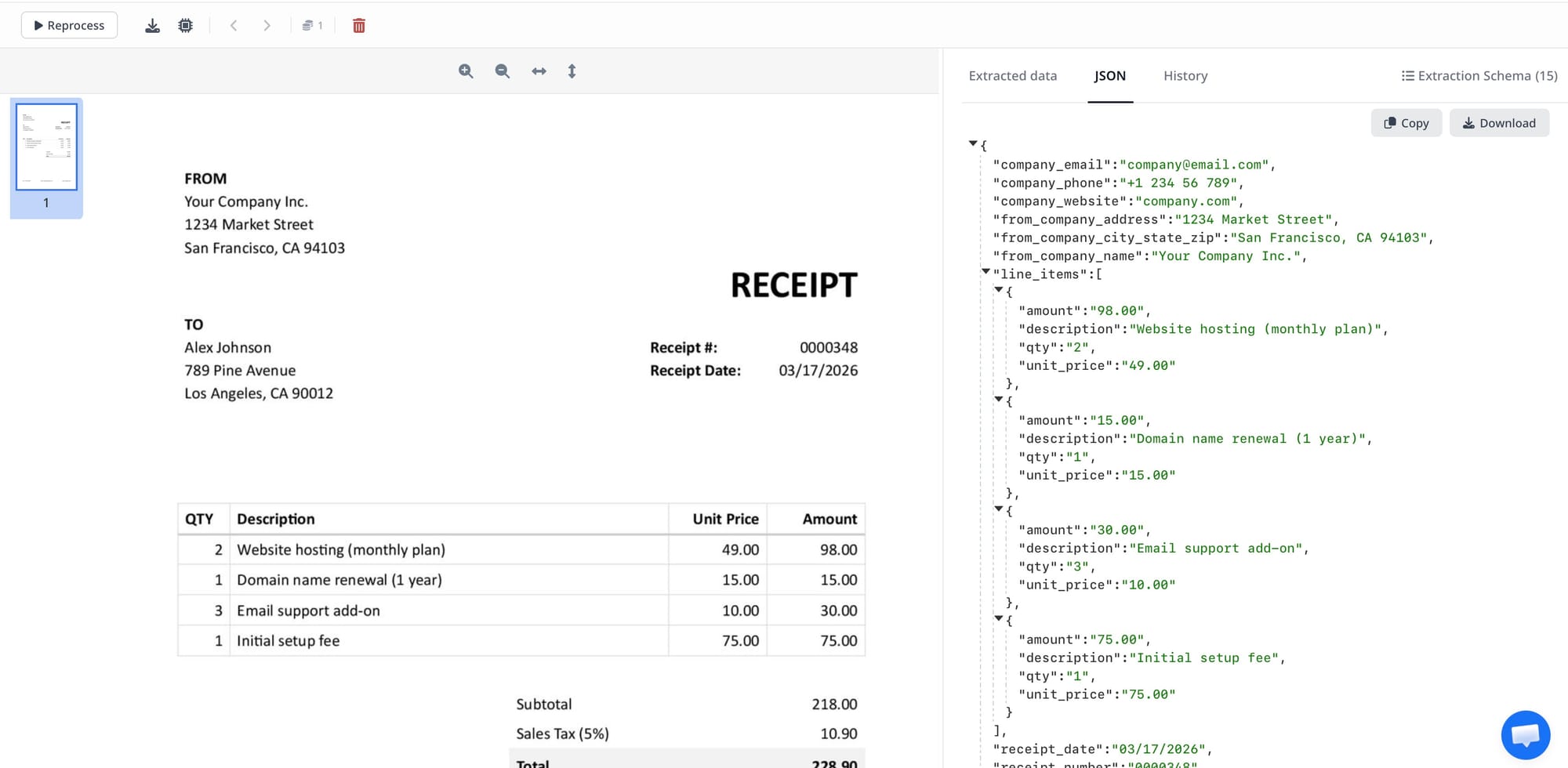
Step 4: Test the extracted rows, not just the totals
A common mistake is to validate only the invoice header fields. Instead, review the line items carefully:
- Are multi-line descriptions merged correctly?
- Are quantities matched to the correct row?
- Are taxes included at line level or invoice level?
- Are empty rows or subtotal rows being mistaken for items?
This is where most of the real work happens. If the output is almost right, update the schema and test again on several invoices, not just one.
Step 5: Export the result in the right format
Once the line items are extracted correctly, the next question is structure. Different destinations need different shapes:
- Excel or CSV: useful for review, audits, and finance operations
- Google Sheets: useful for shared workflows and reporting
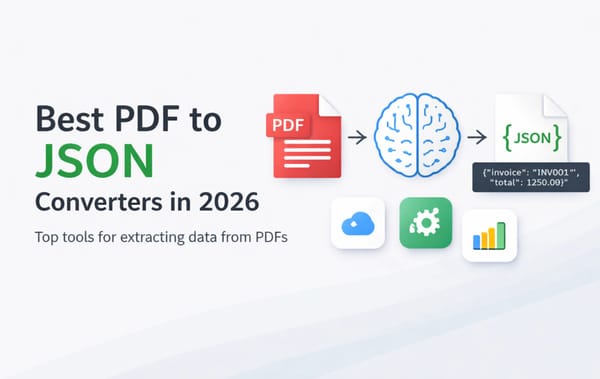
- JSON: useful for APIs and developer workflows
- Webhooks: useful when sending item-level data into ERP, accounting, or procurement systems
If you are sending invoice data to spreadsheets, Airparser already has a related guide on exporting PDFs to Google Sheets automatically.
Best practices for cleaner line item extraction
Use one inbox per invoice family when needed
If your vendors are extremely different, it can be smarter to create separate inboxes for separate invoice families instead of forcing one schema to handle everything.
Keep line item fields minimal at first
Start with the fields you truly need, such as description, quantity, unit price, and line total. Once that works consistently, add extra fields such as SKU, tax, or discount.
Watch out for subtotal and summary rows
Invoices often include rows for shipping, subtotal, VAT, or balance due. These can be mistakenly treated as products or services if you do not validate the output carefully.
Test scanned and digital invoices separately
Even when the document content is similar, scanned PDFs and digital PDFs behave differently. In practice, it is often worth testing both Text and Vision inboxes before standardizing on one workflow.
Think about downstream structure early
If your ERP or spreadsheet expects one row per invoice line, design the extraction around that destination. If your API expects nested JSON, design around that instead. Clean extraction starts with a clear output structure.
When should you use OCR, and when is OCR not enough?
OCR is necessary when the invoice is scanned or image-based. But OCR alone should be treated as a preprocessing step, not the final solution.
If your goal is line item extraction, the real challenge is not reading characters. It is preserving structure. That is why line-item workflows often perform better with layout-aware parsing and LLM-based extraction than with OCR-only tools. Airparser’s own invoice parser page highlights line items, vendor details, taxes, and payment terms as structured fields the model can extract across different invoice formats.
If you want a broader comparison of invoice processing methods, see AI vs. traditional OCR for invoice processing.
Final thoughts
If all you need is the invoice total, many tools can get you part of the way. But if you need invoice line items in a reliable structure, that is where document parsing gets more demanding.
The most reliable workflow is usually:
- group similar invoices in a dedicated inbox
- choose the right engine for the document type
- define a schema that treats line items as repeating rows
- test against multiple invoice layouts
- export the results into the format your team actually uses
That approach gives you something much more useful than raw text. It gives you structured invoice data you can actually automate.
If you want to test this on your own invoices, you can start with Airparser’s AI invoice parser and build a schema around the exact line item fields your workflow needs.