How to Automate Accounts Payable Data Entry from Supplier Invoices
Stop keying invoice data by hand. Learn how to extract vendor name, amounts, and line items from PDF and email invoices automatically and route them to your accounting tools.

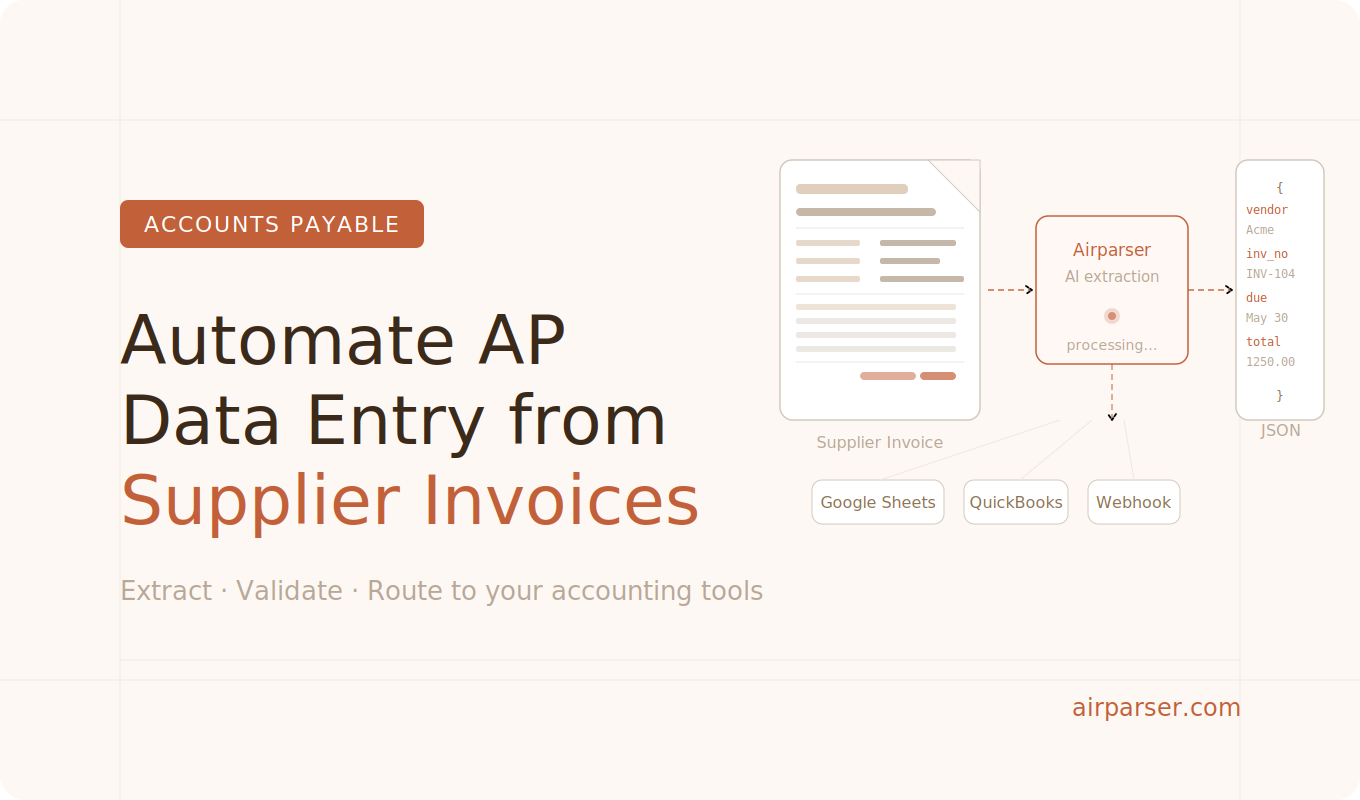
The fastest way to eliminate manual accounts payable data entry is to extract invoice fields automatically as invoices arrive — before anyone opens a spreadsheet or types a single number. With an AI document parser, you can pull vendor name, invoice number, due date, amounts, and line items from any supplier PDF or email attachment and push that structured data directly to your accounting software, Google Sheets, or ERP via webhook.
Most finance teams still key this data by hand. According to survey data from vic.ai, 37% of AP professionals rank manual data entry as their single biggest pain point — more than any other challenge. The cost of processing one invoice manually runs between $10 and $30 when you factor in labor, error correction, and rework. Across dozens of suppliers and hundreds of invoices a month, that compounds quickly.
The problem is not effort — it is tooling. Traditional OCR extracts text but does not understand document structure. Template-based parsers break the moment a supplier changes their invoice layout. AI-powered extraction handles both: it reads documents the way a human would, finding the right values regardless of where they appear on the page.
What data to extract from supplier invoices
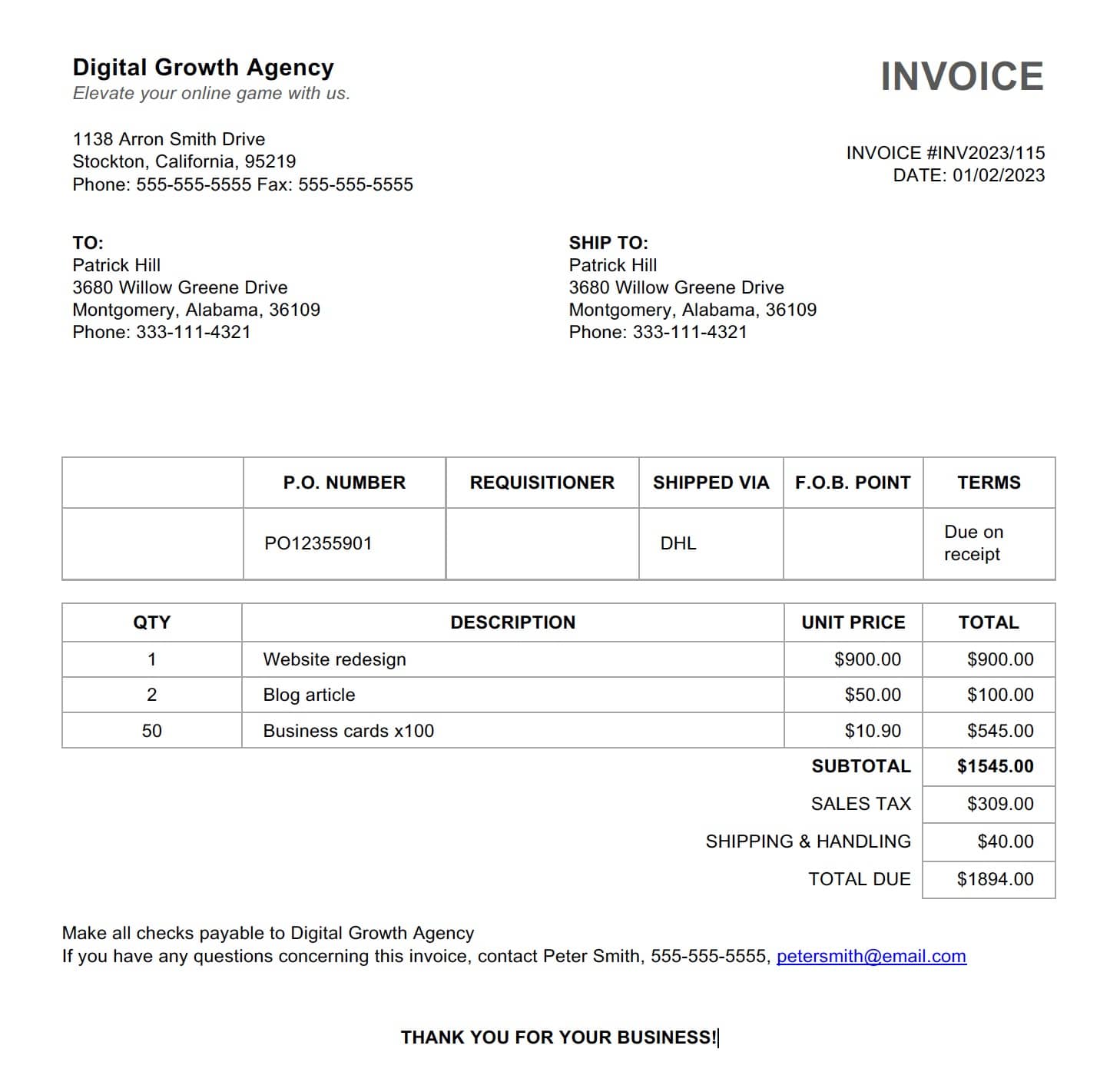
A well-defined extraction schema is the difference between useful automation and a raw text dump. Before setting up any workflow, decide exactly which fields your AP process needs downstream.
The most commonly extracted invoice fields are:
- Vendor name — who issued the invoice
- Invoice number — the unique identifier; critical for deduplication and duplicate payment prevention
- Invoice date — when the obligation began
- Due date — payment deadline; drives cash flow scheduling
- Total amount due — the final payable figure after tax and shipping
- Net amount and tax/VAT — needed for accounting entries and tax reporting
- Payment terms — Net 30, Net 60, and similar
- Line items — description, quantity, unit price, and line total per item or service
Not every AP workflow needs all of these. If you match invoices to purchase orders, add the PO number. If you track cost centers, add a category field. Define the schema around your actual downstream process, not around everything the invoice happens to contain.
Why manual AP data entry fails at scale
Manual invoice keying fails not because people are careless, but because the task is structurally error-prone. An AP clerk reading a PDF and typing values into accounting software is doing OCR in their head — and humans are not reliable OCR engines at volume.
The consequences compound:
- Duplicate payments — the same invoice keyed twice under slightly different vendor names
- Late payments — invoices buried in inboxes, waiting to be processed
- Approval bottlenecks — missing or incorrect fields stall the review queue
- Audit trail gaps — no reliable record of when a document was received or what was entered
Research consistently puts AP staff time spent on manual tasks at around 85%. That is time your finance team spends on data entry instead of exception handling, supplier relationships, and cash flow analysis — the work that actually requires judgment.
Why templates and OCR break on multi-vendor invoices
Template-based parsers work by defining fixed zones on a page — "the invoice number is always in the top-right corner." That assumption holds for one supplier and collapses for fifty. Each vendor has their own layout. Some put totals on the left. Some use tables for line items; others use plain text. One invoice arrives as a scanned image, the next as a native PDF, the next embedded in an email body.
Basic OCR compounds the problem by producing an undifferentiated block of text with no mapping between values and fields. You capture all the characters but still need a human to figure out which number is the total and which is the PO reference.
AI-powered extraction solves both problems. Instead of looking at fixed positions, it understands what a "due date" looks like regardless of where it appears. It reads tables correctly. It handles scanned documents through vision models. And it applies the same schema to invoices from a hundred different suppliers without a template for each one. For a deeper look at the tradeoffs, see comparing AI extraction methods: traditional OCR vs LLM parsing.
How to set up automated invoice data extraction with Airparser
Airparser handles the extraction layer of your AP workflow — turning incoming invoices into structured data without templates or prompt engineering.
Step 1: Create a dedicated inbox for supplier invoices
Each Airparser inbox gets its own email address. Forward incoming invoices there, or set up a forwarding rule in your finance mailbox so that any email with a PDF attachment goes to that address automatically. This works whether invoices arrive as inline PDFs, Word document attachments, or email body text.
If invoices also arrive via file upload — from a shared drive or supplier portal — you can upload them manually or automate intake through Zapier, Make, or the Airparser API. For more on handling attached documents, see how to automatically extract data from email attachments.
Step 2: Define your invoice extraction schema
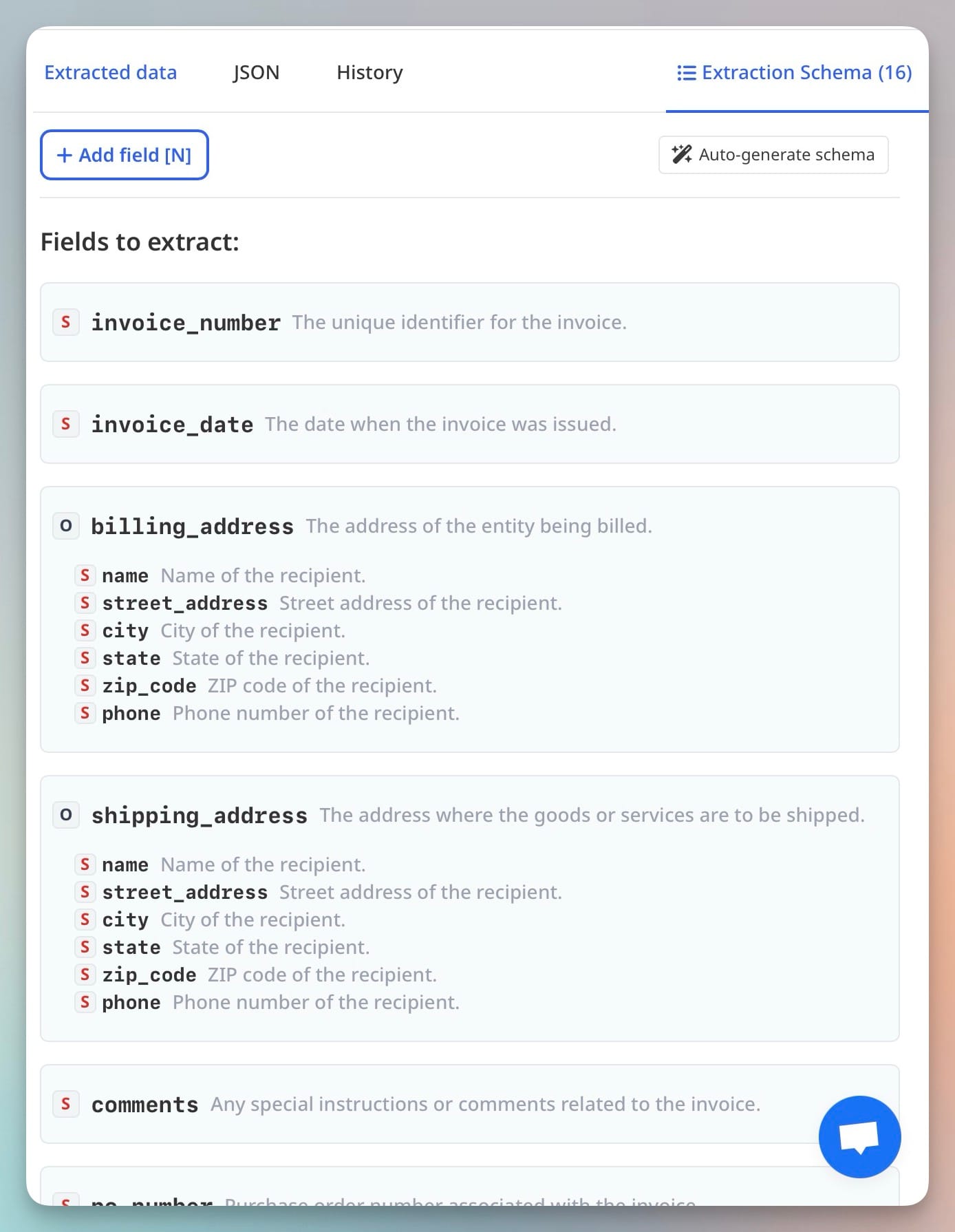
The schema is the list of fields you want Airparser to extract. You do not write prompts or mark page zones. You define fields like vendor_name, invoice_number, due_date, total_amount, and line_items, and Airparser extracts them from every document that comes in.
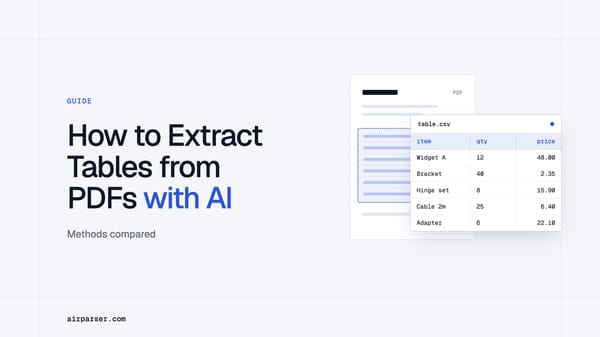
Airparser can suggest a schema automatically from a sample invoice you upload, or you can define fields manually. For AP workflows, the line_items field is particularly important: define it as an array and you get each line item as a separate row, ready to map to your accounting system's entry format.
Step 3: Test against invoices from different suppliers
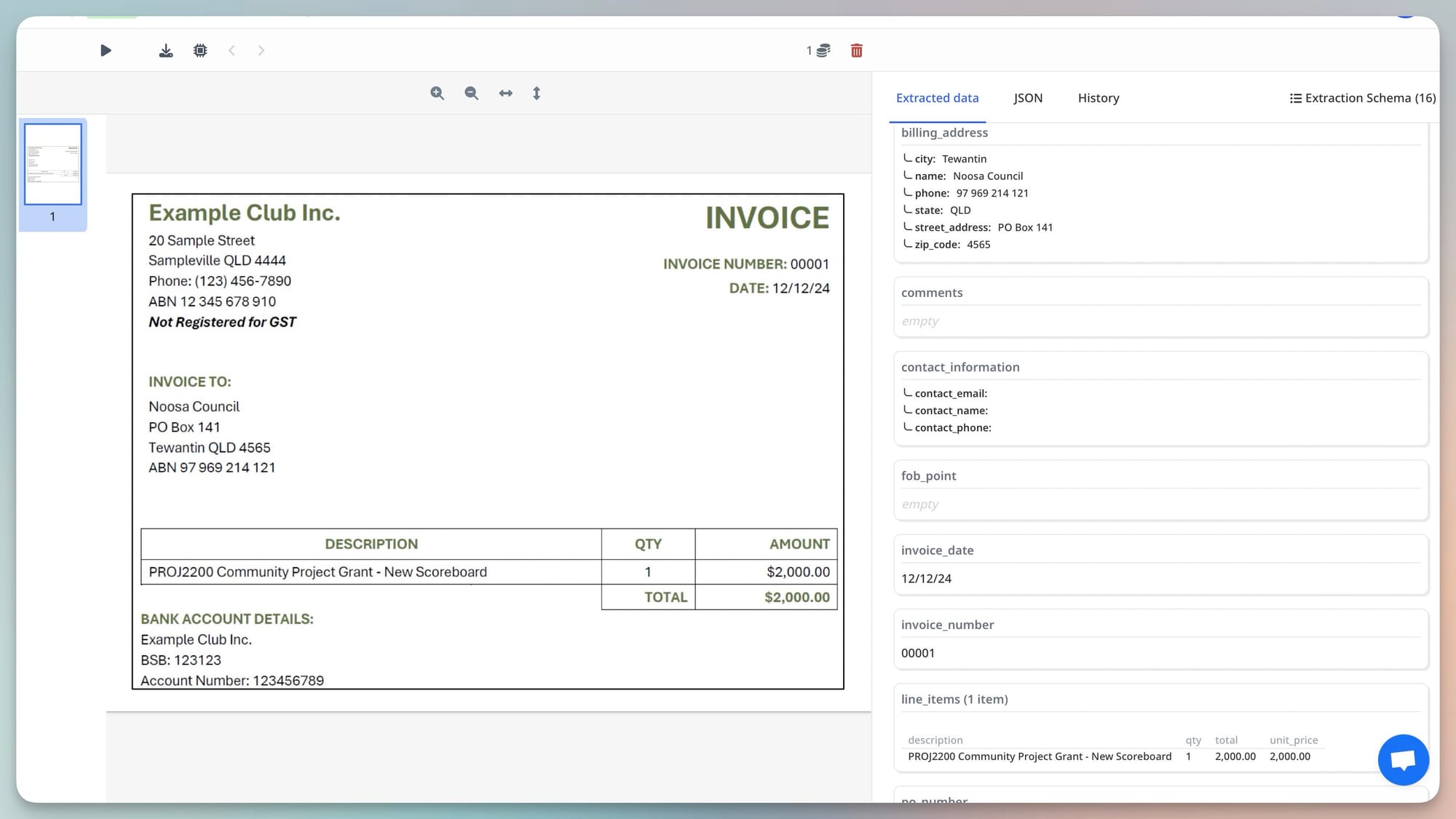
Upload a sample from each of your most common suppliers — especially ones with varied layouts. Check that the right values land in the right fields. Pay particular attention to:
- Due date vs invoice date — both should be captured separately
- Subtotal vs total — many invoices show multiple totals; the schema should point to the final payable figure
- Line item tables — verify each row comes out as a separate structured entry
If a field extracts inconsistently, add a short description to guide the AI — for example: "total amount after tax and shipping, the final payable figure."
Step 4: Review the extracted output
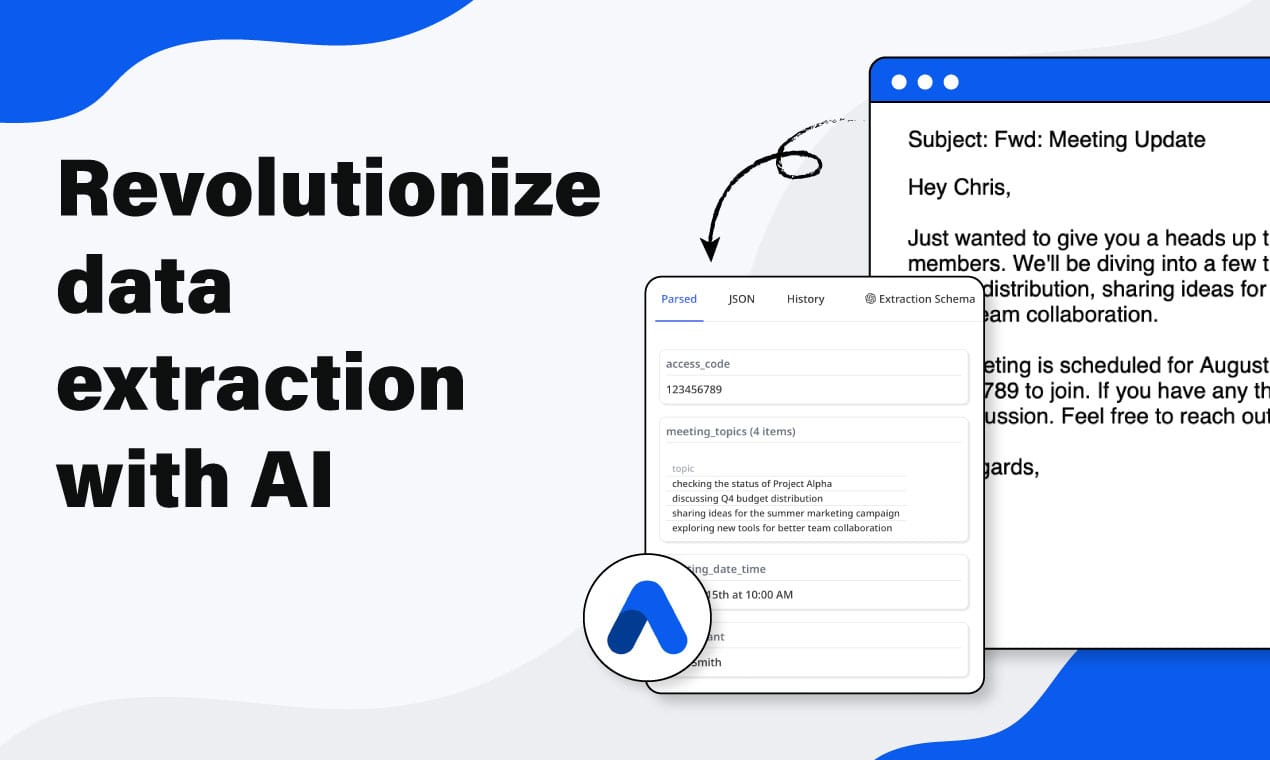
After processing, Airparser shows the extracted values alongside the source document. This makes it easy to spot exceptions — missing values, unusual formatting, or scanned images that needed vision processing.
How to route extracted invoice data to your accounting tools
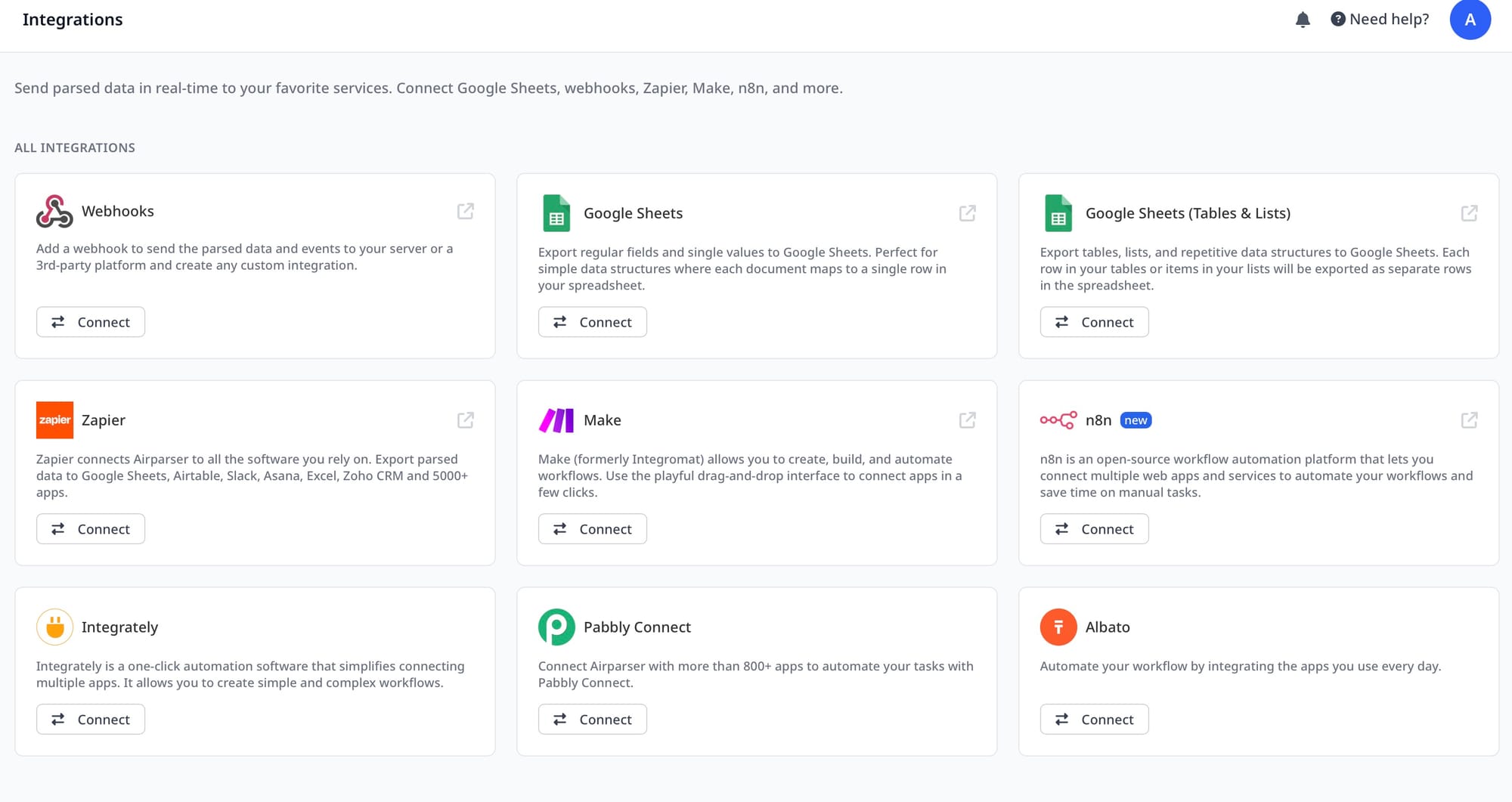
Once invoices are extracted, Airparser can push the structured data to wherever your AP process lives:
- Google Sheets — the fastest setup; each invoice becomes a row; works well for teams that review and approve in a spreadsheet before pushing to accounting software. See how to export PDFs to Google Sheets automatically.
- Webhooks — send extracted JSON to any endpoint; works with QuickBooks, Xero, FreshBooks, or any system that accepts incoming API data
- Zapier or Make — connect to thousands of accounting apps without code; common flows push new invoices to a draft bill in QuickBooks or create an entry in Xero
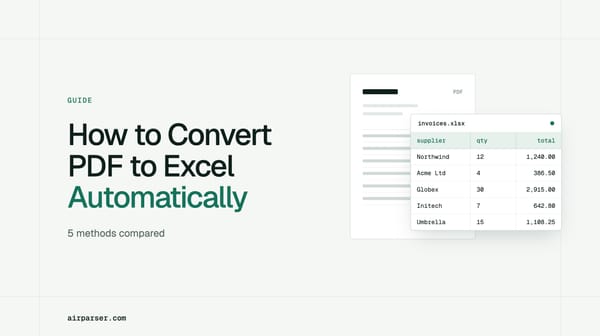
- CSV or Excel export — for batch import into legacy accounting systems
The key advantage of this approach is that you are inserting automation at the extraction step, not replacing your entire AP system. Your approval workflows, payment scheduling, and reconciliation processes stay as they are. The only change is that data arrives pre-filled instead of waiting to be typed.
Common mistakes when automating AP data entry
Using a shared general inbox instead of a dedicated one. When invoices arrive in a general finance address, they mix with other correspondence. A dedicated Airparser inbox — or a specific forwarding rule — keeps processing clean and auditable.
Defining too many fields at once. Start with the six to eight fields your accounting system actually needs. Adding optional fields like purchase order notes or payment references before validating the core extraction creates noise and slows review.
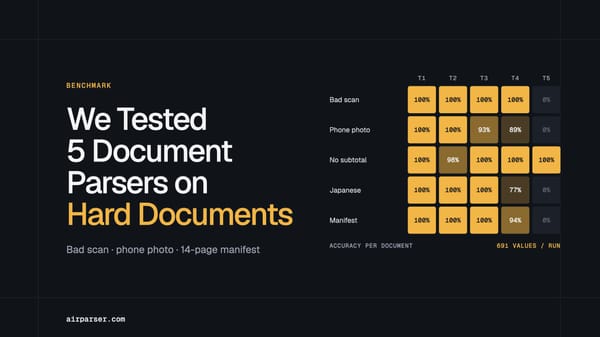
Skipping the vision engine for scanned invoices. Airparser offers both text and vision engines. If any suppliers send scanned PDFs or photographed invoices, use the vision engine. Running a scanned image through the text engine produces empty or unreliable output.
Not extracting line items as arrays. If you extract line items as a single text field, you lose the per-row structure needed for proper accounting entries. Define line items as an array field from the start — restructuring it later, once data is already flowing into your system, is difficult.
Treating extraction as the complete solution. Extraction removes the data entry burden; it does not replace invoice matching, approval routing, or payment scheduling. The right setup for most teams is extraction into a review layer — a spreadsheet or lightweight approval tool — before anything is posted to the accounting system.
FAQ
Can Airparser handle invoices from suppliers who use different formats and layouts?
Yes. Airparser uses AI extraction rather than fixed templates, so it adapts to each supplier's layout automatically. You define the schema once; the AI finds those fields wherever they appear across every incoming document.
What about scanned or photographed invoices?
Scanned invoices are handled by Airparser's vision engine, which uses visual understanding rather than text parsing. When creating your inbox, choose the vision engine for any inbox that will receive scanned documents or image-based PDFs.
Can it extract individual line items, not just the invoice total?
Yes. Line items can be extracted as a structured array — each row includes description, quantity, unit price, and line total. This maps directly to multi-line accounting entries without any reformatting.
How do I get extracted data into QuickBooks or Xero?
The most common no-code path is via Zapier or Make: when a new invoice is parsed in Airparser, a Zap or scenario creates a bill or draft entry in QuickBooks or Xero. You can also use webhooks if your accounting system accepts incoming API calls directly.
Does this automate invoice approval as well?
Airparser handles extraction and routing, not approval workflows. Once structured data reaches your accounting system or review spreadsheet, your existing approval process takes over. For teams with a straightforward setup, a Google Sheets review step between extraction and accounting entry works well.
Is this practical for lower invoice volumes?
Yes. The value shows up even at low volumes because the time saved per invoice is consistent regardless of how many you process. Teams handling 20–30 invoices a month find the setup worthwhile once they factor in error correction and the time spent tracking down missing or incorrect fields.
If you want to try the workflow, set up a free Airparser inbox and run a few of your supplier invoices through it to see what the extracted output looks like before committing to a full integration.