How to Extract Data from Shipping Labels Automatically
Learn how to automatically extract tracking numbers, addresses, and carrier data from any shipping label using AI vision parsing — no templates, no manual data entry, works across FedEx, UPS, DHL, and USPS.

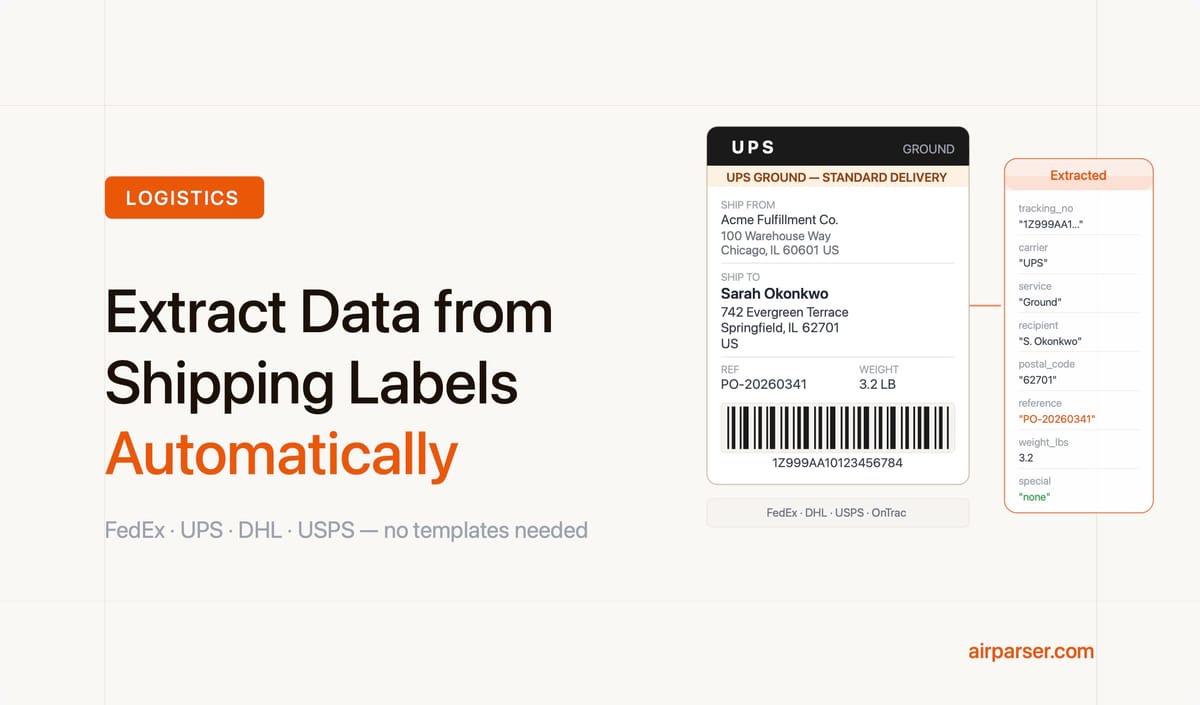
You can extract structured data from any shipping label automatically using an AI vision parser — no templates, no per-carrier configuration. Upload or forward a label from FedEx, UPS, DHL, USPS, or any regional carrier, define which fields you want, and the parser returns clean structured data within seconds. The workflow replaces manual transcription entirely.
Most logistics teams still handle shipping label data by hand. Someone reads the label, types the tracking number into a spreadsheet, pastes the recipient address into a form, and checks for typos. For a warehouse processing dozens of shipments a day, this is tedious. For one processing hundreds or thousands, it is a bottleneck that drives errors, delays, and wasted labor hours every single shift.
A fulfillment center handling 500 outbound shipments daily spends roughly 30 seconds per label on manual transcription — more than four hours of labor per day before accounting for error correction. Automating that extraction does not require custom engineering. It requires a document parser that handles variable formats, which is what vision AI makes possible.
This guide explains what information lives on a shipping label, why traditional OCR falls short, how vision AI handles the format variation, and how to set up an end-to-end automated extraction workflow from scratch.
What Information Lives on a Shipping Label
Before setting up automation, it helps to be precise about what you are actually extracting. A standard carrier shipping label contains a fixed set of structured fields. The challenge is that each carrier presents them differently.
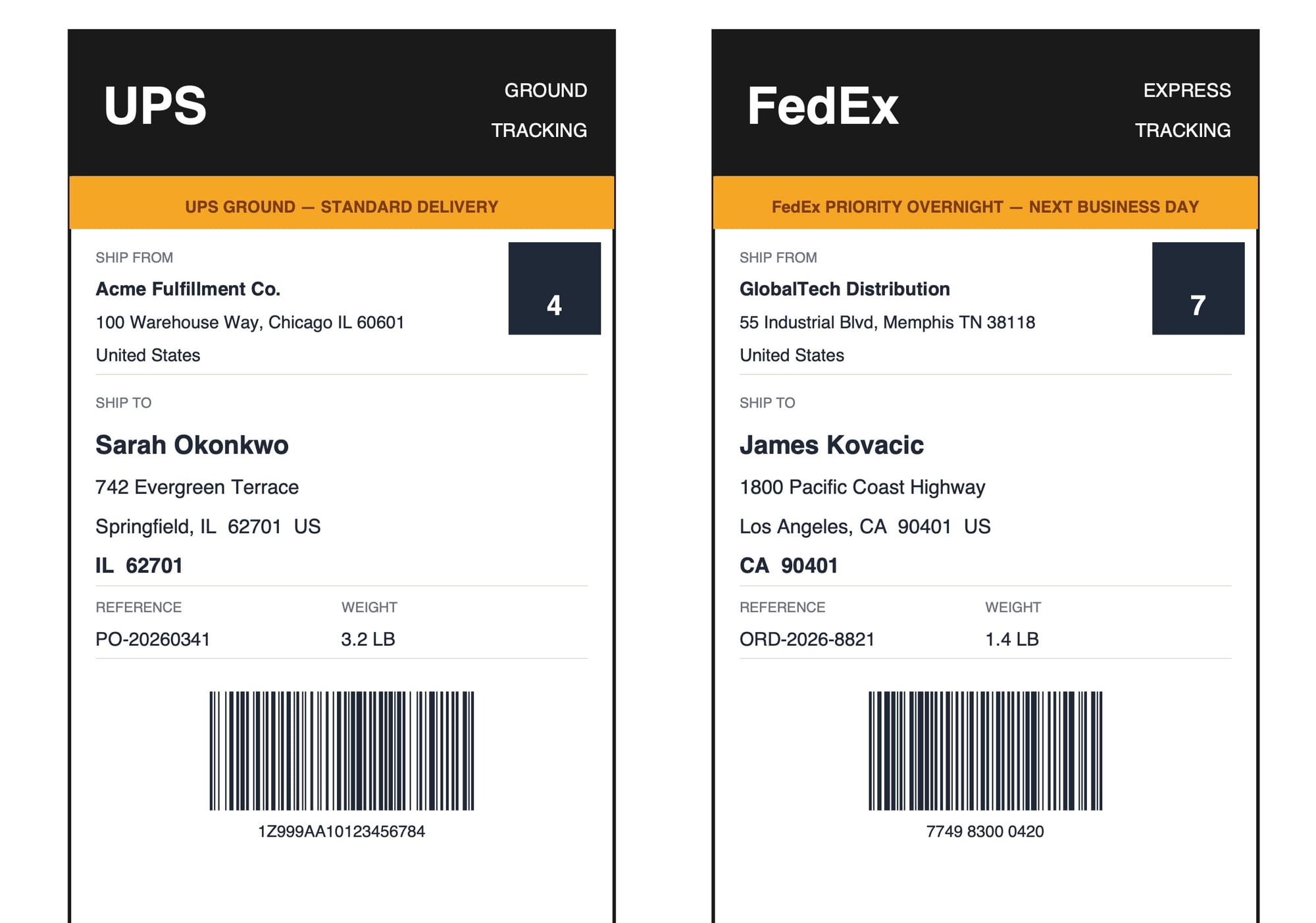
Core fields on most shipping labels:
- Tracking number — the primary shipment identifier, also encoded in a barcode (Code 128 for domestic, GS1-128 for international) or 2D barcode (QR code, Data Matrix)
- Recipient name and address — including city, state or province, postal code, and country for cross-border shipments
- Sender name and return address — labeled "From," "Ship From," or "Return To" depending on the carrier
- Service level — Priority Overnight, Ground, 2-Day, Economy, Express, or carrier-specific tier names
- Weight and dimensions — listed as actual weight and, for oversized packages, dimensional weight
- Reference numbers — your PO number, order number, or internal reference that links the shipment to your system
- Special instructions — signature required, adult signature, fragile, this-side-up, or hazmat codes
- Routing code or zone — carrier-specific routing identifiers used for internal sorting; these appear as barcodes or printed codes and vary by carrier
For international shipments, labels also carry a customs description, declared value, HS code, and country of origin — the same fields that appear on commercial invoices. Extracting those fields as part of the label parsing workflow eliminates a second round of manual data entry downstream.
The information is all there. The problem is that a FedEx Ground label looks nothing like a UPS label, which looks nothing like a DHL Express label, which looks nothing like a USPS Priority Mail label. Each carrier uses different fonts, field positions, zone sizes, and barcode placements. Rule-based OCR tools — which map fixed screen coordinates to field names — break the moment the template changes.
Why Shipping Label Data Entry Is Still Largely Manual
Despite the automation tools available in 2026, most operations teams handle shipping label data by hand for one of three reasons.
Template-based parsers require per-carrier configuration. Traditional parsing tools need a separate layout template for each carrier and each label format version. When UPS or FedEx updates its label design — which happens periodically — the template breaks and someone has to rebuild it. Teams that work with multiple carriers quickly accumulate a brittle library of fragile templates that need constant maintenance.
Volume often does not justify a custom integration. Building a WMS or TMS integration with barcode scanning hardware takes engineering time and upfront cost. Many small and mid-size fulfillment teams never reach the implementation stage.
Awareness of general-purpose AI parsers is low in logistics. Most document parsing tools are marketed for invoices, resumes, and contracts. Logistics teams looking for a shipping label solution often do not realize that a general-purpose AI parser handles their document type just as well.
The practical result is that scanning a label and typing data into a spreadsheet or WMS form remains the default in a surprising number of warehouses, third-party logistics providers, and ecommerce fulfillment teams — even for operations that have automated nearly everything else in their stack.
Why Traditional OCR Falls Short on Shipping Labels
Standard OCR — technology that converts scanned text into machine-readable characters — works well for documents with consistent structure. Bank statements, standardized forms, and printed certificates tend to have predictable layouts, which is why zonal OCR and template parsers perform reliably on them.
Shipping labels are the opposite of consistent. The same information appears in different positions, different fonts, and different visual weight depending on the carrier, service level, destination zone, and even the label printer model. OCR extracts characters but does not understand which field a given string belongs to — it produces raw text, not structured data.
Three specific factors make shipping labels hard for traditional OCR:
- Layout variability across carriers. The tracking number sits in the upper-center zone on a FedEx Ground label but at the bottom-right on a USPS Priority Mail label. There is no single coordinate rule that works across carriers.
- Barcode interference. Large Code 128 and GS1-128 barcodes occupy significant label space and create visual noise for layout-based parsers. Some tools misread barcode edges as text characters or skip adjacent fields because of conflicting alignment signals.
- Thermal print quality variation. Thermal label printers produce images with uneven density near the edges, especially on older hardware or with worn print heads. Edge fade and partial barcode smearing degrade character recognition accuracy precisely at the areas where tracking numbers and postal codes are often printed.
AI vision parsing handles all three factors because it reads the label the way a human reader does: understanding context rather than matching coordinates. A vision model recognizes that the string beginning with "1Z" on a UPS label is a tracking number because it understands UPS tracking number formats — not because a developer hard-coded that position into a template. The same model reads a FedEx label using FedEx-specific knowledge, without any configuration change required between labels.
How Airparser's Vision Engine Handles Shipping Labels
Airparser's Vision Engine processes documents as images rather than extracting plain text first. The model reads the full label visually — including positional context, font weight, surrounding whitespace, and barcode regions — and maps what it sees to the fields you have defined in your schema.
In practice, this means:
- A FedEx Ground label and a DHL Express label both produce the same structured output with no configuration change between them
- Labels that arrive as photographs taken with a phone in a warehouse are handled the same as clean PDF scans from carrier software
- Carrier-specific layout quirks — such as UPS embedding the reference PO in the lower-left corner zone, or DHL Express using "SHP" and "CNE" abbreviations for shipper and consignee — are handled automatically once the schema has seen a sample or two
- Multi-carrier operations run through a single inbox and schema, because the model adapts to each label it sees rather than relying on carrier-specific rules
For a deeper look at when to choose the Vision Engine versus the text engine, and which document types benefit most from each, see Vision vs Text in LLM Document Parsing: How to Choose the Right Engine.
Step-by-Step: Setting Up Shipping Label Extraction in Airparser
The full setup takes under 20 minutes for a first label type. Here is the complete workflow.
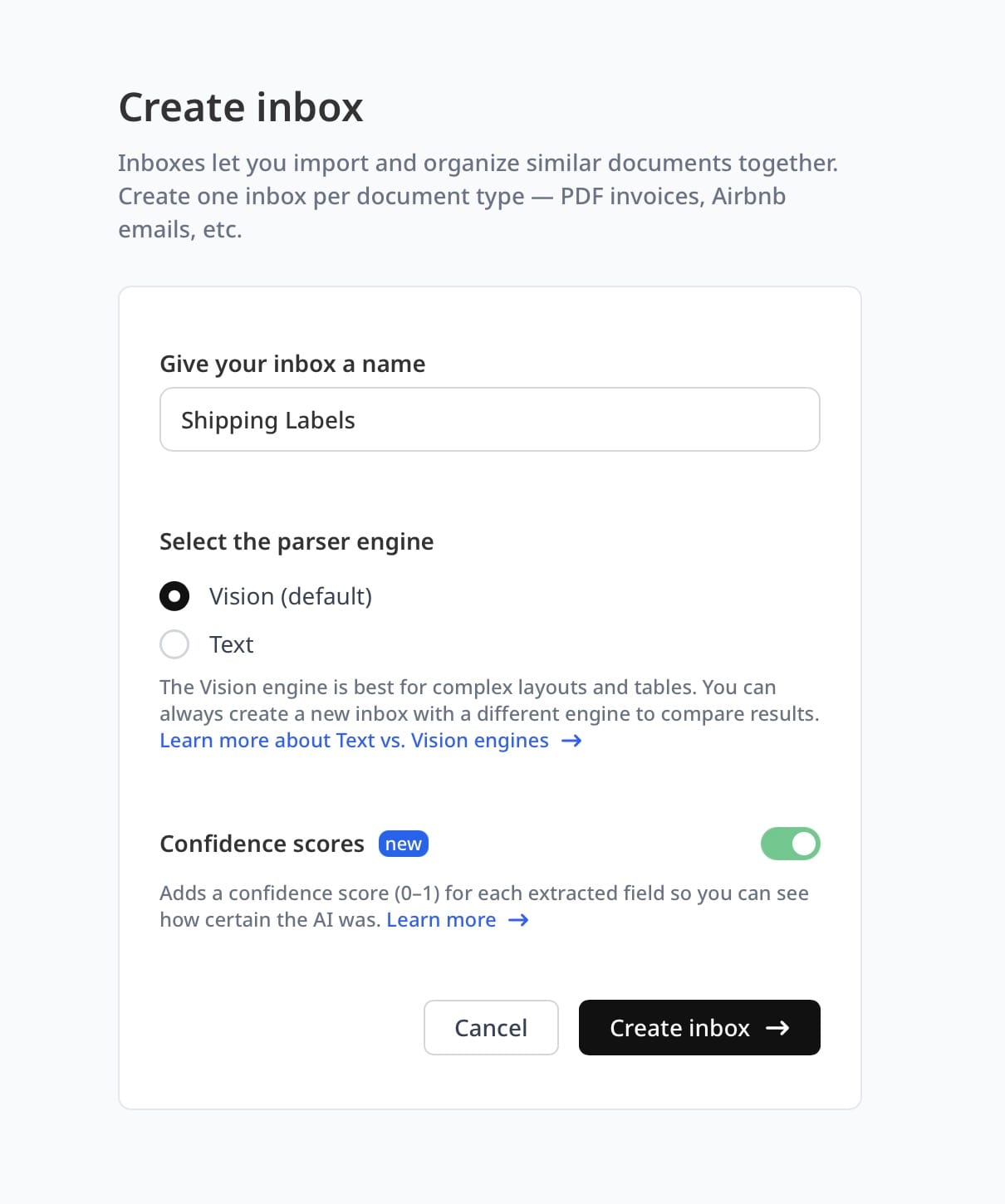
Step 1 — Create an inbox and choose Vision Engine
Log in to Airparser and create a new inbox. Name it specifically — "Outbound Shipping Labels," "Returns Labels — UPS," or "Inbound Freight Labels" — so the purpose is clear when you have multiple inboxes running. When prompted to choose an engine, select Vision Engine. This tells Airparser to process every document in this inbox as an image. It is the correct mode for shipping labels regardless of whether they arrive as PDF files, JPEG photographs, or PNG scans.
Step 2 — Upload sample labels
Upload two to five sample labels that represent the format mix you handle most often. If you process shipments from multiple carriers, include at least one label from each carrier you handle regularly. Airparser uses these samples to suggest an initial schema and to benchmark extraction accuracy before you go live. You can upload files directly from your desktop or forward label images to the inbox email address if that matches how they arrive in your actual workflow.
Step 3 — Define your extraction schema
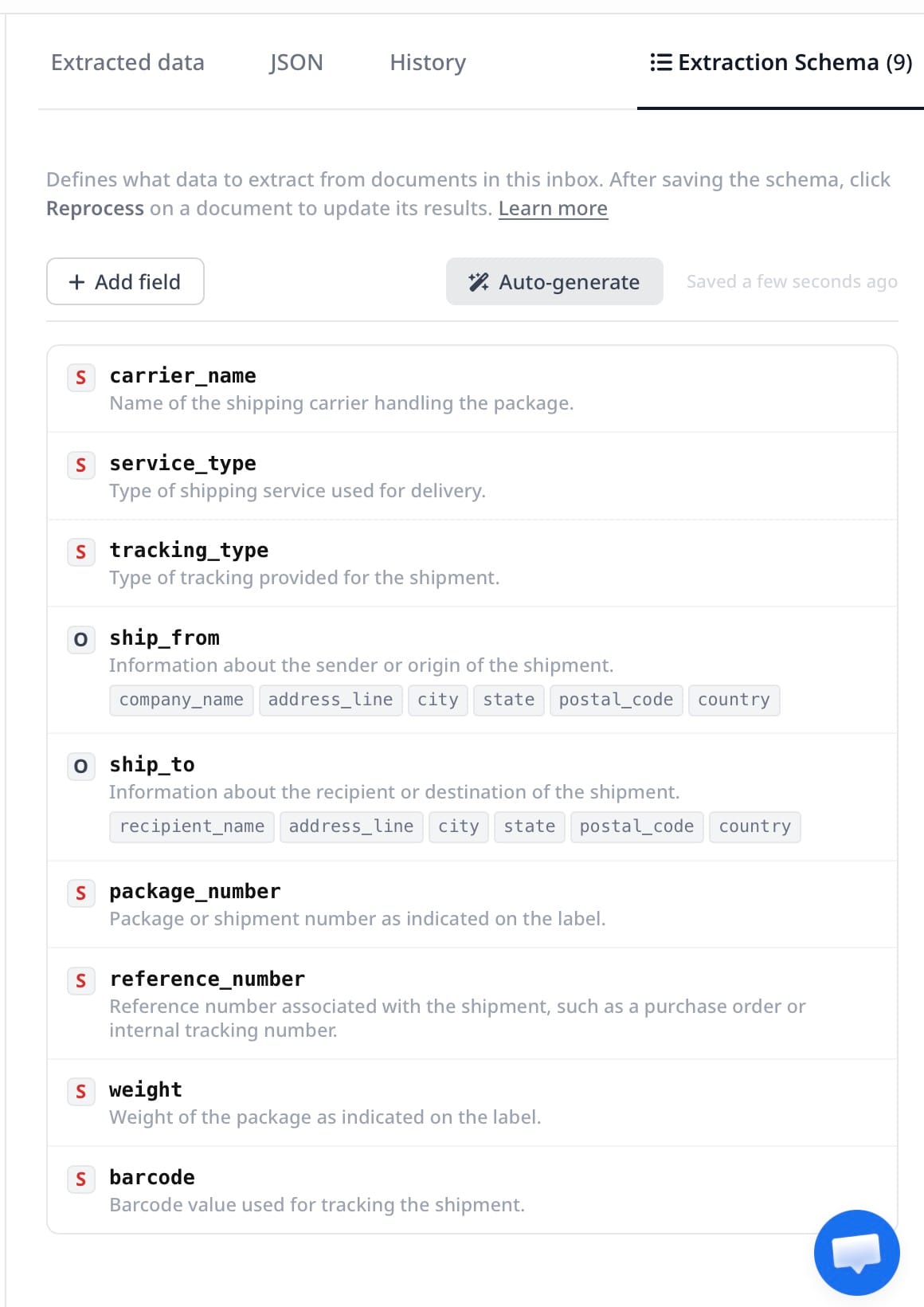
After uploading samples, Airparser's AI suggests a schema based on what it finds in the documents. Review the suggested fields and adjust to match your actual data needs. A typical outbound shipping label schema includes:
tracking_number— stringcarrier— string (FedEx, UPS, USPS, DHL, OnTrac, etc.)service_level— string (Ground, Priority Overnight, 2-Day Express, etc.)recipient_name— stringrecipient_address_line1— stringrecipient_city— stringrecipient_state— stringrecipient_postal_code— stringrecipient_country— stringsender_name— stringsender_address— stringreference_number— string (your PO or order number if printed on the label)weight_lbs— numberspecial_handling— string (signature required, fragile, adult signature, etc.)
For international shipments, add declared_value, customs_description, and hs_code. If you need to capture zone or routing code for rate auditing, add zone as well — the Vision Engine can read printed zone codes even when they sit adjacent to large barcodes.
Step 4 — Validate accuracy on your samples
Run your sample labels through the schema and review the results. Airparser shows each extracted value alongside the source region in the label image, so you can verify at a glance which fields are being read correctly and which need adjustment. For most clean labels, accuracy is high from the first pass. If a specific field is being misread — the reference number being confused with the tracking number, for example — add a brief description note to that field explaining what it contains. The model uses those descriptions to disambiguate similar-looking values.
Step 5 — Connect to your destination
Once extraction accuracy looks correct on your samples, configure where parsed data goes. Options include Google Sheets (a new row is added for each processed label), a webhook URL that POSTs JSON to your WMS or TMS, Excel or CSV download for batch processing, and Zapier or Make.com automations that route data to any of 7,000+ connected apps.
What Parsed Shipping Label Data Looks Like
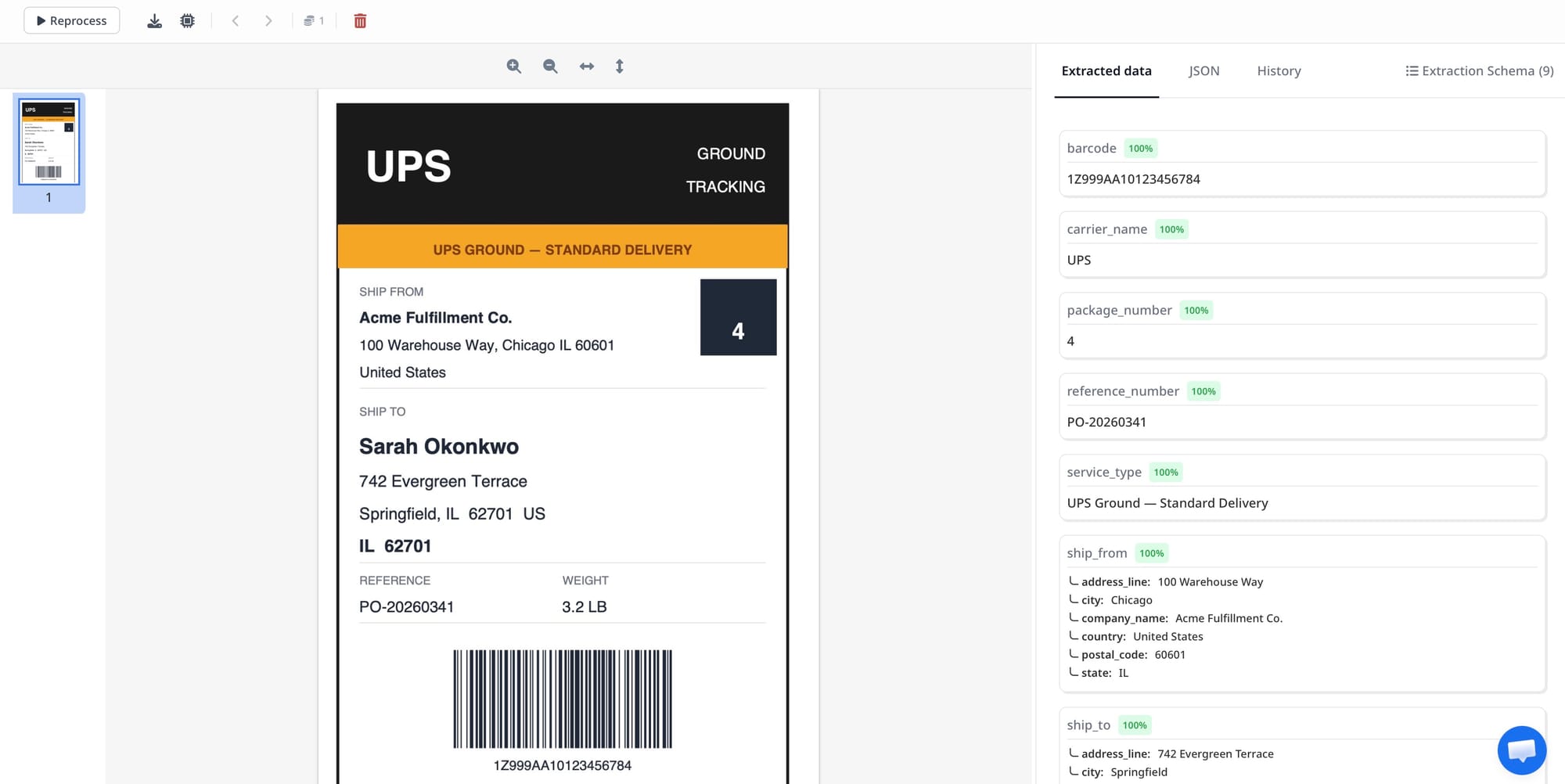
After processing, Airparser returns a structured result with one value per field. For a typical outbound label, the parsed output looks roughly like this:
{
  "tracking_number": "1Z999AA10123456784",
  "carrier": "UPS",
  "service_level": "Ground",
  "recipient_name": "Sarah Okonkwo",
  "recipient_address_line1": "742 Evergreen Terrace",
  "recipient_city": "Springfield",
  "recipient_state": "IL",
  "recipient_postal_code": "62701",
  "recipient_country": "US",
  "sender_name": "Acme Fulfillment Co.",
  "sender_address": "100 Warehouse Way, Chicago, IL 60601",
  "reference_number": "PO-20260341",
  "weight_lbs": 3.2,
  "special_handling": "none"
}
This output is ready for direct insertion into a Google Sheet row, a POST body sent to your WMS API, or a Zapier action that triggers a downstream workflow — no reformatting or transformation needed on your end.
Where to Route Parsed Label Data
Extraction is only the first step. Where the data goes depends on what your operation actually needs:
- Google Sheets. The fastest setup for teams that manage shipments in spreadsheets. Each processed label adds a new row. Use it for daily outbound logs, tracking number registries, carrier spend reporting, or exception flagging.
- Webhook to WMS or TMS. Configure a webhook in Airparser that fires a POST request to your warehouse management or transport management system's intake API the moment each label is processed. Most modern WMS platforms expose REST endpoints that accept JSON payloads directly.
- Zapier or Make.com. If your WMS does not accept webhooks natively, use a no-code automation platform to route parsed label data through any intermediate step — creating a database record, sending a Slack notification, updating an order in Shopify, or flagging a delivery to a customer support team.
- CSV or Excel export. For batch processing workflows: upload a folder of label images at the end of the shift, let Airparser process them, and download a single consolidated file in the morning. Useful for post-shipment reconciliation and carrier invoice auditing.
- Email forwarding pipeline. If your carriers send digital label confirmation emails, forwarding those emails directly to your Airparser inbox processes attached labels automatically. The same schema runs against email-attached label files without any additional configuration.
For teams that also process broader logistics documents — packing lists, customs declarations, or bills of lading — those can live in separate Airparser inboxes with their own schemas, all routing to the same downstream system. See the guide on parsing bills of lading automatically for how the setup differs from label extraction.
Common Failure Modes and How to Handle Them
Even with vision AI, a few scenarios require attention before going live at scale.
Poor image quality from phone captures. Labels photographed at a steep angle, with motion blur, or in low light reduce extraction accuracy. If your warehouse team captures labels with phones, standardize the capture process: label flat on a surface, phone held directly above, flash off. Airparser handles moderate perspective and lighting variation, but extreme cases degrade results.
Thermal label edge fade. Older thermal labels where the outer edges have faded can cause address line truncation. Adding a description to the address field such as "may wrap across two print zones near the label edge" helps the model handle partially faded content correctly.
Multi-label documents. Some carriers print a return label alongside the outbound label on the same page. Specify in your schema description whether you want data from the first label, the outbound label, or all labels extracted as separate entries. The Vision Engine reads the full page and can disambiguate when guided by a clear field description.
Carrier abbreviations on international labels. DHL Express uses "SHP" for shipper and "CNE" for consignee. FedEx International prints "INTL" service codes. Adding brief notes about these abbreviations in the relevant schema field descriptions improves first-pass accuracy significantly for international label types.
For a broader look at how logistics document automation breaks down in practice — and how to structure workflows that stay reliable under real operational conditions — see Common Challenges in Logistics Document Parsing.
Frequently Asked Questions
Can Airparser read barcodes on shipping labels?
Airparser's Vision Engine identifies barcode regions on shipping labels and extracts the encoded value — typically the tracking number — as a readable text string. This works because carrier tracking numbers follow predictable alphanumeric formats: UPS tracking numbers begin with "1Z," USPS Priority Mail numbers begin with "9400" or "9205," FedEx tracking numbers are typically 12 or 15 digits. The Vision Engine uses this contextual knowledge to extract the correct value from the barcode zone without needing a separate barcode decoding library. For standard carrier tracking numbers, this approach is reliable. If your workflow requires decoding 2D Data Matrix codes that contain internal warehouse routing data or non-standard encoded fields, you may need to supplement Airparser with a dedicated barcode scanning tool for that specific field only. For the tracking number and all standard label fields, Vision Engine extraction is sufficient out of the box.
Does it work with phone photos, or only clean scanner output?
Vision Engine handles both. Phone photographs of shipping labels work reliably when the label is roughly flat, the image is in focus, and the text is legible without heavy motion blur. Warehouse environments often involve quick, angled captures — these still produce correct extraction results for the core fields (tracking number, recipient address, service level) in the majority of cases. For maximum schema-wide accuracy — covering all defined fields including weight and reference numbers — flatbed scans or PDF labels exported from carrier shipping software produce the best results. If you are building a high-volume mobile capture workflow, run a batch of 50 to 100 test photographs from your specific warehouse setup before deploying to production. This tells you whether your capture conditions produce acceptable accuracy or whether a simple rig or stand would improve results meaningfully.
How quickly does Airparser process a single label?
Processing time for a single shipping label via Vision Engine is typically 5 to 15 seconds from upload to structured output. For bulk batch uploads — a folder of label images or a multi-page PDF — processing runs in parallel across documents, so throughput scales with volume rather than queuing sequentially. For live operational workflows where labels arrive via email forwarding, parsed results are available and sent to connected integrations as soon as each document finishes processing, with no manual action required. If your workflow needs near-real-time routing — under 10 seconds from label arrival to WMS update — configure the webhook export. The parsed JSON payload is delivered to your endpoint the moment extraction completes, without any polling required on your side.
Can I run labels from multiple carriers through the same inbox?
Yes. A single Airparser inbox with Vision Engine can handle labels from any mix of carriers — FedEx, UPS, USPS, DHL, OnTrac, regional parcel services, and freight carriers — with no per-carrier configuration required. The schema stays the same; the model adapts its reading to each label format it encounters. The one practical consideration is that if your FedEx labels use a field called "Reference" and your DHL labels use "Sender Reference" for the same type of data, you may want to add a field description that covers both label variants — something like "your internal PO or order reference, may appear as Reference, Sender Reference, or Customer Reference depending on carrier." This guides the model to map the right value regardless of how it is labeled on the physical document. For operations with very high volume where accuracy monitoring per carrier is important, separate inboxes per carrier make it easier to review accuracy and catch any degradation for a specific format.
What happens when a carrier changes its label format?
When carriers update their label designs — which happens periodically for all major carriers — a vision AI parser adapts automatically in most cases, because it reads labels semantically rather than by position. A tracking number is still a tracking number whether it moved from the top of the label to the bottom, or whether the font weight changed. In practice, format updates that shift field positions are handled without any configuration change. The scenarios that occasionally require a schema update are when a carrier introduces an entirely new field type (such as adding a new code block with no visual precedent in your samples), or when the label goes through a major redesign that changes how information is grouped visually. When that happens, uploading a few new sample labels and revalidating the schema takes a few minutes — compared to rebuilding an entire template from scratch in a rule-based system.
How do I handle return labels differently from outbound labels?
The cleanest approach for most operations is a separate Airparser inbox for return labels. Return labels typically need a different schema than outbound labels: you may want to capture the return merchandise authorization (RMA) number rather than a PO reference, the weight field matters less for incoming returns than for carrier rate auditing, and the routing destination is your own warehouse rather than a customer. A separate inbox also means the parsed data routes differently — return label data might write to a returns tracking sheet while outbound label data writes to your shipment log. Airparser supports multiple inboxes within a single subscription, so there is no technical constraint on how many separate label types you maintain. Each inbox has its own schema, its own sample library, and its own export destinations.
Start Automating Your Label Processing
If shipping label data entry is still a manual step in your operation, the fastest path to automation is to create an Airparser account, upload a handful of labels from the carriers you work with most, review the auto-suggested schema, and run a test extraction. The schema is editable at any point, so you can refine field definitions as you encounter new label formats without starting over.
For operations that also process inbound logistics documents — delivery confirmations, carrier manifests, packing lists, or customs paperwork — those can live in separate inboxes feeding the same downstream spreadsheet or system, giving you a unified extraction layer across your entire document workflow.