How to Extract Data from Shopify Order Confirmation Emails Automatically
Shopify sends an order confirmation email for every purchase. This guide shows how to automatically extract order number, customer details, line items, and shipping address — no code or templates needed.

TL;DR
- Shopify sends a structured HTML email for every order — containing order number, customer details, line items, and totals.
- You can forward those emails to an AI parser like Airparser and extract all fields automatically, without templates or code.
- Setup takes under 10 minutes: create an inbox, forward a sample email, review the auto-generated schema, then connect your destination (Google Sheets, Airtable, CRM, or webhook).
- Once live, every new Shopify order confirmation is parsed in seconds and the structured data lands in your tool of choice — no manual copy-paste required.
Shopify sends an order confirmation email for every purchase, and it contains everything you need: order number, customer name, email address, shipping address, product names, quantities, prices, and totals. You can automatically extract all of that structured data by forwarding those emails to an AI parser — no templates required, no coding needed.
This guide shows exactly how to do it with Airparser. By the end, you will have a live workflow that extracts data from every new Shopify order confirmation and sends it to Google Sheets, Airtable, HubSpot, or any other tool you use to run your store.
What Data Shopify Order Confirmation Emails Contain
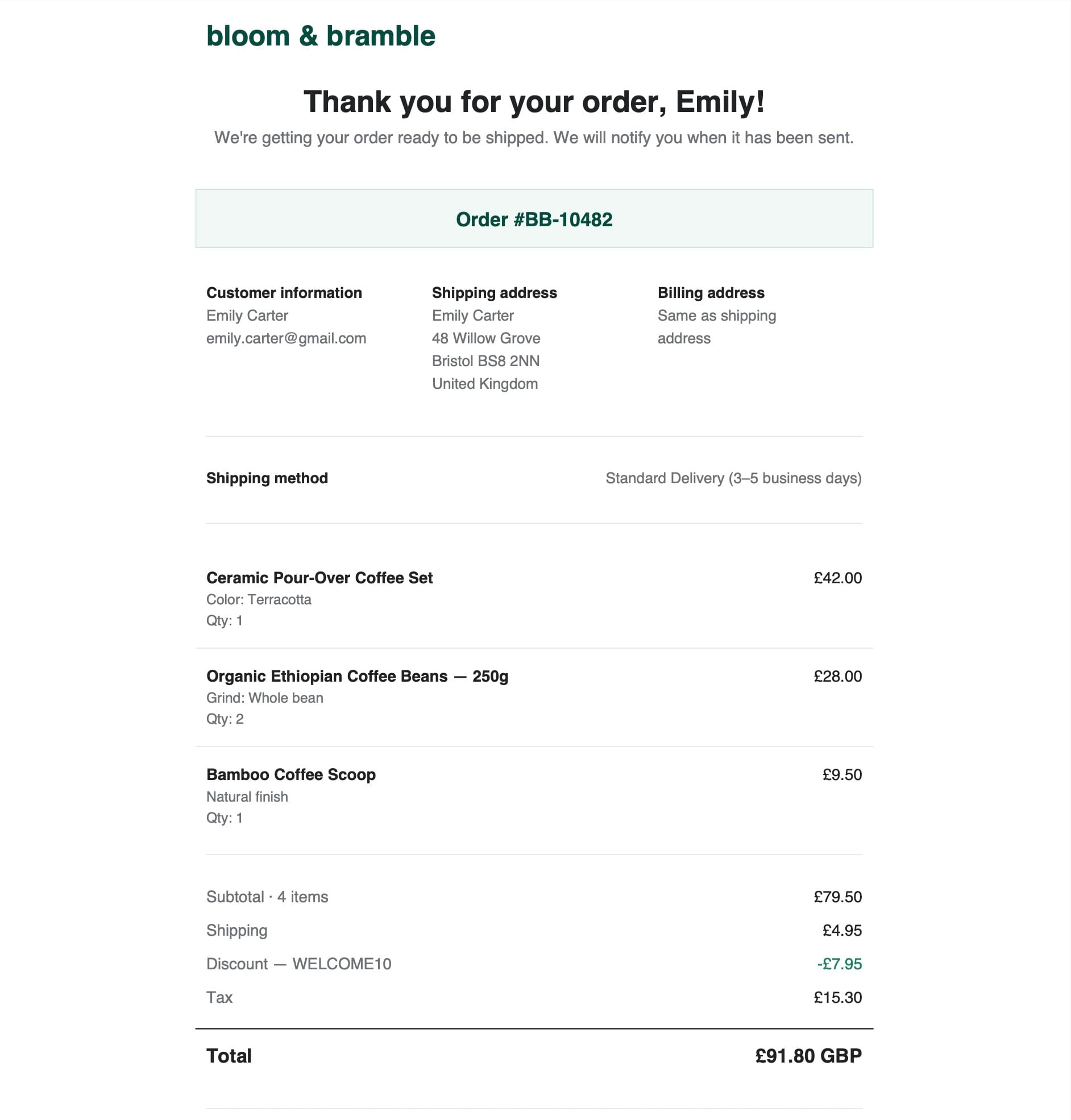
Shopify's default order confirmation email is one of the most data-rich transactional emails any e-commerce platform sends. Understanding what's in it helps you decide which fields to extract and how to use them downstream.
A standard Shopify order confirmation includes:
- Order number — for example, #10482
- Order date and time
- Customer name and email address
- Shipping address — street, city, state or province, postal code, country
- Billing address — often the same as shipping, but not always
- Line items — each product with its variant (size, color), quantity, unit price, and line total
- Subtotal before discounts and shipping
- Discount amount if a promo code was applied, and the code name
- Shipping method and cost
- Tax amount
- Order total
- Payment method — for example, Visa ending in 4242
- Fulfillment status — unfulfilled, partially fulfilled
Shopify also sends separate notification emails for fulfillment, refunds, and cancellations. If you want to capture those events as well, you can set up separate Airparser inboxes for each email type with schemas tailored to their specific fields.
Why Manual Data Entry from Shopify Emails Does Not Scale
If you are running fewer than five orders per day, manually copying data into a spreadsheet or CRM is tedious but workable. Beyond that, it stops being workable fast.
The typical pain points for growing Shopify stores:
- Fulfillment delays — manually entering shipping addresses into fulfillment tools introduces lag and transcription errors that cost you shipping time and returns.
- Inventory tracking gaps — product and quantity data never makes it into the inventory sheet consistently because it takes time nobody has.
- CRM records that are always behind — customer purchase history stays incomplete because there is no automated way to push order data into contact records.
- No single source of truth — order data lives in Shopify admin, email threads, and a half-updated spreadsheet, and none of them agree.
Shopify does have a native data export, but it runs on a schedule and outputs a bulk CSV — not a per-order trigger that connects to your downstream tools in real time. Email parsing gives you a real-time feed of structured order data from the moment each order lands in your inbox.
How to Set Up Airparser for Shopify Order Emails
This setup takes under ten minutes. You will create an Airparser inbox, forward a sample order email, review the schema Airparser generates, set up automatic forwarding, and connect your destination.
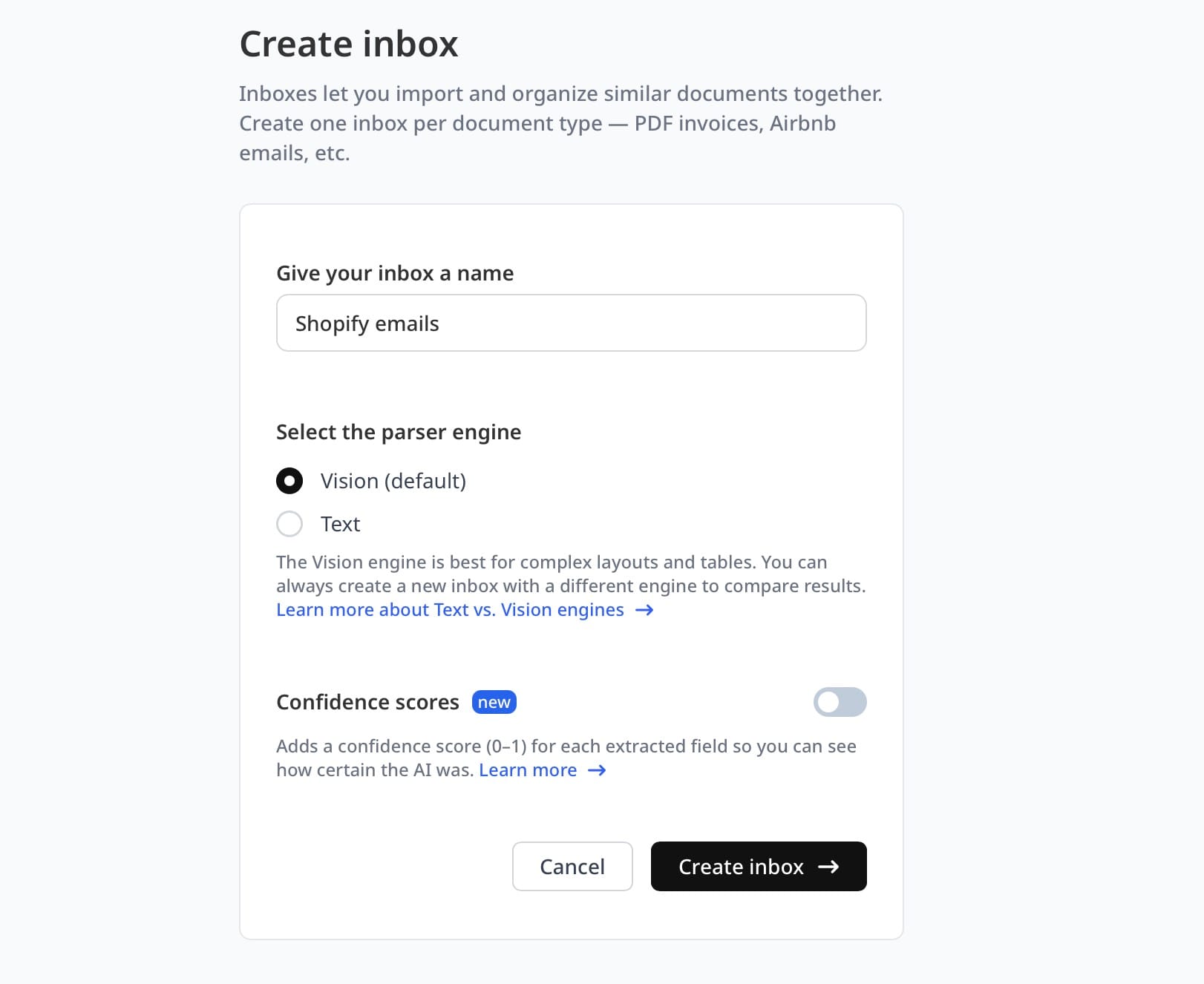
Step 1: Create an Airparser inbox
Log into Airparser and create a new inbox. Name it something clear like "Shopify Orders." Choose the Text engine for this workflow — Shopify's order confirmation emails are well-structured HTML, so the text engine extracts fields reliably without vision processing. You would switch to the Vision engine only if your store uses heavily image-based email templates or if you start seeing extraction errors on international address formats.
Step 2: Forward a sample Shopify order confirmation
Every Airparser inbox has a unique email address, for example [email protected]. Forward one of your Shopify order confirmation emails to that address. Airparser receives it and treats it as the sample document for schema generation.
You do not need to use a real customer order. Shopify's admin panel includes a test order feature under Settings → Payments → Enable test mode. Placing a test order generates a real-format confirmation email with placeholder data, which you can safely forward to Airparser during setup without exposing real customer information.
Step 3: Review and refine the auto-generated schema
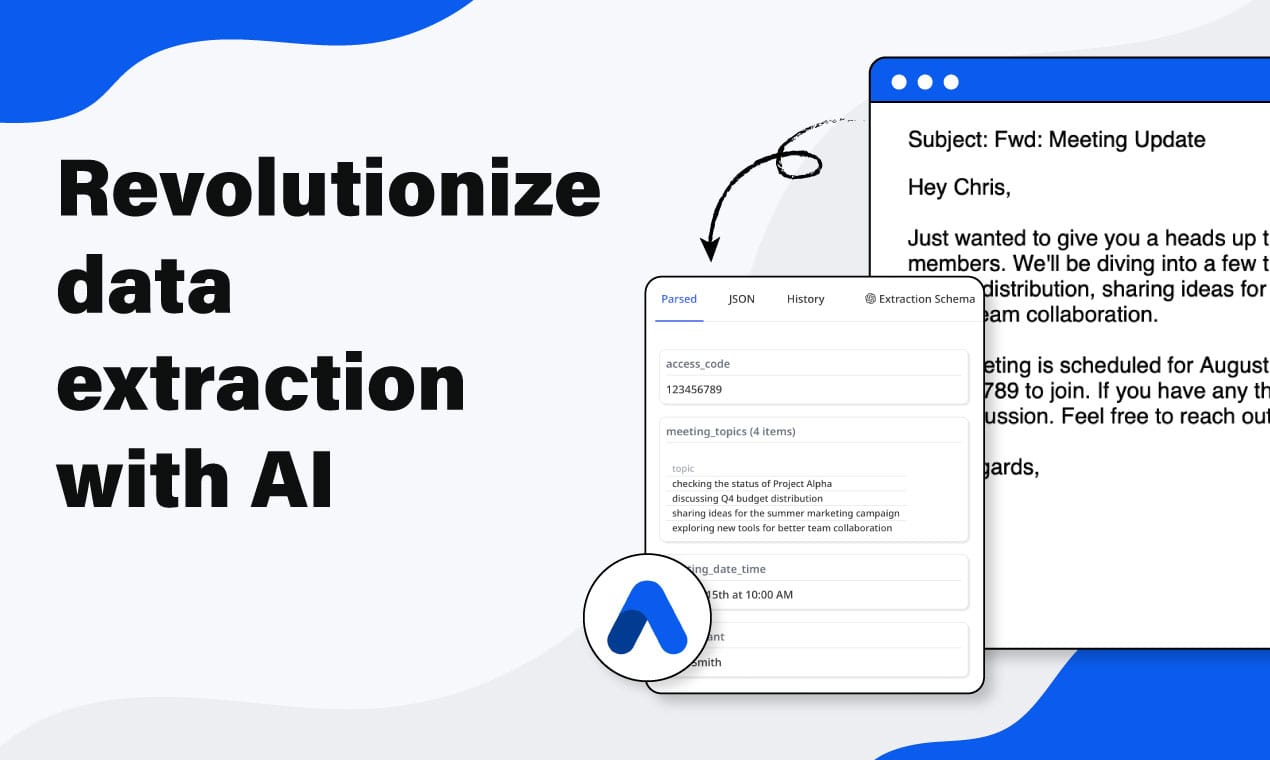
Once Airparser receives the sample email, it auto-generates an extraction schema based on the content it detects. Review the suggested fields and adjust any that are named differently than your downstream tool expects.
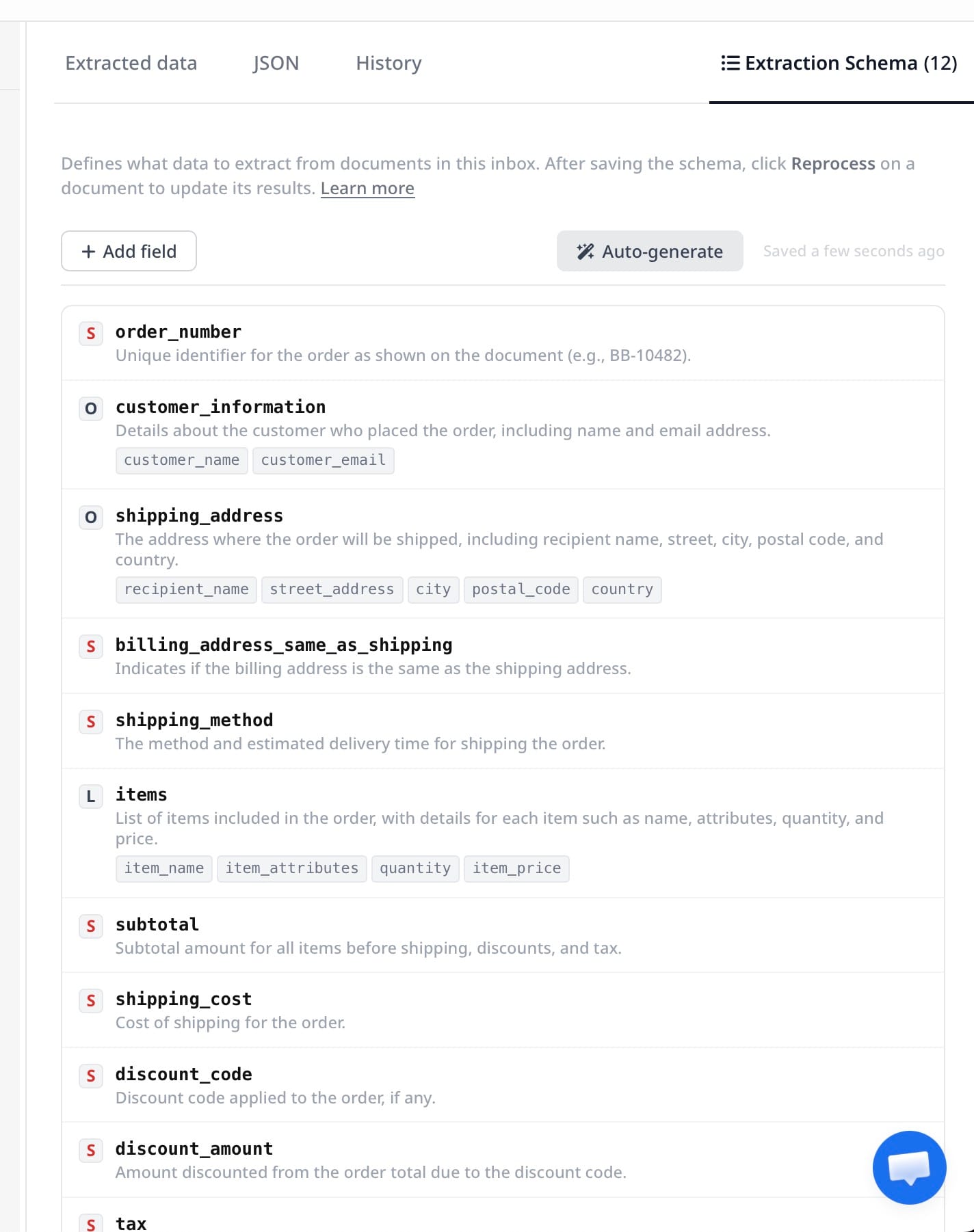
A complete schema for Shopify order confirmation emails includes:
order_number— the Shopify order ID, for example #10482order_date— date and time the order was placedcustomer_name— full name from the shipping address blockcustomer_email— the email address the confirmation was sent toshipping_address— full shipping address; you can break this into sub-fields (street, city, state, zip, country) if your destination system needs them separatedbilling_address— extract separately if you handle gift orders or need billing for accountingline_items— set this as an array with sub-fields:product_name,variant,quantity,unit_price,line_totalsubtotal,discount_code,discount_amount,shipping_cost,tax,order_totalpayment_method— card type and last four digits if shown in the emailorder_notes— optional; add this if your customers can leave notes at checkout
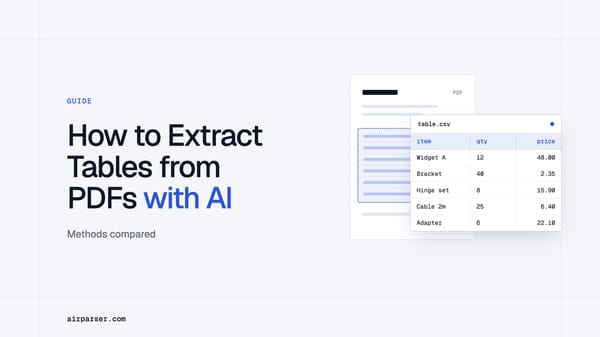
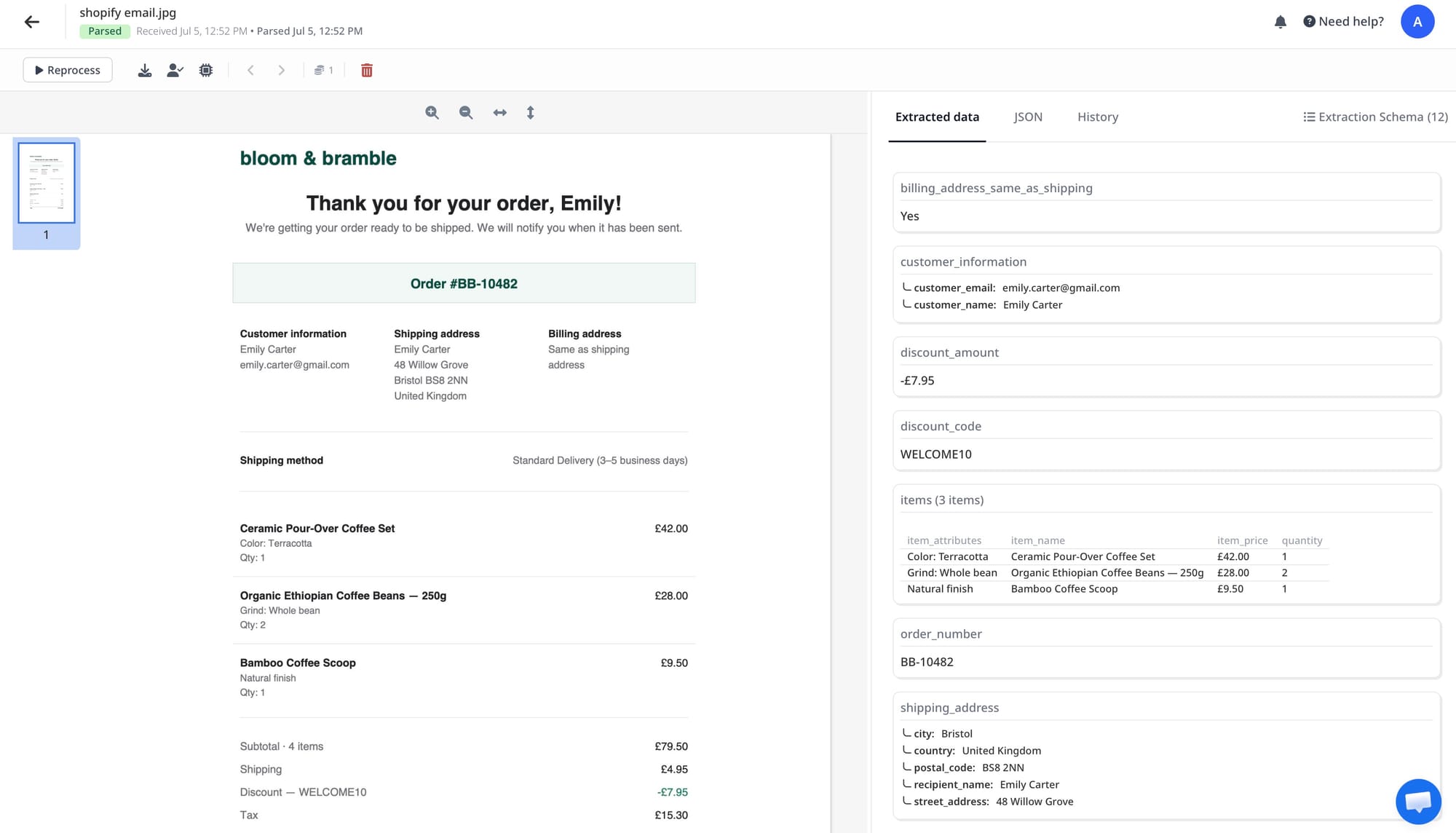
For the line_items array, Airparser captures all products in a multi-item order — even if the order has ten different products — and outputs them as a structured list. When you export to Google Sheets, you can choose to flatten the array so each product becomes its own row, or keep it as a JSON column for downstream processing.
Step 4: Set up automatic forwarding for new orders
Rather than manually forwarding each order email, set up a forwarding rule so every Shopify notification goes to your Airparser inbox automatically.
Option A — Gmail filter: Go to Settings → See all settings → Filters and Blocked Addresses → Create a new filter. Filter by sender address ([email protected] or your store's custom notification domain) and add a "Forward to" action pointing to your Airparser inbox address.
Option B — Shopify notification BCC: In your Shopify admin, go to Settings → Notifications → Orders → New order, and add your Airparser inbox address as a BCC recipient. Every order notification is then sent directly to Airparser alongside the customer copy, without needing any email filter setup.
Option B is cleaner for teams using shared inboxes or where Gmail filters might interfere with other workflows.
Step 5: Connect your destination
Once parsing is running, connect Airparser to wherever you need the data. The most common destinations for Shopify stores are Google Sheets for order tracking, Airtable for operations management, and webhooks for fulfillment systems.
Where to Route Parsed Shopify Order Data
Airparser outputs clean JSON for each parsed email. From there, you can send the structured order data to one or multiple destinations depending on your operations setup.
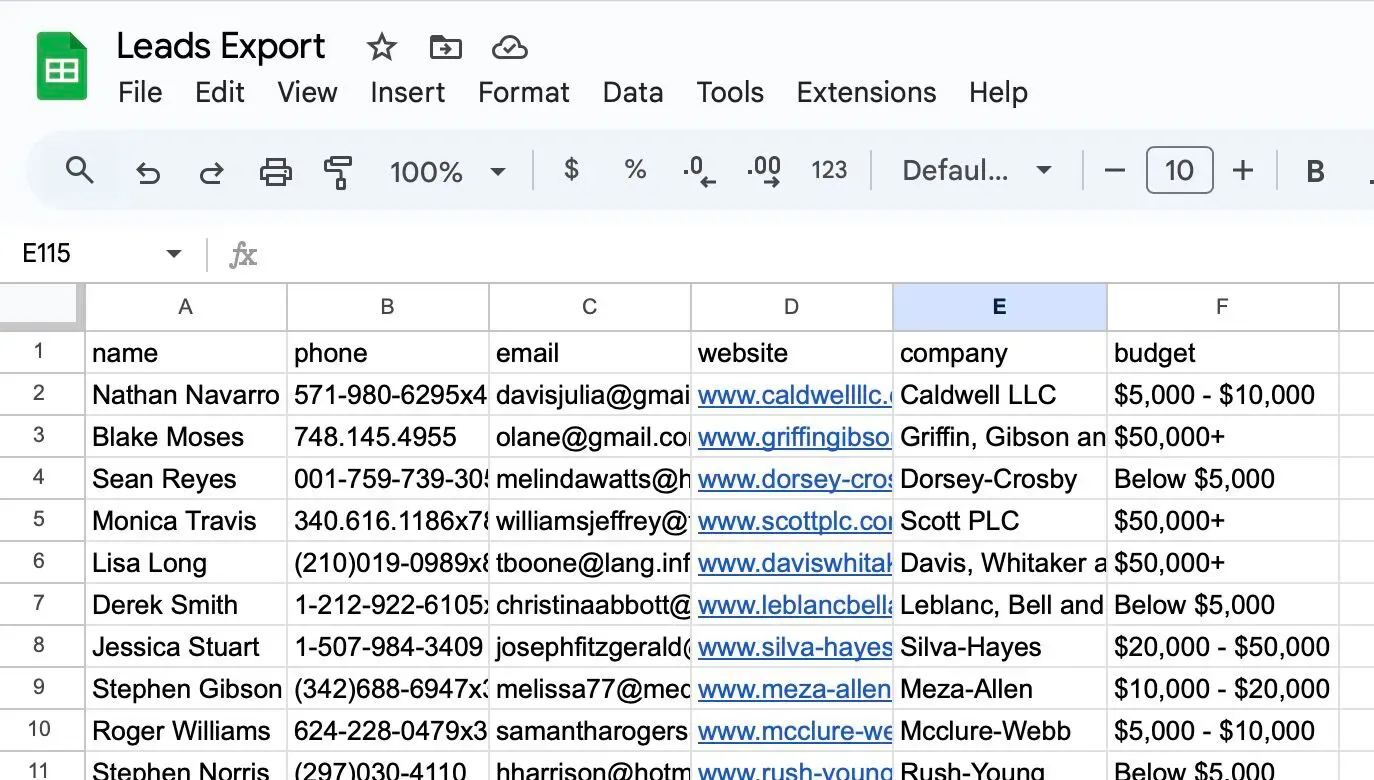
Google Sheets: The most common destination for small and mid-size stores. Each order becomes one row. Line items with multiple products expand to multiple rows when you enable Airparser's array-flattening option. Native Google Sheets integration connects via OAuth — no third-party tools needed. For the full walkthrough, see how to export email data to Google Sheets automatically.
Airtable: Useful for teams that want relational views — a Customers table linked to an Orders table, linked to a Line Items table. Airparser's native Airtable integration maps fields directly to your base structure without requiring Zapier.
HubSpot or another CRM: Route parsed order data via Zapier to create or update contact records. Map customer_email as the match key, and use order_total and product data to log purchase history on the contact. This keeps your CRM current with every Shopify sale without manual import.
Webhook to a fulfillment system or 3PL: Send raw parsed JSON directly to any endpoint your fulfillment system or warehouse management system accepts. This is faster than any Zapier step and removes third-party automation from the critical path for order routing.
Zapier or Make for multi-step workflows: Notify your Slack channel, create a Trello card for the fulfillment team, log the order in QuickBooks, and trigger a follow-up sequence in Klaviyo — all from one Shopify order trigger. See how to automate e-commerce order data extraction for workflow examples across multiple platforms.
Choosing Which Fields to Extract Based on Your Use Case
Not every Shopify operation needs every field. Choosing a leaner schema reduces noise in your destination tool and makes downstream automation simpler.
For fulfillment teams: Extract order_number, customer_name, shipping_address, line_items (product name, variant, quantity), and order_total. These are the minimum fields a pick-pack-ship workflow needs.
For accounting and reconciliation: Extract order_number, order_date, subtotal, discount_amount, tax, shipping_cost, order_total, and payment_method. Line items are optional unless you need SKU-level revenue tracking.
For CRM enrichment: Extract customer_name, customer_email, order_number, and order_total. These are enough to create or update a contact record and tag it with purchase history without adding unnecessary columns to your CRM.
For inventory management: Focus on line_items with product_name, variant, and quantity. Export these to a sheet where you decrement stock levels per order or feed them into your inventory system.
Airparser lets you add, rename, or remove fields at any time without reprocessing historical documents. Build the schema for your current needs and expand it as your workflow evolves.
Handling Edge Cases in Shopify Order Emails
Shopify's confirmation emails are consistent, but some order types produce variations. AI-based extraction handles most of these without any configuration changes.
Multi-item orders: Shopify lists each product on a separate line. Set line_items as an array field in Airparser and it will capture all items — even an order with twenty different products — as a structured list.
Discount codes: When a promo code is applied, Shopify adds a discount line to the email. If you include discount_code and discount_amount fields in your schema, Airparser extracts both. If no discount is present, those fields return empty rather than breaking the extraction.
Gift orders with different billing and shipping addresses: Shopify shows both addresses when they differ. Extract both shipping_address and billing_address as separate fields if you need to distinguish the recipient from the purchaser.
Orders with customer notes: Some stores allow customers to add notes at checkout. These appear near the bottom of the confirmation email. Add an order_notes field to your schema to route special instructions to your fulfillment team.
International orders with non-English address formats: Shopify adapts its address layout to the destination country — postal code position, province versus state field, and formatting conventions all vary. If you are seeing address extraction errors on international orders, switch the inbox engine from Text to Vision. The Vision engine reads the address layout visually the way a human would, which handles format variations more reliably.
Frequently Asked Questions
Can Airparser handle Shopify order emails if my store uses a custom notification template?
Yes. Airparser uses AI extraction rather than fixed templates or regex patterns, so it adapts to different email layouts automatically. If you have customized Shopify's order confirmation using Liquid code — changed the structure, reordered sections, added custom fields, or removed default elements — Airparser will still locate and extract the correct values as long as the data is present in the email. The exception is data you have deliberately hidden from the customer-facing confirmation. If you have removed, for example, the billing address or payment method from your custom template, Airparser cannot extract fields that are no longer in the email content. In that case, consider adding your Airparser inbox as a BCC on Shopify's internal new order notification instead, which typically contains a more complete data set regardless of customer-facing template customization.
What happens when Shopify sends a cancellation or refund email — will Airparser parse those too?
Airparser will parse any email forwarded to its inbox. Shopify sends separate notification emails for cancellations, refund confirmations, and fulfilled shipments — each with a different layout than the original order confirmation. If you forward these to the same inbox with the same schema, some fields like order_number will extract correctly, but fields specific to refunds such as refund amount and reason will not appear unless you add them to the schema. The cleanest approach is to create a separate Airparser inbox for each Shopify notification type — one for new orders, one for refunds, one for fulfilments — each with a schema tailored to that email's format. Route each email type to the correct inbox using Gmail filters or Shopify's BCC field on the specific notification template.
How accurate is AI extraction for Shopify order emails compared to rule-based or template-based parsers?
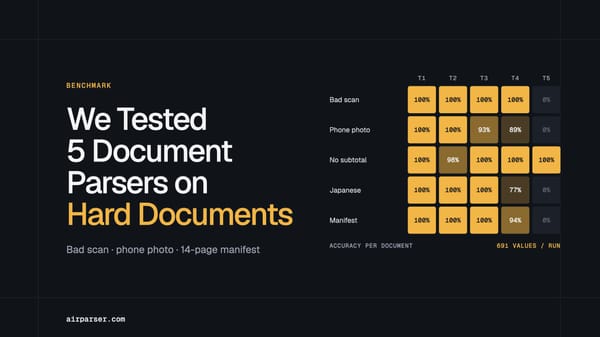
For Shopify's default order confirmation template, AI-based and rule-based parsers typically produce similar accuracy on the core fields. The meaningful difference appears when the email format changes. Shopify periodically updates its notification templates, and if you use third-party Shopify apps that modify the email layout, the format can shift from what a rule-based parser expects. AI extraction adapts to format variations without template maintenance — if Shopify changes its confirmation email design next quarter, Airparser continues extracting correctly without any intervention on your end. A rule-based or template-based parser would require you to update the template every time the format changes. For stores processing hundreds of orders per day across a mix of apps and themes, that maintenance overhead adds up quickly. For more context on how the two approaches compare, see the best email parser roundup for 2026.
Does this work with Shopify Plus or headless Shopify storefronts?
Yes — the email parsing workflow is store tier and technology agnostic. Shopify Plus sends the same order confirmation email format as standard Shopify, with additional customization options available to Plus merchants. If you are running a headless Shopify setup with a custom frontend, the order confirmation emails still come from Shopify's notification engine and follow the standard structure. The extraction setup is identical regardless of whether your storefront is headless. The main consideration on Shopify Plus is that if you have heavily customized the notification template beyond the default layout, verify that the fields you want to extract are still present in the email before finalizing your schema. The more you strip out of the customer-facing template, the more you may need to rely on Shopify's internal staff notifications as your parsing source.
Can I also extract data from PDF invoices that Shopify apps attach to order emails?
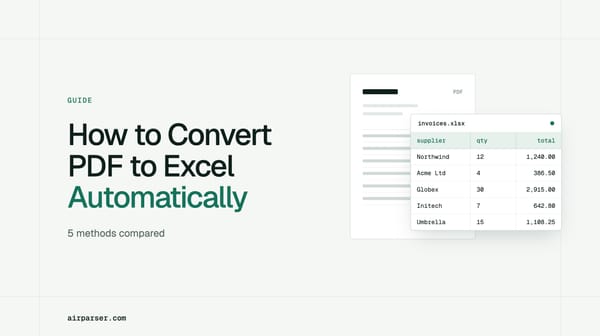
Yes. Third-party Shopify invoicing apps — such as Sufio, Order Printer Pro, and Invoice Falcon — automatically generate and attach PDF invoices to order confirmation or fulfillment emails. Airparser handles both the email body and email attachments. If your orders include a PDF invoice attachment, you can configure Airparser to extract data from the PDF rather than the email body, or from both depending on where your most complete data sits. For attachment-based workflows the setup is slightly different: you enable attachment parsing in the inbox settings, upload a sample PDF invoice as the reference document, and define the schema from that. The extraction logic for PDF attachments is covered in detail in the guide to automatically extracting data from email attachments including PDFs and Word files.
How do I handle Shopify stores that sell on multiple channels — Shopify plus Amazon, eBay, or Etsy?
Each channel sends its own order confirmation email with a different format, different field names, and different layout conventions. The recommended approach is one Airparser inbox per channel, each with a schema tailored to that platform's email format. For example, your Shopify inbox uses a schema with order_number, line_items, and shipping_address. Your Amazon inbox uses a schema tuned to Amazon's order confirmation layout with its own field names. You then route all inboxes to the same Google Sheet or Airtable base, with a source_channel field that tells you which platform each row came from. This gives you a unified order view across all channels without requiring a single monolithic template that tries to handle every format at once.
Start Automating Your Shopify Order Data Today
The setup described in this guide takes under ten minutes and runs without manual intervention after that. Each Shopify order confirmation is parsed within seconds of arriving, and the structured data — order number, customer details, line items, totals — lands wherever you need it, automatically.
If your store also receives PDF invoice attachments from Shopify apps, or if you sell across multiple e-commerce platforms, Airparser handles those in the same workflow with separate inboxes and schemas per source.
Create a free Airparser account at airparser.com and forward your first Shopify order confirmation to see the extraction in action.