How to Use Airparser's Human-in-the-Loop Review for Document Parsing
Airparser's built-in human-in-the-loop review holds low-confidence or flagged documents for approval before they reach your integrations. Here's how to set it up.

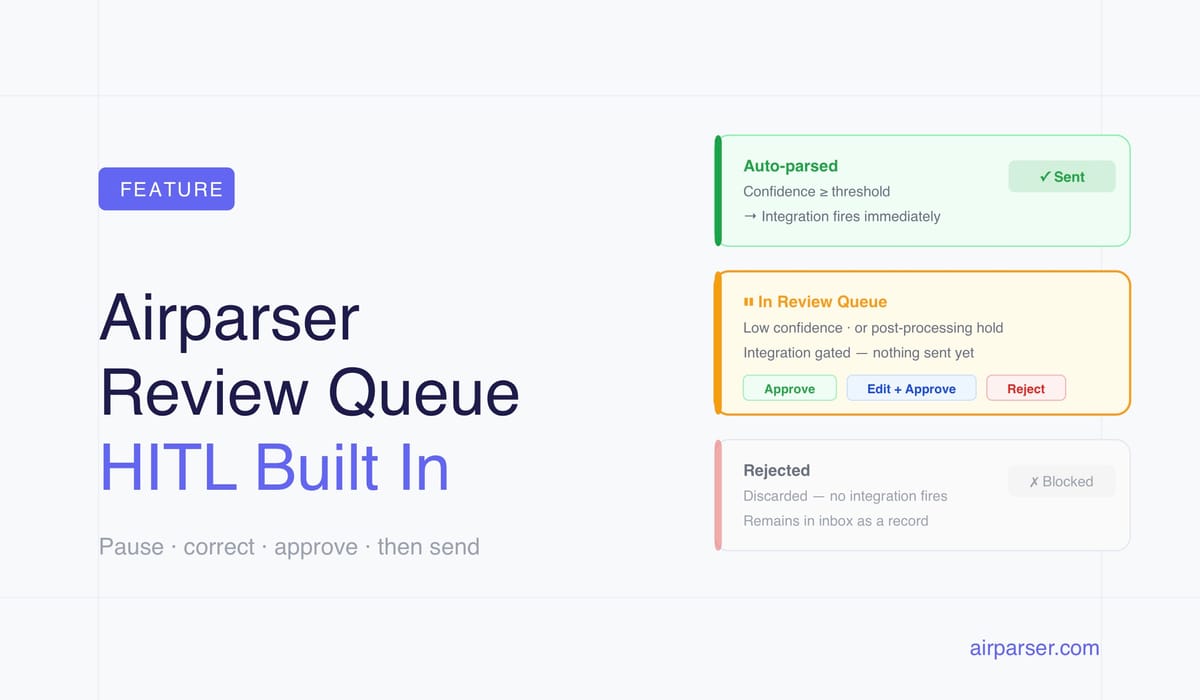
Airparser now includes a built-in human-in-the-loop review system. When enabled on an inbox, documents that match your hold conditions — a low confidence score, a flag set by your post-processing code, or a manual request — are held with a Review status. A team member checks the extracted data, optionally edits it, and approves. By default, webhooks and integrations fire only after approval, so unverified data never reaches your downstream systems.
Previously, building a review step around Airparser meant routing webhook output into Airtable or a spreadsheet and managing approval logic in Make or Zapier. The review feature replaces that for most workflows — it's configured per inbox, directly in Airparser, with no external tooling. If you're still deciding whether your workflow needs a review step at all, see Human-in-the-Loop Document Extraction: When to Trust AI and When to Add Review.
How It Works
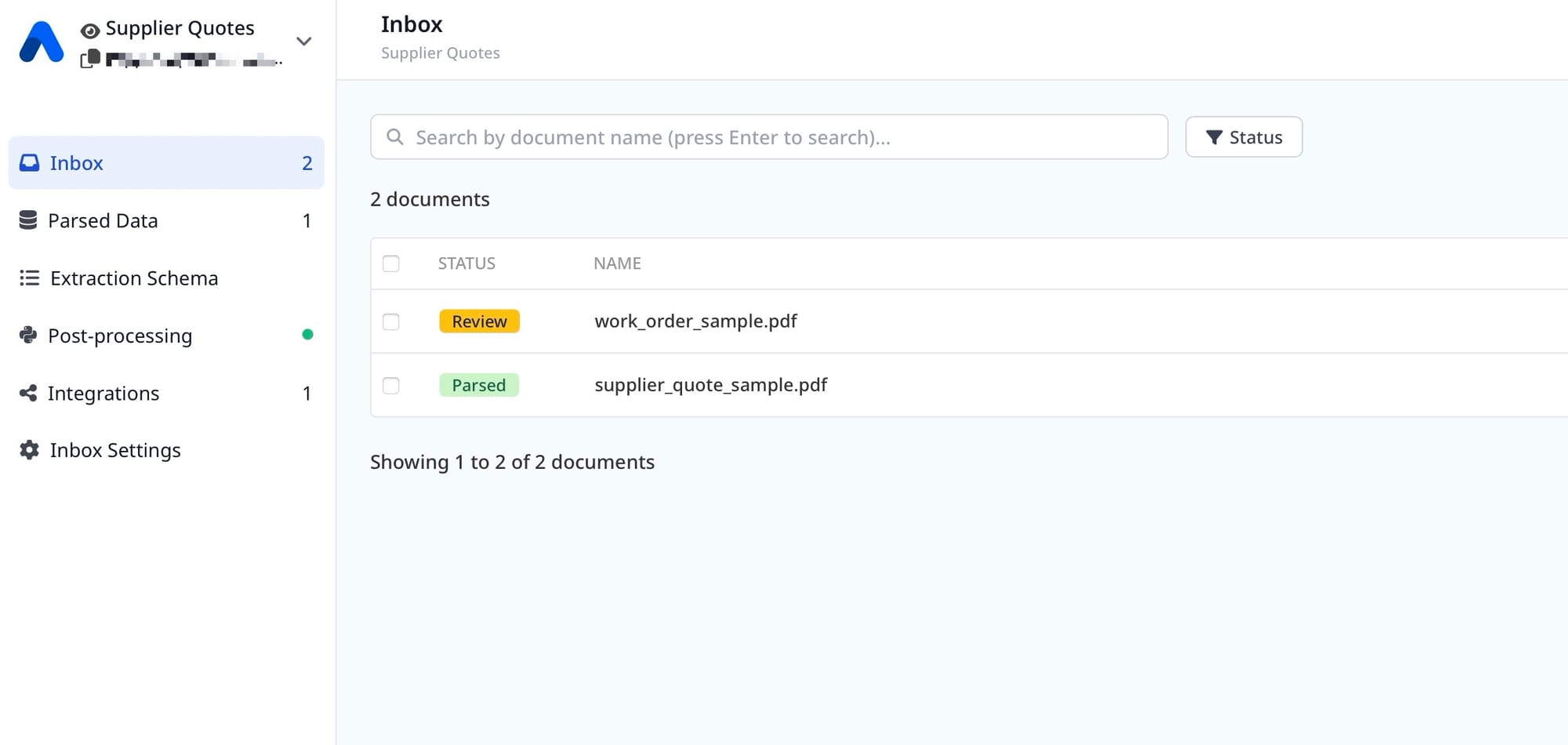
When a document finishes parsing and matches a hold condition, its status becomes Review instead of Parsed. The inbox list shows a dedicated review counter, so held documents are visible at a glance:

Inside the inbox, held documents carry a yellow Review badge next to documents that parsed normally:
A held document stays in Review status until someone approves it. With the recommended delivery setting, nothing is sent to webhooks, Zapier, Make, n8n, or any other integration until that approval happens.
How to Enable Human-in-the-Loop Review
The settings live at the inbox level, under Inbox Settings → Review:
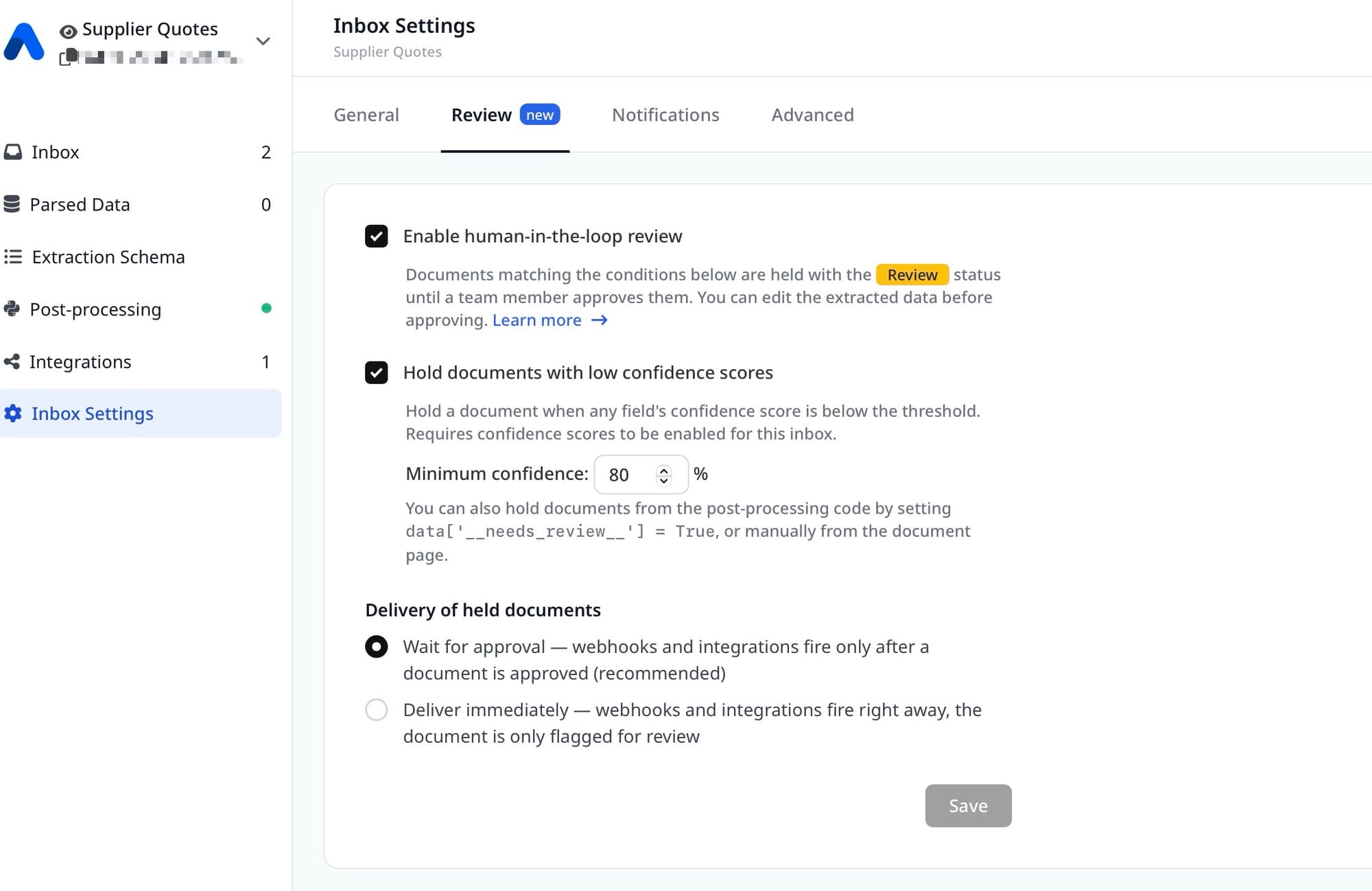
- Open your inbox and go to Inbox Settings → Review.
- Check Enable human-in-the-loop review.
- Optionally check Hold documents with low confidence scores and set a minimum confidence percentage. A document is held when any field's confidence score falls below this threshold. This option requires confidence scores to be enabled for the inbox.
- Choose how held documents are delivered:
- Wait for approval (recommended) — webhooks and integrations fire only after a document is approved.
- Deliver immediately — webhooks and integrations fire right away; the document is only flagged for review in Airparser.
- Save.
Three Ways a Document Gets Held
1. Low Confidence Score
With the confidence option enabled, Airparser checks every field's confidence score after parsing. If any field scores below your minimum, the document is held. This catches exactly the documents most likely to contain extraction errors: bad scans, small or faded text, photos of documents, unusual layouts.
The threshold is a percentage. At 80%, a document where every field scores 80% or higher flows straight through, while a single field at 79% sends the document to review. Start around 80% and adjust: raise it to catch more borderline extractions, lower it if too many clean documents are being held.
2. Post-Processing Flag
If you use Python post-processing on the inbox, your code can hold a document programmatically by setting a special key:
if not data.get('total_amount'):
    data['__needs_review__'] = True
You can also assign a string instead of True to record why the document was held:
if data.get('total_amount', 0) > 10000:
    data['__needs_review__'] = 'amount above approval limit'
The __needs_review__ key is stripped from the payload before delivery — it never appears in your webhook or integration data.
This complements the confidence threshold. Confidence catches documents the AI was uncertain about; post-processing flags catch documents where extraction looked confident but a business rule failed — a missing required field, an amount out of range, a date that doesn't parse.
3. Manual Request
Any parsed document can be sent to the review queue manually from the document page. This is useful when you spot something off while browsing parsed results and want to flag it for a teammate to double-check before the data is used.
Reviewing and Approving a Document
A held document shows a banner explaining why it needs review, along with the actions:
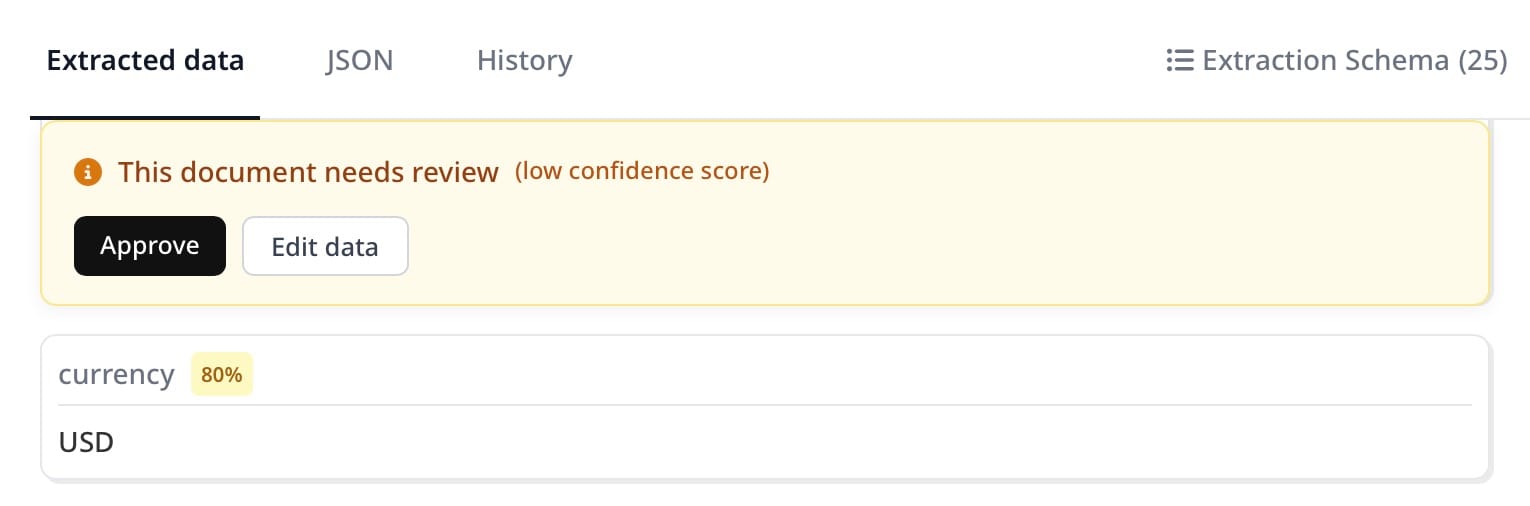
Each extracted field displays its confidence score, so the reviewer can go straight to the fields that triggered the hold instead of re-checking everything.
From here:
- Approve — accept the extracted data as-is. The document's status changes to Parsed, and if delivery was set to wait for approval, webhooks and integrations fire now.
- Edit data — correct any wrong field values first, then approve. The corrected values are what gets delivered downstream.
Approving updates the inbox review counter, so the team always sees how many documents are still waiting.
Which Hold Condition to Use for Which Problem
| Problem | Hold condition |
|---|---|
| Variable document quality — scans, photos, faded or small text | Low confidence threshold |
| A field value violates a business rule (missing, out of range, wrong format) | Post-processing flag: data['__needs_review__'] = True |
| High-value documents that need sign-off regardless of extraction quality | Post-processing flag with a reason string |
| A specific document looks suspicious while browsing results | Manual request from the document page |
When to Use "Deliver Immediately" Instead of Gating
The Wait for approval mode is the right choice when downstream systems act on the data — AP workflows that schedule payments, CRMs that create records, ERPs that write entries. An extraction error there has a real cost, so unreviewed data should not leave Airparser.
The Deliver immediately mode fits monitoring-style workflows: data flows to its destination without delay, but flagged documents remain visible in the review queue so someone can verify them and correct issues at the destination if needed. This keeps pipeline latency at zero while still surfacing the documents worth a second look.
Built-in Review vs. Building Your Own HITL Workflow
Before this feature, the standard approach was external: deliver extracted JSON via webhook, route low-confidence results to a review sheet in Airtable or Google Sheets, and promote approved rows with Make or Zapier. That still works, and it remains the better option if your review process needs things the built-in flow doesn't provide — multi-step approval chains, reviewer assignment, or notifications in Slack or email.
For the common case — pause uncertain documents, let a human verify or fix the data, then deliver — the built-in review removes the external moving parts entirely. One checkbox on the inbox replaces a webhook router, a review table, and an approval automation.
Frequently Asked Questions
What triggers a document to be held for review in Airparser?
Three conditions, checked after parsing completes: any field's confidence score below the inbox's minimum threshold (if the low-confidence option is enabled), the post-processing code setting data['__needs_review__'], or a manual review request from the document page. Documents that failed parsing keep their failed status — review only applies to successfully parsed documents.
Do held documents reach my webhooks and integrations?
That depends on the delivery setting. With Wait for approval (recommended), webhooks and integrations fire only after a team member approves the document. With Deliver immediately, they fire as soon as parsing completes and the document is only flagged for review inside Airparser.
Can I edit the extracted data before approving?
Yes. The Edit data action lets the reviewer correct any field values before approval. The corrected values are what gets sent to integrations. Fields the reviewer doesn't touch keep their extracted values.
Does the confidence threshold apply per field or per document?
The check runs per field, and the hold applies to the whole document: if any single field scores below the threshold, the entire document is held for review. Field-level confidence badges in the document view show the reviewer exactly which fields scored low.
Do reviewer corrections improve future extractions?
No — an edit applies only to that document; it doesn't retrain the parser or modify the schema. If you find yourself correcting the same field repeatedly, that's a signal to improve the field's description in your extraction schema so the parser gets it right the first time.
Can I hold a document for a custom business reason?
Yes, through post-processing. Set data['__needs_review__'] to True or to a string describing the reason — for example data['__needs_review__'] = 'amount above approval limit'. The key is removed from the payload before delivery, so it never leaks into your downstream data.