How to Automate Bank Statement Data Extraction with AI
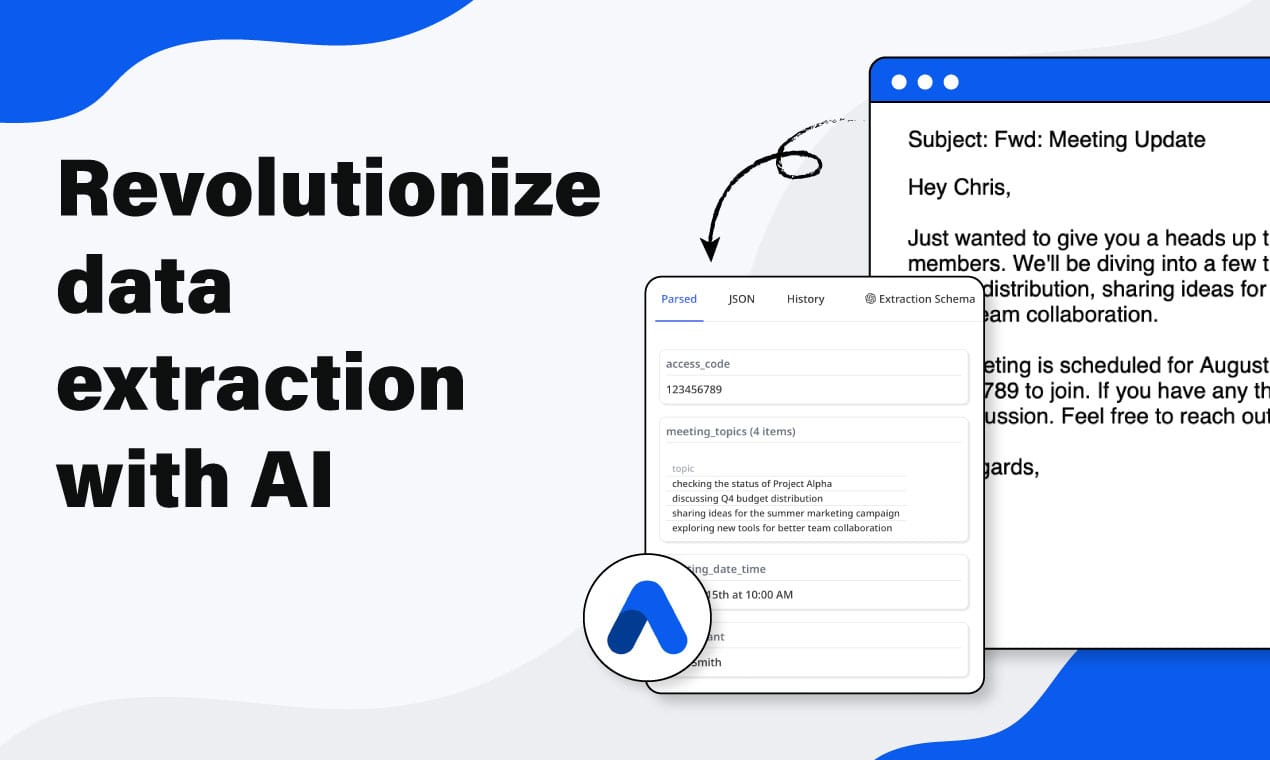
AI-powered bank statement extraction: pull transactions, dates, amounts, and balances from any bank PDF format automatically. Covers schema design, vision engine setup, edge cases, and routing to Google Sheets or accounting software.

TL;DR
- Bank statement PDFs can be parsed automatically using a vision-based AI extraction engine — no manual data entry needed.
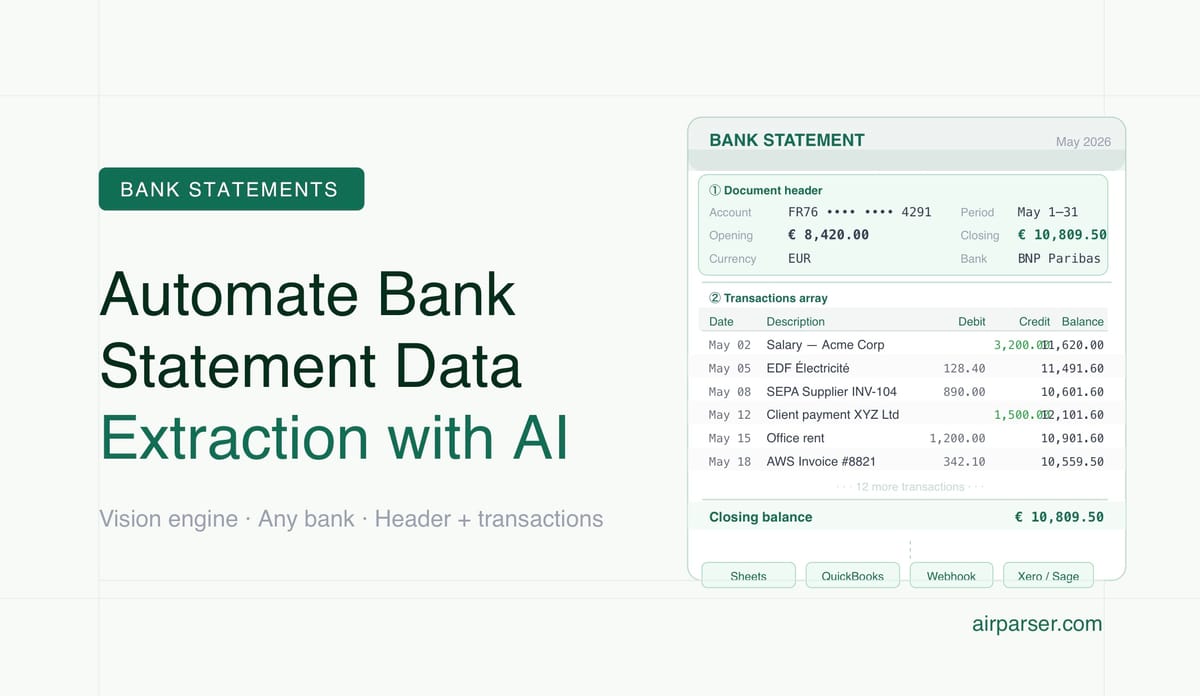
- The key schema has two layers: document-level header fields (account number, period, balances) and a line-items array for individual transactions.
- Airparser's vision engine handles multi-column transaction tables and scanned statements across most major bank PDF formats.
- Extracted data routes automatically to Google Sheets, accounting software, or any webhook endpoint via Zapier, Make, or n8n.
You can automate bank statement data extraction by running each PDF through an AI vision engine that reads tabular data, extracting transactions into structured JSON, and routing that output to your accounting tool or spreadsheet. The result: account number, statement period, opening and closing balance, and every transaction row — date, description, amount, and running balance — available as clean structured data without touching the document by hand.
The reason this works reliably in 2025 and 2026 when it didn't work well with earlier tools is the shift from template-based OCR to vision LLMs. Older OCR systems needed precisely defined zones or rules for each bank's PDF layout. A vision model reads the document the way a human analyst would — it understands column relationships, multi-row descriptions, and currency formatting regardless of whether the statement came from a major retail bank, a credit union, or a digital-first fintech.
This guide covers the full extraction workflow: schema design for transaction data, setting up automated processing in Airparser, handling common edge cases like scanned statements and multi-currency accounts, and routing the extracted data into downstream tools for reconciliation, bookkeeping, or audit support.
What a Bank Statement Contains (and What's Worth Extracting)
Before designing an extraction schema, it helps to think about what information lives in a bank statement and which parts are actually useful downstream. Bank statements typically have two structural layers.
The document header contains account-level information: the bank name, account holder name, account number (often partially masked), IBAN or routing number, the statement period (start date and end date), opening balance, and closing balance. These fields appear once per document and identify the account and time window the transactions belong to.
The transaction table is the main body of the statement. Each row typically includes a transaction date, a value date (the date funds actually settled, which can differ from the transaction date), a description or reference, a debit amount, a credit amount, and a running balance after the transaction. Some banks use a single "amount" column with positive and negative values; others use separate debit and credit columns. Some include a reference or authorization number. Credit card statements add a "posted date" alongside the transaction date, and sometimes a merchant category code.
For most automation use cases — bookkeeping, reconciliation, expense categorization, cash flow tracking — the minimum useful extraction is: transaction date, description, debit amount, credit amount, and balance. Account number and statement period let you attach each transaction batch to the right account and time window without manual labeling.
Why Template-Based OCR Falls Short for Bank Statements
Traditional zonal OCR tools require defining exact pixel coordinates or anchor strings for each field. That approach breaks the moment a bank redesigns its statement layout, changes its PDF generator, or when you add a second bank to the workflow. Maintaining a template per bank, per format version, per statement type is exactly the kind of fragile, low-value maintenance work that automation is supposed to eliminate.
Bank statement PDFs are also structurally varied in ways that trip up rule-based parsers. The number of transaction rows varies. Descriptions can span two lines. Some banks group transactions by date with a date header row that has no monetary value. Wrapped text in the description column can misalign column boundaries. OCR tools that rely on whitespace boundaries between columns fail when descriptions are long enough to push adjacent values out of their expected positions.
Vision LLMs understand the visual structure of a document — they recognize that a row with a date, a text description, and two numeric values is a transaction, even when the columns don't align perfectly with where a template expects them. This is why AI extraction is more robust for bank statements than template-based approaches, and why accuracy doesn't degrade when you switch banks or receive an unusual statement format.
For a deeper look at when to choose vision versus text extraction, see the guide on vision vs text in LLM document parsing.
How to Set Up Bank Statement Extraction in Airparser
The setup process follows four steps: create an inbox with the right engine, upload a sample statement to generate a schema, refine the schema for your specific use case, and connect your delivery channel.
Step 1: Create an inbox with the vision engine
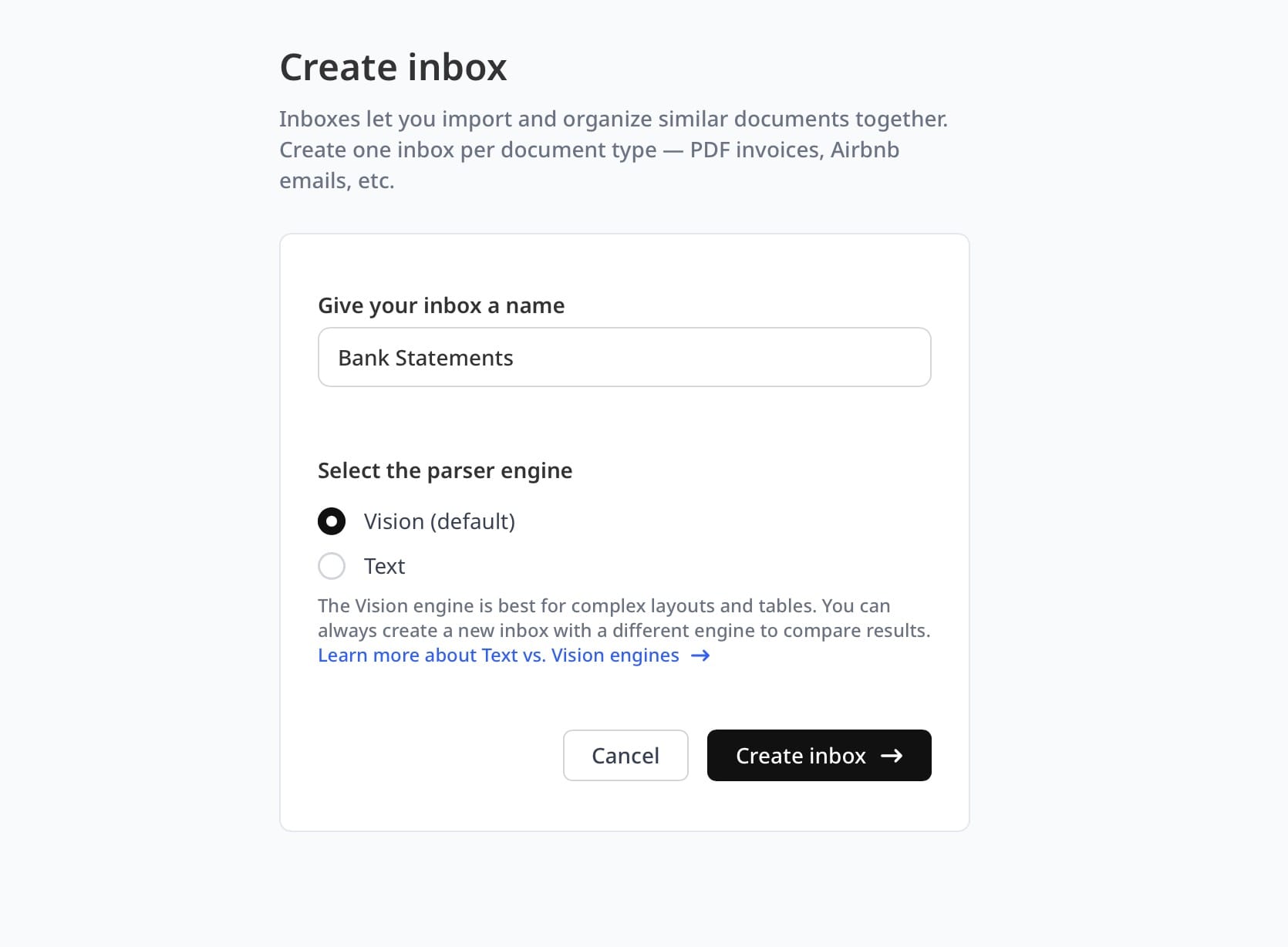
Bank statements are PDFs with visual table structure, so the vision engine is the right choice. Create a new inbox in Airparser and select the vision engine. If you are processing digital PDF statements from a bank's online portal, the vision engine handles these well.
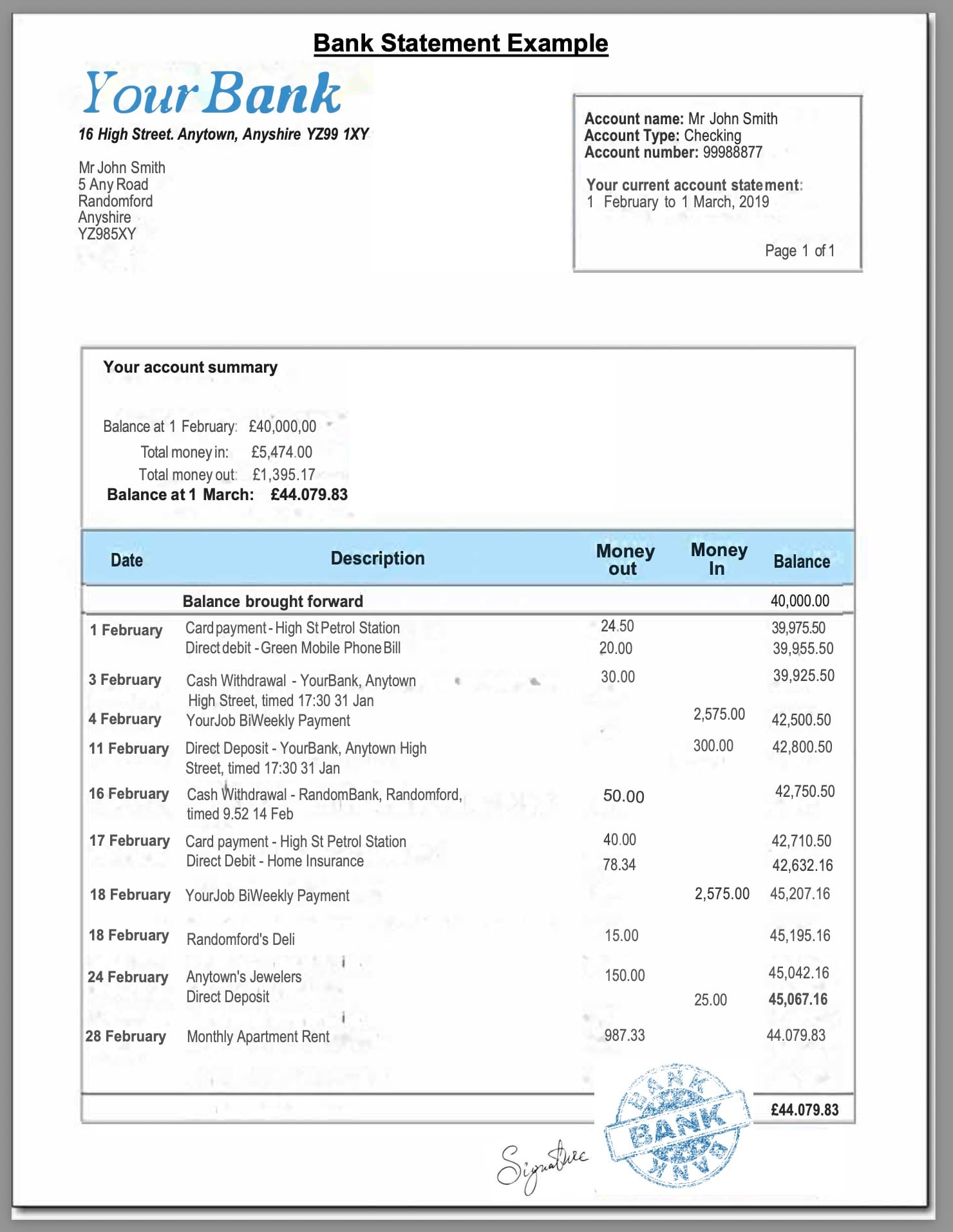
If you receive scanned paper statements (photographed or scanned to PDF), the vision engine also handles those — it reads the visual content of the image rather than relying on a text layer.
Step 2: Upload a sample statement and generate a schema
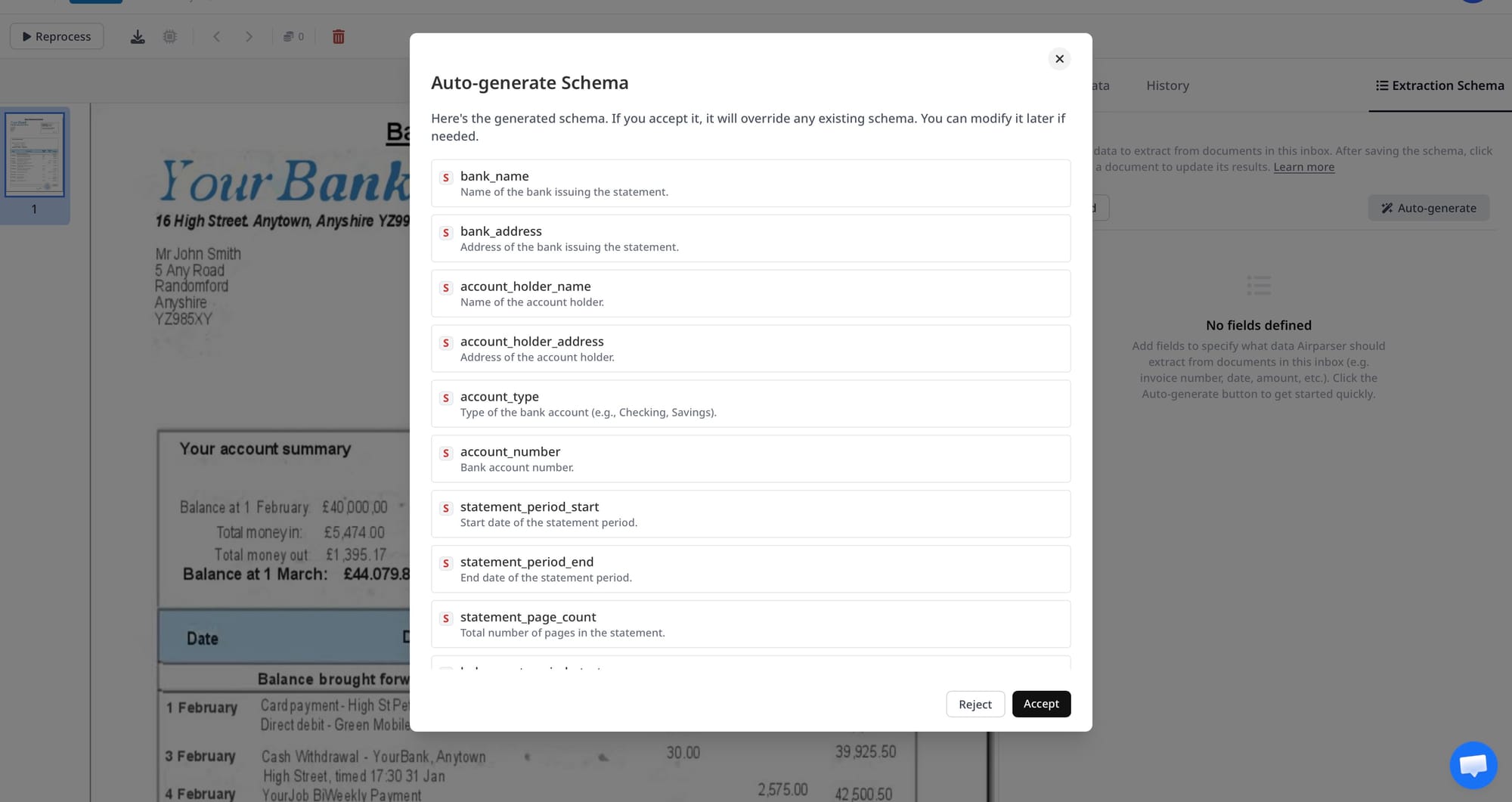
Upload one representative bank statement. Airparser analyzes the document structure and suggests an initial extraction schema. For a bank statement, this typically produces a set of header fields plus a line-items array for the transaction table.
The AI-suggested schema gives you a starting point. You can accept it as-is or edit individual fields. For most bank statements, the auto-generated schema will already include the core fields. You may need to rename fields (some banks label the description column "Particulars" or "Narrative"), adjust the field type for amounts (use number rather than string to ensure downstream tools receive numeric values), or add an account_number field if the AI didn't pick it up automatically.
Step 3: Define the full extraction schema
A complete bank statement schema has two parts. The document-level fields capture the header information that identifies the account and period:
- bank_name — name of the issuing bank
- account_holder_name — individual or company name on the account
- account_number — full or masked account number
- statement_period_start — first date of the statement period (ISO 8601 format)
- statement_period_end — last date of the statement period
- opening_balance — balance at the start of the period (number)
- closing_balance — balance at the end of the period (number)
- currency — ISO currency code (USD, EUR, GBP, etc.)
The transactions array captures each row in the transaction table:
- transaction_date — date the transaction was initiated
- value_date — date the funds settled (may match transaction_date)
- description — merchant name, payee, or transaction description
- reference — bank reference or authorization number (optional)
- debit_amount — outgoing amount (leave null for credits)
- credit_amount — incoming amount (leave null for debits)
- balance — running account balance after this transaction
If your bank uses a single signed amount column instead of separate debit and credit columns, define a single amount field and note in the description that negative values are debits.
For practical guidance on schema design decisions, see the article on extracting invoice line items from PDFs — the same line-items pattern applies directly to transaction rows.
Step 4: Choose your document delivery channel
Once the schema is set, you need a reliable way to send statements to the inbox. The three most common approaches are:
Email forwarding: Some banks allow you to receive statement notification emails with a PDF attachment. Forward those emails directly to your Airparser inbox email address. Airparser extracts the attachment and processes it automatically. This requires no additional automation tool.
Automated file sync via Zapier, Make, or n8n: If your bank deposits statements in a shared drive (Google Drive, Dropbox, OneDrive), set up a trigger on new files in that folder and route the document to Airparser via the integration. This is the most common setup for teams that already store statements in a shared folder.
API or manual upload: For occasional use or a custom pipeline, upload files via the Airparser API or the manual upload UI. This is appropriate when you are building a one-time migration (extracting data from years of historical statements) or integrating with a custom internal system.
Getting Extracted Data into Your Accounting Tools
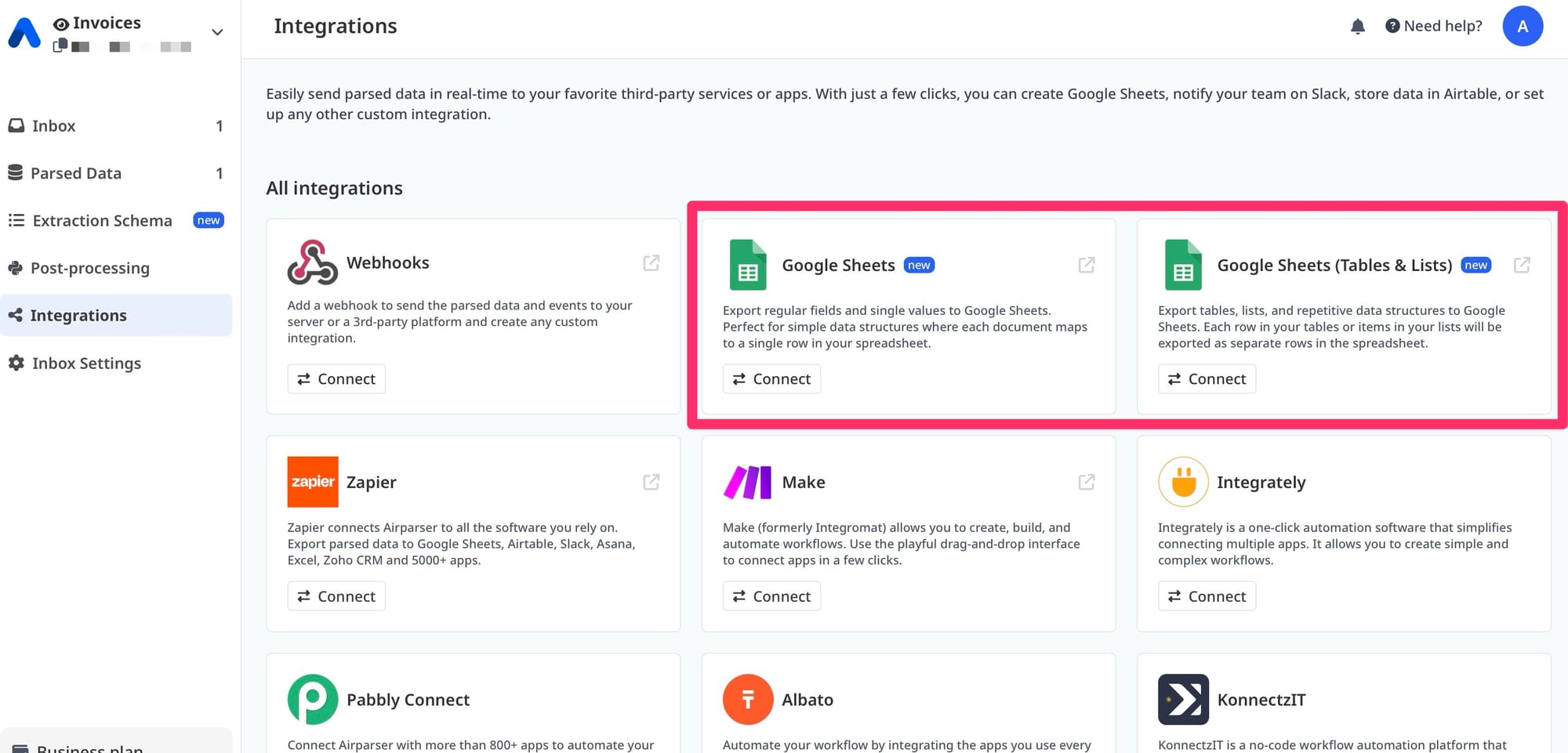
After Airparser extracts the transaction data, the structured JSON output needs to reach the tool where reconciliation or bookkeeping actually happens. The main delivery mechanisms are webhooks, Google Sheets integration, and automation platform connections.
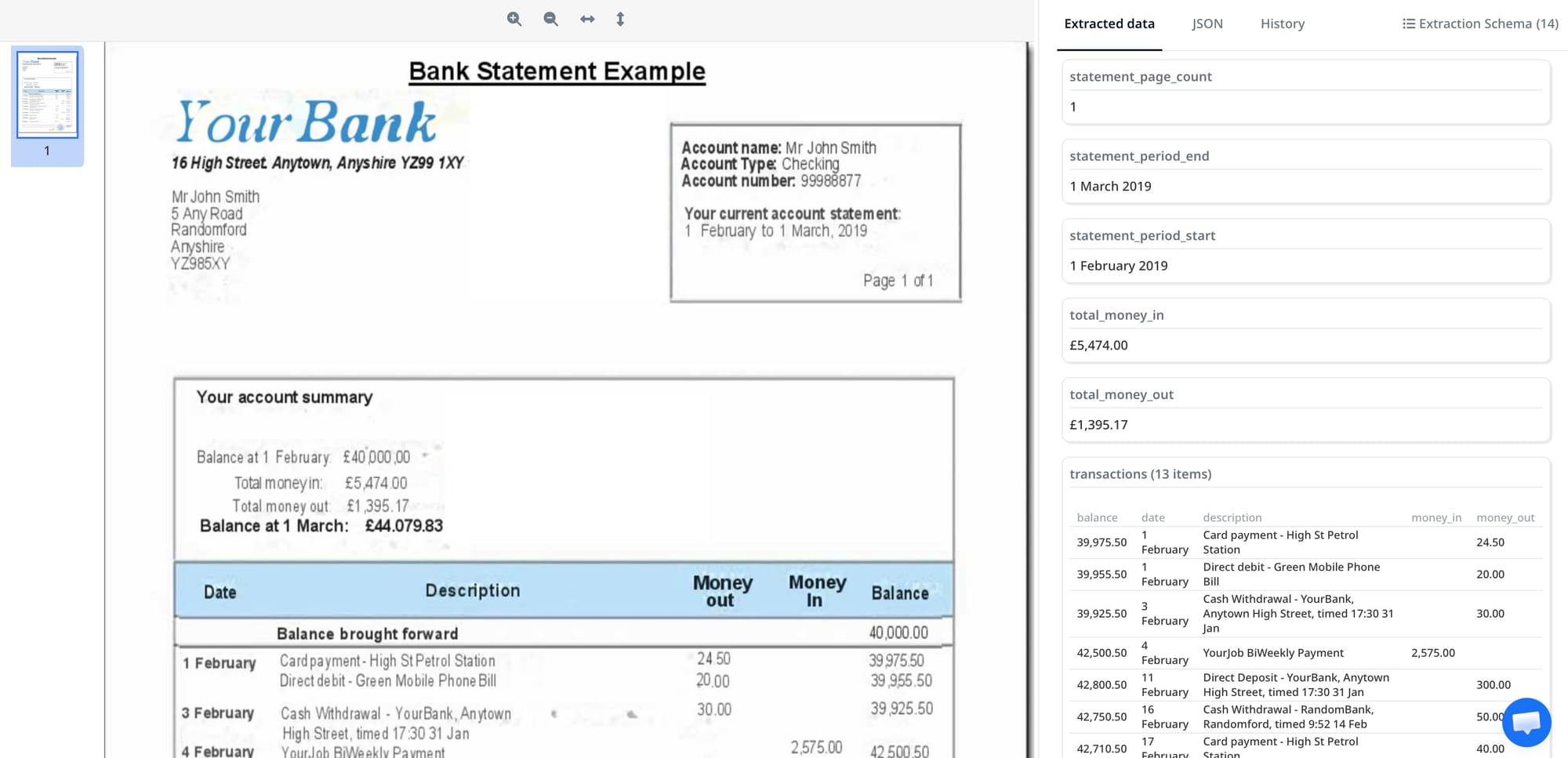
Google Sheets: Airparser has a native Google Sheets integration. You can map each transaction field to a spreadsheet column and have extracted rows appended automatically every time a new statement is processed. This is the fastest way to set up a running transaction log visible to your whole team. See the guide on exporting PDFs to Google Sheets automatically for the connection steps.
Webhooks: For programmatic integrations — sending transactions to a PostgreSQL database, a REST API, or an accounting platform like QuickBooks, Xero, or Sage — configure a webhook in the Airparser inbox settings. Each processed document fires a POST request with the full extraction payload to your endpoint. Your receiving code flattens the transactions array and inserts each row into the destination system.
Zapier, Make, or n8n: All three automation platforms have native Airparser integrations. A parsed document triggers the workflow, which then routes the transaction data to whatever comes next: an Airtable base, a Notion database, a Slack notification for transactions above a threshold, or direct rows in QuickBooks via the QuickBooks action in Make.
Common Use Cases for Automated Bank Statement Extraction
Bookkeeping automation: Finance teams at small and mid-size businesses receive monthly statements from multiple banks and manually enter transactions into accounting software. Automating extraction eliminates that data entry entirely. Each statement processes in seconds, and transactions appear in the accounting system within minutes of the PDF arriving.
Expense reconciliation: When employees use company bank accounts or reimbursements flow through a central account, extracting all transactions into a spreadsheet makes cross-referencing against expense reports straightforward. Filter by description or amount range to match individual line items.
Cash flow monitoring: Route extracted transactions to a dashboard or time-series database to track daily or weekly cash position automatically. Instead of manually reviewing statements, a webhook fires on each new document and updates a live balance view.
Audit support: Auditors need transaction-level data for specific date ranges across multiple accounts. With automated extraction in place, generating an export for any account and period is a matter of filtering already-extracted records rather than manually copying from PDFs.
Multi-bank account consolidation: Organizations with accounts at multiple banks receive statements in different formats. Setting up one Airparser inbox per bank account, each with a schema tuned to that bank's layout, produces consistent structured output regardless of the source format. All transactions from all accounts land in the same destination spreadsheet or database with account_number as the identifier.
Tax preparation: Accountants preparing tax filings often spend hours pulling transaction data from client bank statements. With automated extraction, statement PDFs go in and structured CSV or spreadsheet exports come out, ready to categorize by expense type.
Handling Edge Cases in Bank Statement Extraction
Scanned and photographed statements: Some older statements are paper documents that were scanned to PDF without a text layer, or photographed on a phone. Airparser's vision engine handles these because it reads the visual image rather than relying on embedded text. Extraction accuracy on clear scans is comparable to digital PDFs. For very low-resolution or heavily distorted images, extraction quality degrades as it would for any human reader.
Password-protected PDFs: Some banks protect statements with a password. These documents must be unlocked before processing — open the PDF in any PDF viewer with the password, then re-save without password protection. Airparser cannot bypass document-level security.
Multi-page statements: Statements covering a full month or quarter often run to 10, 20, or more pages. Airparser processes the full document, not just the first page. Transactions are extracted across all pages and returned as a single array.
Multi-currency accounts: If a single statement includes transactions in multiple currencies (common in travel credit cards and international business accounts), add a currency field to the transaction schema. The extraction engine reads the currency symbol or code next to each amount and populates the field accordingly.
Description cleaning: Bank descriptions often contain raw transaction codes, merchant IDs, or institution-specific abbreviations rather than clean merchant names ("AMZN*MKTP US", "SQ *COFFEE SHOP", "ACH DEBIT 23948"). If downstream use requires clean merchant names or transaction categories, Python post-processing can normalize these descriptions after extraction. A simple pattern-matching or LLM enrichment step can convert raw codes to readable labels before the data reaches your spreadsheet or accounting system.
Frequently Asked Questions
Can Airparser handle bank statements from any bank?
Airparser's vision engine reads the visual structure of a document rather than depending on a fixed template, so it works with bank statements from most banks without pre-configuration. The AI model understands tabular layouts, column headers, and transaction rows regardless of font, column width, or PDF generator. In practice, digital PDFs from major retail banks, credit unions, and fintech apps parse accurately on the first attempt. Unusual layouts — such as statements where transactions appear as a continuous text narrative rather than a table — may need minor schema adjustments, but the setup process reveals this immediately when you review the test extraction. If you work with multiple banks, you can create one inbox per bank to optimize the schema for each layout, or use a single shared inbox with a general-purpose schema if consistent output matters more than per-field precision.
What's the difference between this and using a PDF-to-Excel converter?
Traditional PDF-to-Excel or PDF-to-CSV converters extract the raw text content of a PDF and try to map it to table rows and columns based on position. They produce usable output for simple, single-column layouts but struggle with multi-column financial tables, wrapped descriptions, and variable row spacing — exactly the layout patterns common in bank statements. The output typically requires significant cleaning before it is usable in a spreadsheet or database. AI extraction understands the semantic meaning of each field: it knows that the column labeled "Withdrawal" contains debit amounts, that a row with no monetary values is a date separator, and that a description spanning two lines belongs to a single transaction. The structured output is clean, labeled, and typed — ready to route into downstream tools without a reformatting step. Additionally, a converter produces a static file you open manually; an AI extraction workflow processes new statements automatically as they arrive and pushes data to connected tools without human involvement.
How do I handle transactions that span multiple lines in the PDF?
Multi-line transaction descriptions are one of the most common formatting challenges in bank statement extraction. The vision engine reads the full visual row — even when the description text wraps onto a second line — and assigns the entire description to a single transaction record. You do not need to configure this behavior; the AI recognizes that the second line is part of the same transaction because it has no date or amount of its own. The extracted description field will contain the full description text, including any continuation from wrapped lines. If the concatenated description includes unwanted whitespace or line breaks, a short Python post-processing script can clean the field before routing the data downstream. This is more reliable than trying to configure a template-based tool to detect and merge multi-line rows.
Can I extract data from multiple bank accounts and merge the results?
Yes. The standard approach is to create one Airparser inbox per bank account. Each inbox uses the same schema structure but may have minor adjustments for that bank's specific layout. All inboxes deliver extracted transactions to the same destination: a shared Google Sheet, a database table, or a webhook endpoint. The account_number field in the schema identifies which account each transaction batch came from, allowing you to filter, group, or reconcile by account after the fact. If you process 10 accounts, you set up 10 inboxes, each forwarding to the same destination with the account identifier as a field. Some teams prefer a single inbox with a general schema that covers all their banks — this is simpler to manage and works well when the transaction row structure is consistent across banks, even if header layouts differ slightly.
How do I validate that every transaction was extracted correctly?
The most reliable validation check for bank statement extraction is balance reconciliation: sum all debit amounts, sum all credit amounts, apply them to the opening balance, and verify the result equals the closing balance. If the arithmetic reconciles, the transaction set is complete and amounts are correct. You can run this check automatically in a Python post-processing step or in a spreadsheet formula after export. For individual transaction accuracy, scan the description field for placeholder values or obvious OCR artifacts (strings of random characters, missing words) — these indicate a description that the model found ambiguous. Where accuracy is critical, include a manual sampling step on a subset of statements, particularly the first time you process statements from a new bank. After the initial validation pass, the same layout produces consistent results on subsequent statements without further review.
What if my bank only allows downloading statements as scanned images, not digital PDFs?
Scanned statement images — whether delivered as image-only PDFs, JPEG files, or PNG exports — are handled by Airparser's vision engine. Unlike text-layer OCR, vision extraction reads the rendered image directly and does not require embedded text. Upload or forward the image file the same way you would a digital PDF. Extraction accuracy depends on scan quality: a clear, straight, high-resolution scan produces results comparable to a digital PDF. A low-resolution, skewed, or poorly-lit scan reduces accuracy, particularly for amounts with small fonts. If you receive photographed statements (taken with a phone), ensure good lighting and minimal perspective distortion for best results. For teams that regularly process physically scanned documents at scale, Airparser is a better fit than tools that require text-layer PDFs, because it handles the full range of input types in a single workflow.
How long does it take to set up automated bank statement extraction?
For a single bank account with a standard statement format, the initial setup takes 5 to 15 minutes: create an inbox, choose the vision engine, upload a sample statement, review and confirm the auto-generated schema, and configure the delivery destination (Google Sheets, webhook, or automation platform). Subsequent statements from the same bank process automatically with no additional setup. If you are configuring extraction for multiple banks, add roughly 5 minutes per bank for the schema review step — each bank may have slightly different column names or layout quirks that you catch by reviewing the test extraction before activating the live workflow. The longest part of the process is usually connecting the downstream destination: setting up a Google Sheets integration or building a webhook receiver typically takes 10 to 30 minutes depending on your technical setup, but it only needs to be done once per destination system.
If you want to see the extraction workflow in action, upload a sample bank statement at airparser.com — the vision engine generates a schema and shows you extracted transactions within seconds, no account required for the initial test.