How to Automate Remittance Advice Data Extraction with AI
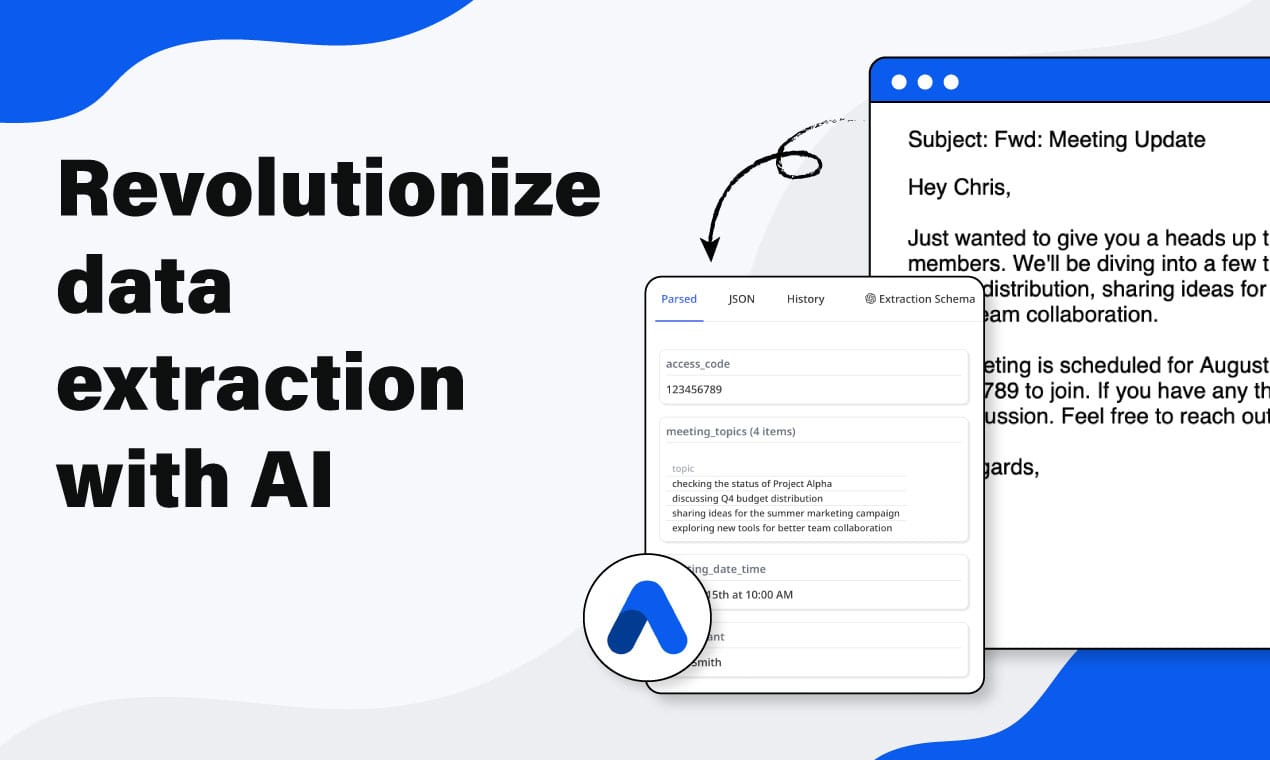
Remittance advice tells you which invoices a payment covers. Extracting that data manually is slow and error-prone. Here's how to automate it with Airparser — PDF, email, or Excel.

TL;DR
- Remittance advice is the document a payer sends alongside or after a payment to tell you which invoices it covers — without it, matching bank deposits to open invoices is manual guesswork.
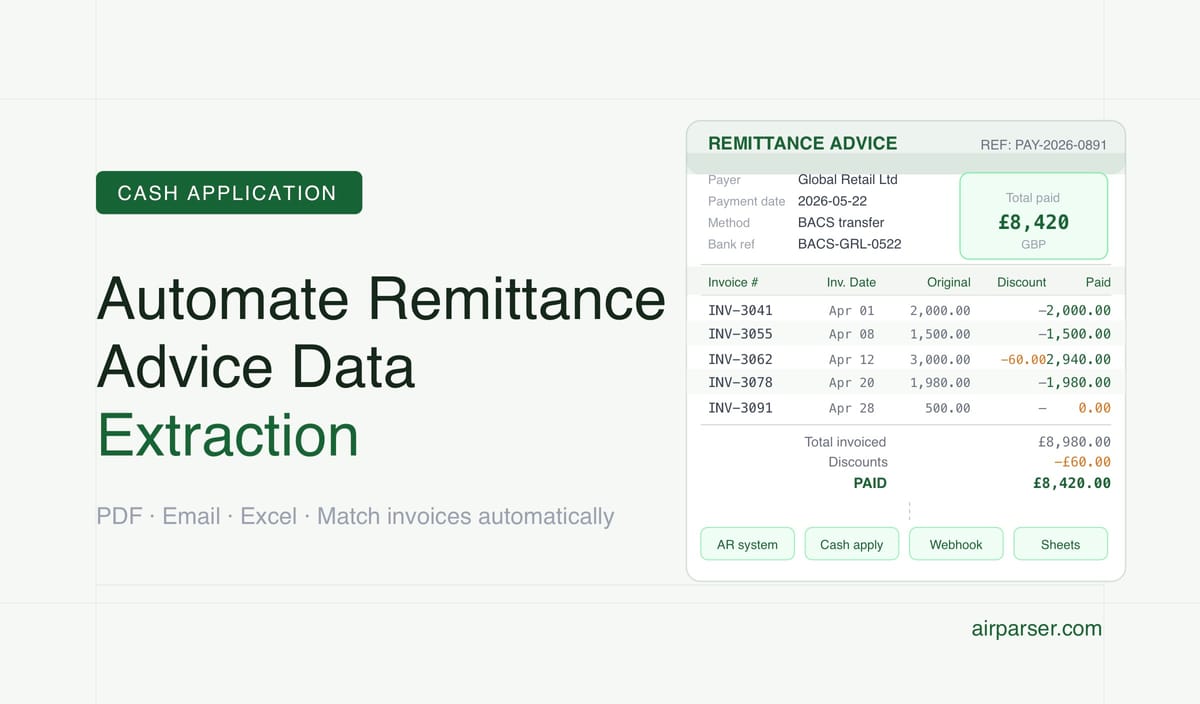
- AI extraction pulls two levels of data from remittance documents: payment-level metadata (payer, date, total, reference) and per-invoice line items (invoice number, original amount, amount paid, discount).
- Remittance advice arrives in three formats — PDF attachments, email body text, and Excel spreadsheets — and Airparser handles all three from the same inbox.
- Setup typically takes under an hour: create an inbox, upload a sample document, let Airparser suggest an extraction schema, adjust the fields, then wire the output to your AR system, Google Sheets, or accounting tool via webhook or integration.
Automating remittance advice data extraction means configuring a parser to read each remittance document — whether it arrives as a PDF attachment, in the body of an email, or as a spreadsheet — pull out the payment details, invoice references, and amounts, and route that data directly into your accounts receivable system or reconciliation spreadsheet without anyone manually copying anything. With Airparser, most finance teams can have this running in under an hour for their most common remittance formats.
Remittance advice is the document a customer sends to tell you which invoices their payment covers. Without it, cash application is guesswork — your AR team must manually match lump-sum bank deposits to open invoices. Automating extraction removes the manual data entry step and gives your reconciliation workflow the structured data it needs to apply payments accurately.
This guide covers what data to extract, why remittance advice is harder to parse than it looks, which Airparser engine type works best for each format, and a step-by-step walkthrough of setting up the full extraction workflow.
What Data to Extract from Remittance Advice
A standard remittance advice document contains two levels of information: payment-level metadata and per-invoice line items. Both are needed for accurate cash application.
Payment-level fields:
- Payer name and account number
- Payment date
- Payment method (ACH, wire, check, BACS)
- Total amount paid
- Payment or bank reference number
- Currency
Per-invoice line fields (one row per invoice covered):
- Invoice number
- Invoice date
- Original invoice total
- Amount paid against this invoice
- Any discount or credit applied
- Outstanding balance if partial payment
Most AR systems need all of these fields to apply a payment accurately. If you only capture the payment total and miss the per-invoice line items, your team still has to manually look up which invoices are covered — the automation only solved half the problem.
The common extraction mistake is treating remittance advice like a simple invoice and only extracting summary fields. Building a schema that captures both the payment header and the line item array is what makes the workflow actually eliminate manual work.
Why Remittance Advice Is Harder to Parse Than Invoices
Invoices follow relatively consistent conventions — vendor at the top, line items in the middle, totals at the bottom. Remittance advice has no such standard. The same customer may send remittance as a PDF one month and a plain-text email the next. The table structure, column headers, and field positions vary dramatically across customers and regions.
Format diversity is the core problem. Remittance advice arrives in three main formats, each requiring a different extraction approach:
PDF attachments range from digitally-generated documents with clear table structures to scanned paper remittances with poor quality. The digitally-generated ones are the easiest — an LLM vision engine or text engine extracts the table cleanly. Scanned remittances require OCR with a vision engine and are more prone to alignment errors in the line item table.
Email body text is common for smaller customers and automated payment systems. Many payment platforms send remittance directly in the email body as a formatted table or a list of invoice references and amounts. An AI extraction engine reads the email body and pulls the structured data without requiring an attached document.
Excel and CSV spreadsheets are standard for large customers with ERP systems. A procurement team exports their payment run from SAP or Oracle as a spreadsheet and emails it. Airparser's Excel parser handles these directly — no conversion step needed.
Column header inconsistency. One customer's remittance table has a column called "Invoice Number"; another uses "Inv Ref"; another uses "Our Reference." AI extraction handles synonym mapping automatically — it understands that all three refer to the same concept — but template-based OCR tools require separate templates for each customer. This is the primary advantage of LLM-based extraction for remittance documents: the same parser handles all of your customers without per-customer template configuration.
Partial payments and deductions. A customer may pay 90% of an invoice due to a quality dispute, or apply a 2% early payment discount. The remittance line item shows the original invoice amount alongside the amount actually paid. Extraction schemas that only capture one amount miss this distinction, which causes reconciliation errors when the payment doesn't match the invoice total.
Choosing the Right Engine for Remittance Documents
Airparser offers two AI extraction engines — text and vision — and the right choice depends on how your remittance documents arrive.
Use the text engine for:
- Digitally-generated PDF remittances (the text layer is clean and machine-readable)
- Email body remittance (plain text or HTML tables in the email itself)
- Excel and CSV spreadsheets
Use the vision engine for:
- Scanned paper remittances (photographed or faxed documents)
- PDFs created from scans where text extraction produces garbled output
- Remittance documents with complex table layouts that the text layer doesn't faithfully represent
If your customers send a mix of formats, you can create two inboxes — one with the text engine for digital documents, one with the vision engine for scanned documents — and route incoming remittances to the appropriate inbox based on source. Most finance teams find that 80% of their remittance volume is digitally generated, so the text engine handles the majority of cases and the vision engine covers the exceptions.
Related: Vision vs text in LLM document parsing: how to choose the right engine.
Setting Up the Extraction Schema
The extraction schema is the list of fields Airparser will pull from every remittance document. For remittance advice, the schema needs to capture both the payment header and the line item array.
Step 1: Create an Airparser inbox and select the engine type based on your typical document format. Name the inbox something recognizable — "Remittance Advice" or "Customer Payment Notifications."
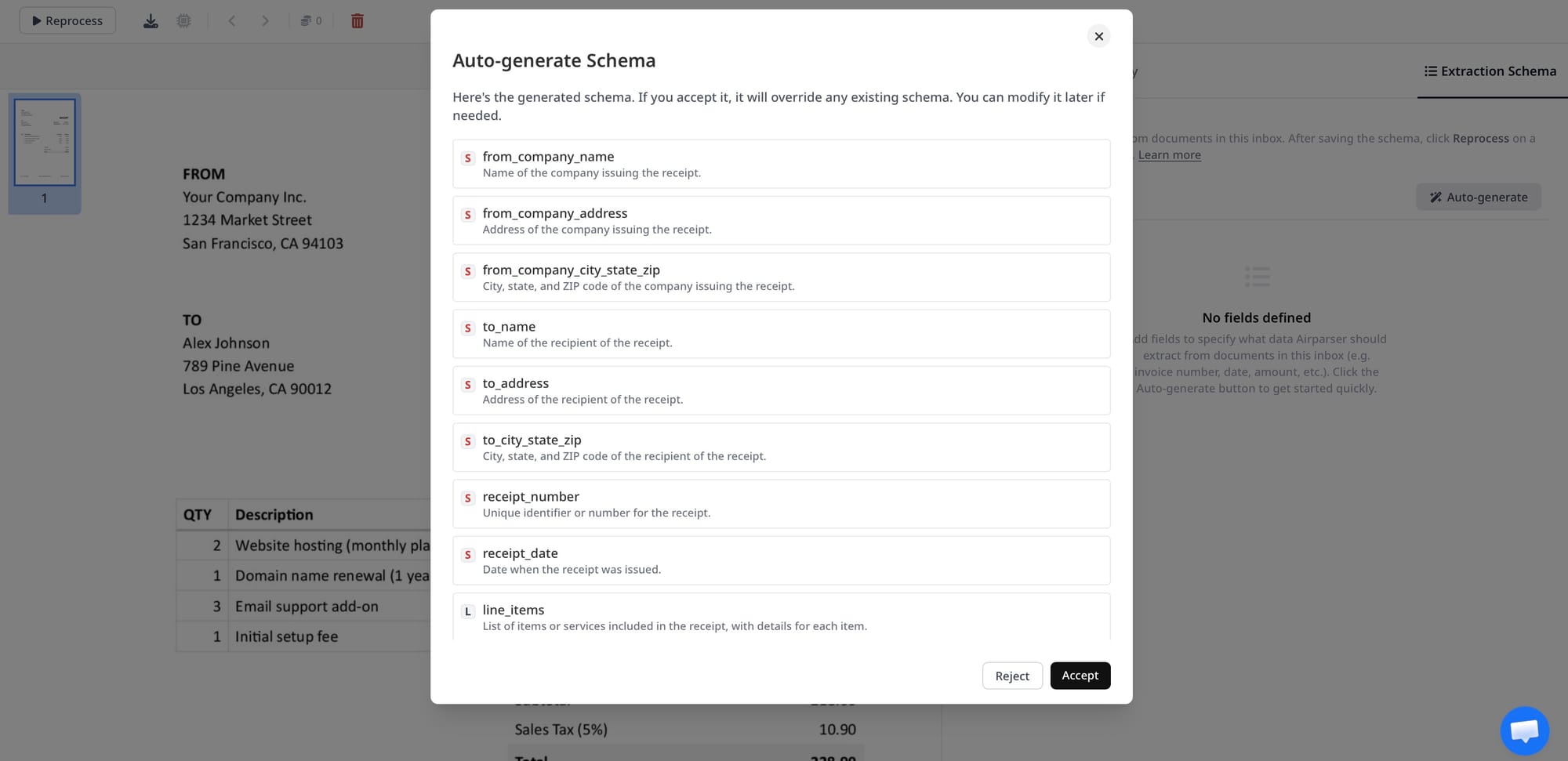
Step 2: Upload a sample document. Use a real remittance advice from one of your typical customers. Airparser will auto-generate a schema suggestion based on the sample. Review the suggested fields and add or remove fields to match what your AR system needs.
Step 3: Define the schema. A useful starting schema for remittance advice:
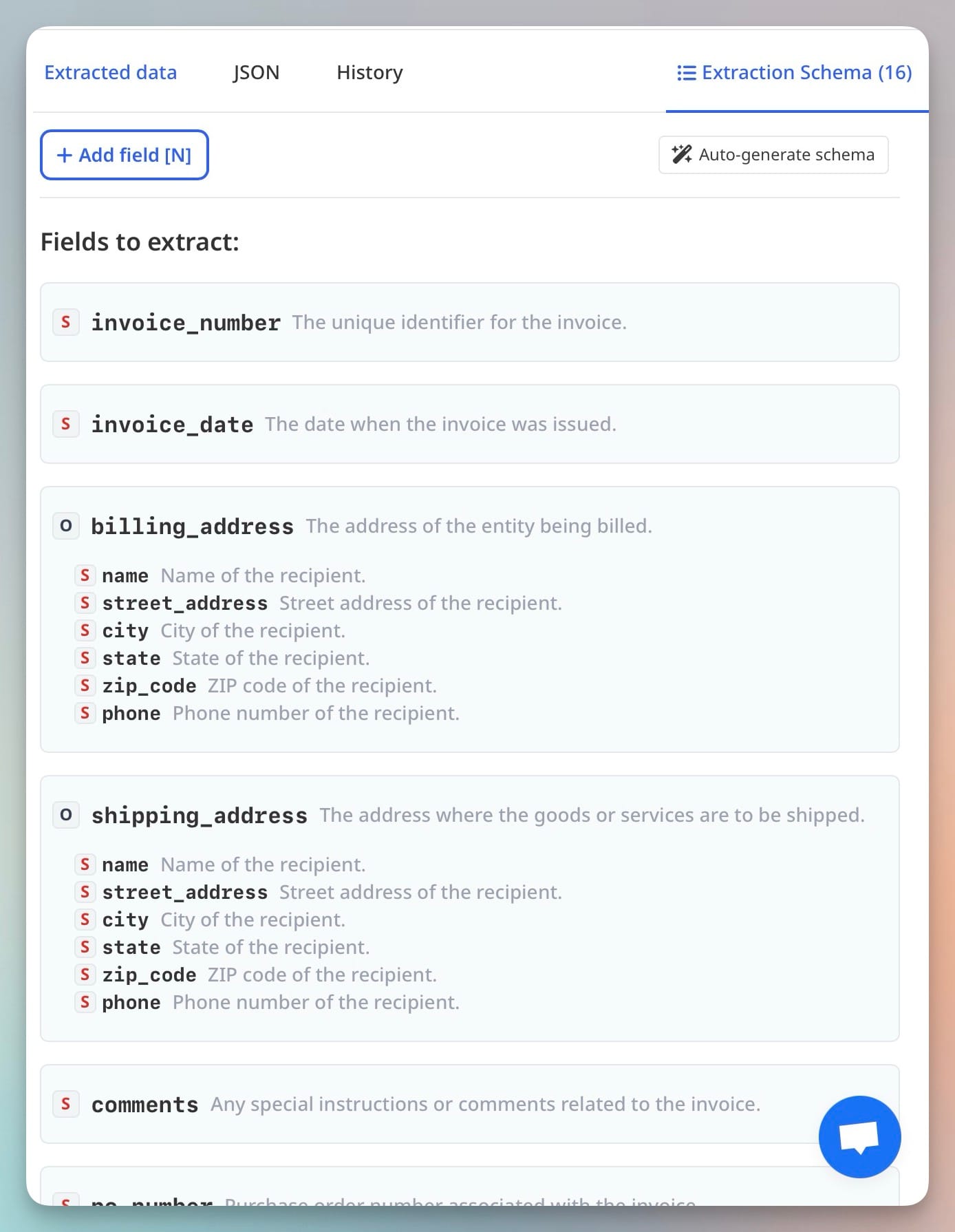
payer_name(text) — the customer name or company sending the paymentpayment_date(text) — the date the payment was made or will be madepayment_reference(text) — the bank or ACH reference numberpayment_method(text) — ACH, wire, check, BACS, etc.total_amount_paid(number) — the total payment amountcurrency(text) — the payment currencyline_items(array) — a repeating structure with one entry per invoice, each containing:invoice_number(text)invoice_date(text)original_amount(number)amount_paid(number)discount_applied(number)outstanding_balance(number)
Step 4: Test on additional documents. Upload two or three more remittances from different customers to verify the schema extracts correctly across different formats. Adjust field definitions where the AI is consistently misreading a field — for example, if it's picking up a document reference number instead of the payment reference, add a note to the field description to disambiguate.
Related: How to create custom extraction schemas without prompt engineering.
Handling Remittance Advice Delivered by Email
Many customers don't send a separate PDF — they send remittance information directly in the email body, either as formatted text or as an HTML table. Airparser handles email body extraction the same way it handles PDF extraction: you forward the email to your inbox address, and Airparser extracts the structured data from the email content.
To receive remittance emails in Airparser, give each customer your inbox email address and ask them to send payment notifications directly to it. Alternatively, set up an email forwarding rule in your existing inbox (Gmail, Outlook, or any email provider) that automatically forwards emails matching "remittance" or "payment notification" in the subject line to your Airparser inbox address. This way you don't need to change your customers' sending behavior — the forwarding rule handles the routing.
If remittance comes as both a PDF attachment and body text in the same email, Airparser processes the attachment. If the email has no attachment, it processes the body. If your customers use both formats, test that the schema produces accurate output from both — email body remittances sometimes format the table differently from the PDF version of the same data.
For customers who send remittance as an Excel attachment, Airparser treats Excel files the same as PDFs — they arrive as email attachments and Airparser extracts the structured data from the spreadsheet content.
Related: How to automatically extract data from attachments in emails.
Connecting to Your AR System and Downstream Tools
Once Airparser extracts a remittance document, you have several options for where the structured data goes:
Webhook delivery is the most direct path for teams that have an AR system with an API. Configure a webhook URL in your Airparser inbox settings, and Airparser POSTs the extracted JSON to that URL immediately after processing. Your receiving endpoint applies the payment against the matching invoices using the extracted invoice numbers and amounts.
Google Sheets works well for smaller teams and those running reconciliation in spreadsheets. Airparser's native Google Sheets integration writes each extracted remittance as a new row. For teams that currently reconcile manually in a spreadsheet, this eliminates the data entry step — each payment notification goes directly into the spreadsheet without anyone opening the document.
Zapier, Make, or n8n are the right choice when you need to route remittance data to an accounting tool (QuickBooks, Xero, NetSuite) that Airparser doesn't connect to directly. The automation platform receives Airparser's webhook output and maps the fields to the accounting tool's API. Most finance automation workflows that need ERP integration go through this route.
One practical note for line items: webhook payloads include the full line_items array as a nested structure. Downstream systems that expect flat rows (like Google Sheets) need the array expanded — one row per invoice line — rather than one row per payment. If you're using Google Sheets, use a Zapier or Make step to expand the array before writing to the sheet, or use Airparser's Python post-processing to flatten the line items into a format your spreadsheet can consume directly.
Related: How to automate accounts payable data entry from supplier invoices.
Frequently Asked Questions
What is remittance advice and why is it used?
Remittance advice is a document or notification a payer sends alongside or after making a payment to explain which invoices the payment covers. It is used to facilitate cash application — the accounting process of matching a received payment to the open invoices it settles. Without remittance advice, a company's accounts receivable team receives a lump-sum deposit in their bank account but must manually investigate which of their outstanding invoices the customer intended to pay. This is time-consuming, especially when a single payment covers dozens of invoices. Remittance advice removes the ambiguity by explicitly listing the invoice numbers, original amounts, amounts paid, and any discounts or credits applied. In B2B relationships with regular payment cycles, remittance advice is standard practice and is especially important for larger customers paying multiple invoices at once, for international payments where currency and timing complicate matching, and for partial payments where the payment doesn't fully settle an invoice. The document may arrive as a PDF attachment, in the email body, as a spreadsheet, or — in some older EDI-based workflows — as a structured data file. Regardless of format, the core content is the same: who paid, how much, and which invoices it applies to.
Can Airparser handle remittance advice from multiple customers with different formats?
Yes — this is one of the primary advantages of AI-based extraction over template-based parsing. Legacy OCR tools require a separate template for each customer's remittance format, which means every new customer whose format doesn't match an existing template requires template-building work before their remittances can be processed automatically. Airparser's LLM extraction engine reads the document contextually — it understands that a column called "Invoice Number," "Inv Ref," "Our Reference," or "Doc No." all refer to the same concept — and extracts the correct fields regardless of how they're labeled or positioned on the document. In practice, a single Airparser inbox with one schema can process remittance documents from dozens of customers with meaningfully different layouts. Edge cases that genuinely require a different approach — for example, a very large enterprise customer who sends remittance in a proprietary XML format — can use Airparser's API to preprocess the document before submission. But for standard PDF, email body, and Excel remittance formats, one schema handles the realistic variation across a typical customer base. Teams that have previously spent significant time building and maintaining per-customer templates find that Airparser's AI extraction eliminates that ongoing configuration work entirely.
How do I handle partial payments and deductions in remittance data?
Partial payments and deductions are a normal part of B2B payment workflows, particularly for customers who take early payment discounts, dispute line items, or pay invoices partially due to delivery shortfalls or quality issues. The extraction schema handles this by capturing both the original invoice amount and the amount actually paid for each line item — the difference between those two fields identifies the deduction. In the schema, include an original_amount field (what the invoice was for), an amount_paid field (what the customer actually paid against that invoice), and optionally a discount_applied or deduction_reason field if the remittance document includes that information. Your AR system then uses these three fields to determine whether the invoice is fully settled, partially settled, or has an open balance requiring follow-up. For remittances where deduction reasons aren't on the document itself — the customer just pays less without explanation — Airparser will correctly extract the amounts as stated; the reconciliation logic that determines whether to accept the short payment or issue a credit memo lives in your AR workflow, not in the extraction step. If you need to add business logic to the extraction output — for example, automatically flagging remittance lines where the discount exceeds your standard terms — Airparser's Python post-processing lets you add that validation layer without building a separate processing step.
What if the remittance PDF is a scan or poor-quality image?
Scanned remittance documents are a common challenge — particularly from smaller suppliers, older businesses, or customers in regions where paper-based processes are still standard. Airparser's vision engine is designed for these cases. Unlike the text engine, which reads the document's embedded text layer, the vision engine processes the document as an image and uses a vision LLM to extract fields from what it sees — the same way a human reads a scanned document. For clean, well-aligned scans, extraction accuracy is comparable to digitally-generated PDFs. For poor-quality scans — low resolution, skewed pages, faded print, or handwritten annotations alongside printed content — accuracy degrades and some fields may require manual review. Practical recommendations for managing scan quality: ask customers who regularly send low-quality remittances to email the document rather than fax or photograph it, since email PDF attachments from modern printers scan at higher resolution; set up a review step in your workflow for documents where the total extracted amount doesn't match the expected payment amount (a simple validation you can add in Airparser's post-processing or in your downstream automation); and use the manual review queue in your spreadsheet or AR system to flag records that need human verification before the payment is applied. For most finance teams, the volume of genuinely problematic scans is small relative to the total remittance volume — automating the 90% of clean documents frees capacity to manually handle the remaining 10%.
How does remittance advice automation connect to accounts receivable workflows?
The most common integration pattern is: Airparser extracts remittance data → structured JSON is delivered to a webhook or automation platform → the AR system matches the extracted invoice numbers to open receivables and applies the payment. The specific steps depend on your AR system. For teams using QuickBooks, Xero, or NetSuite, the automation platform (Zapier, Make, or n8n) maps Airparser's extracted fields to the accounting tool's payment application API. For teams using a custom database or ERP, Airparser's webhook delivers the JSON payload directly to an endpoint that handles the database insert or payment matching logic. For smaller teams managing AR in Google Sheets, Airparser writes each remittance as a row in a designated sheet, and a spreadsheet formula or script matches the invoice numbers to an open invoices table. The extraction step is the same in all cases — what changes is the downstream system and integration method. A common workflow improvement over manual processing is that the matching step, which previously required a team member to open the remittance document, look up the invoice in the AR system, and type in the payment — a task that takes 2 to 5 minutes per document — is replaced by an automatic insert that takes a few seconds. For finance teams processing 50 to 500 remittances per month, the time saving is significant. Related: Automating accounts payable data entry from supplier invoices.
Can I process remittance advice sent as Excel or CSV spreadsheets?
Yes — Airparser handles Excel (.xlsx, .xls) and CSV files as first-class document types alongside PDFs and email body content. When a customer sends remittance as a spreadsheet attachment, Airparser reads the spreadsheet content and extracts the fields from it using the same schema as for PDF and email remittances. This is particularly useful for large enterprise customers whose ERP systems export payment runs as spreadsheets — a format that's actually easier to extract accurately than a PDF because the data is already in a tabular structure with consistent column positioning. For CSV files, Airparser reads the raw tabular data and maps it to your schema fields. For Excel files with multiple sheets, Airparser processes the first sheet by default — if your customer's spreadsheet puts remittance data on a different sheet, note that in your inbox description so you can verify it during setup. One practical note: if a customer sends both a PDF summary and an Excel detail file in the same email, Airparser will process the primary attachment. If you need to process both, submit them separately or use the API to submit each file explicitly. For most remittance automation workflows, either the PDF or the spreadsheet contains the full line-item detail needed for cash application — you don't typically need both.