How to Automate Work Order Data Extraction with AI
Work orders arriving as PDFs or emails lose hours to manual data entry. Learn how to extract WO numbers, job details, parts lists, and labor hours automatically — and route data to your ERP, CMMS, or spreadsheet.

TL;DR
- Work orders arrive as PDFs or email attachments — manual data entry from them wastes hours and introduces errors.
- An AI document parser extracts WO number, job description, site location, parts list, labor hours, and priority automatically.
- Airparser ingests work orders via email inbox or direct upload, extracts structured fields against a schema you define once, and sends data to Google Sheets, your ERP, CMMS, or a webhook.
- A standard setup takes under 30 minutes for a typical work order layout.
The fastest way to automate work order data extraction is to route incoming work orders — by email or PDF upload — through an AI document parser that knows which fields to pull. You define a schema once (WO number, job type, site address, assigned technician, parts list, labor hours, priority), and every subsequent document is parsed automatically into structured data you can push straight to your field service management tool, ERP, or spreadsheet.
This guide walks through exactly how to set that up using Airparser: which fields to extract, how to configure an inbox or upload workflow, and where to send the results.
What Data Lives on a Work Order
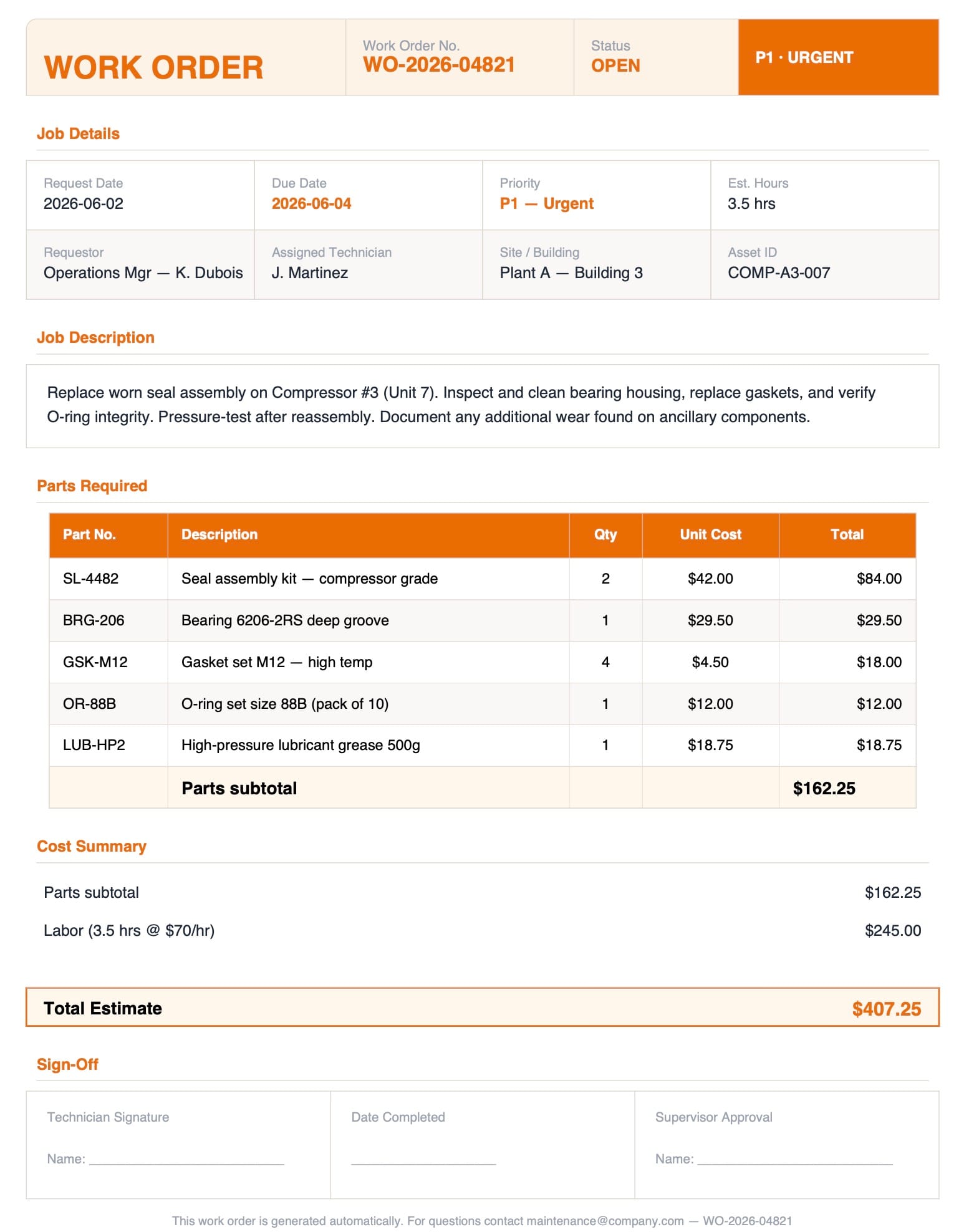
Work orders vary by industry — facilities maintenance, construction, field service, manufacturing — but the core fields are consistent across most formats. Knowing what you need to extract before you configure the parser saves time later.
These are the fields worth capturing in most work order automation workflows:
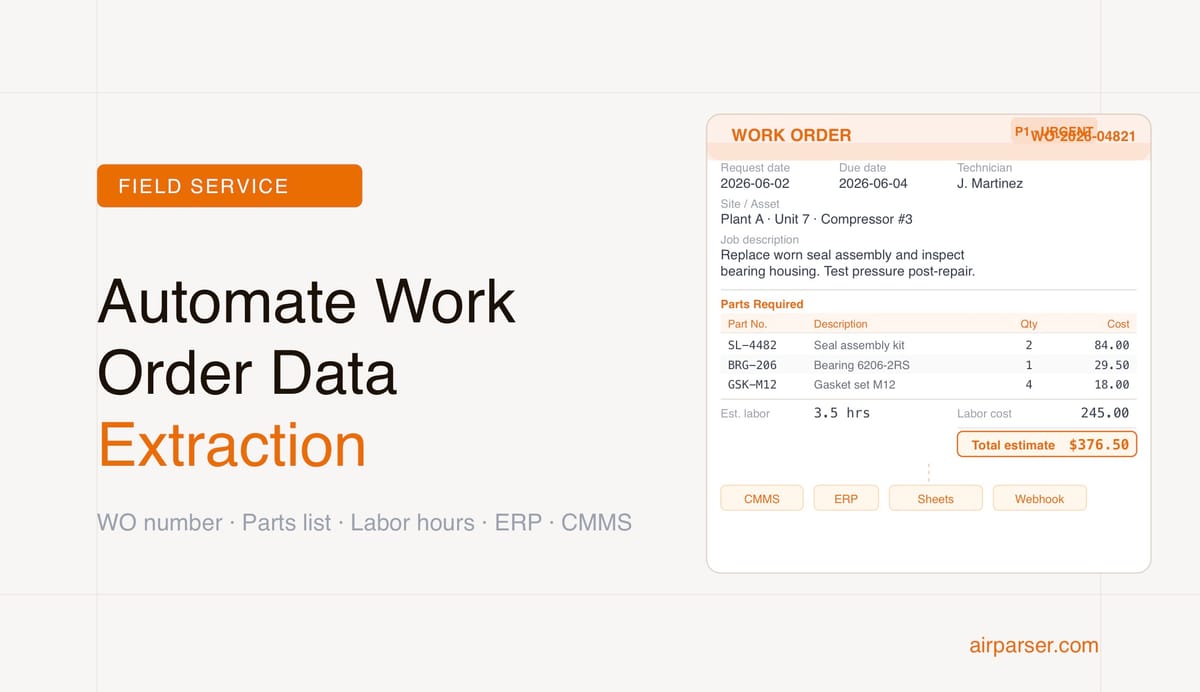
- Work order number — the unique identifier for logging and status tracking
- Request date and due date — when the job was created and when it must close
- Job description — what work needs to be done, often free text
- Site or asset location — address, building, unit, or asset ID
- Requestor name and contact — who submitted the work order
- Assigned technician or crew — who is responsible for execution
- Priority level — emergency, routine, scheduled, or a numeric tier
- Parts required — part numbers, descriptions, and quantities (often a table)
- Labor hours — estimated or actual hours logged
- Status — open, in progress, completed, pending approval
- Total cost estimate — labor plus materials combined
The fields most commonly missed — and most likely to break downstream workflows — are the asset ID (makes job history searchable by equipment), the actual work performed (distinct from the original job description), and part numbers rather than just part descriptions. Include all three in your extraction schema from the start.
Many work orders also carry a table of line items for parts. Airparser can extract nested lists as structured arrays, so each part becomes a separate row in your output rather than an unstructured text blob.
How Work Orders Reach Your Parser: Email vs. Upload
Work orders arrive by two main routes. Which one you set up determines your Airparser configuration.
Option 1: Email inbox
If contractors, building managers, or service platforms email work orders to your team — typically as PDF attachments — create a dedicated Airparser inbox and set a forwarding rule in Gmail, Outlook, or your helpdesk. Every time a new work order arrives, the parser processes it automatically. No manual upload required.
Airparser extracts data from both the email body and attached PDFs in a single pass. If a work order arrives as a plain-text email and a formatted PDF attachment, you can pull fields from whichever source is most complete.
Option 2: PDF upload (manual or automated)
If work orders are generated internally from a CMMS, ERP, or forms tool and exported as PDFs, you can upload files manually or automate the upload via Zapier, Make, or n8n. A common setup is to watch a Google Drive or SharePoint folder and trigger an upload to Airparser whenever a new file appears.
Both options produce the same structured JSON output once parsing completes. The choice is purely about how the document enters the pipeline.
How to Set Up Airparser for Work Order Extraction
The setup follows four steps regardless of whether work orders arrive by email or file upload.
Step 1: Create an inbox and choose your engine
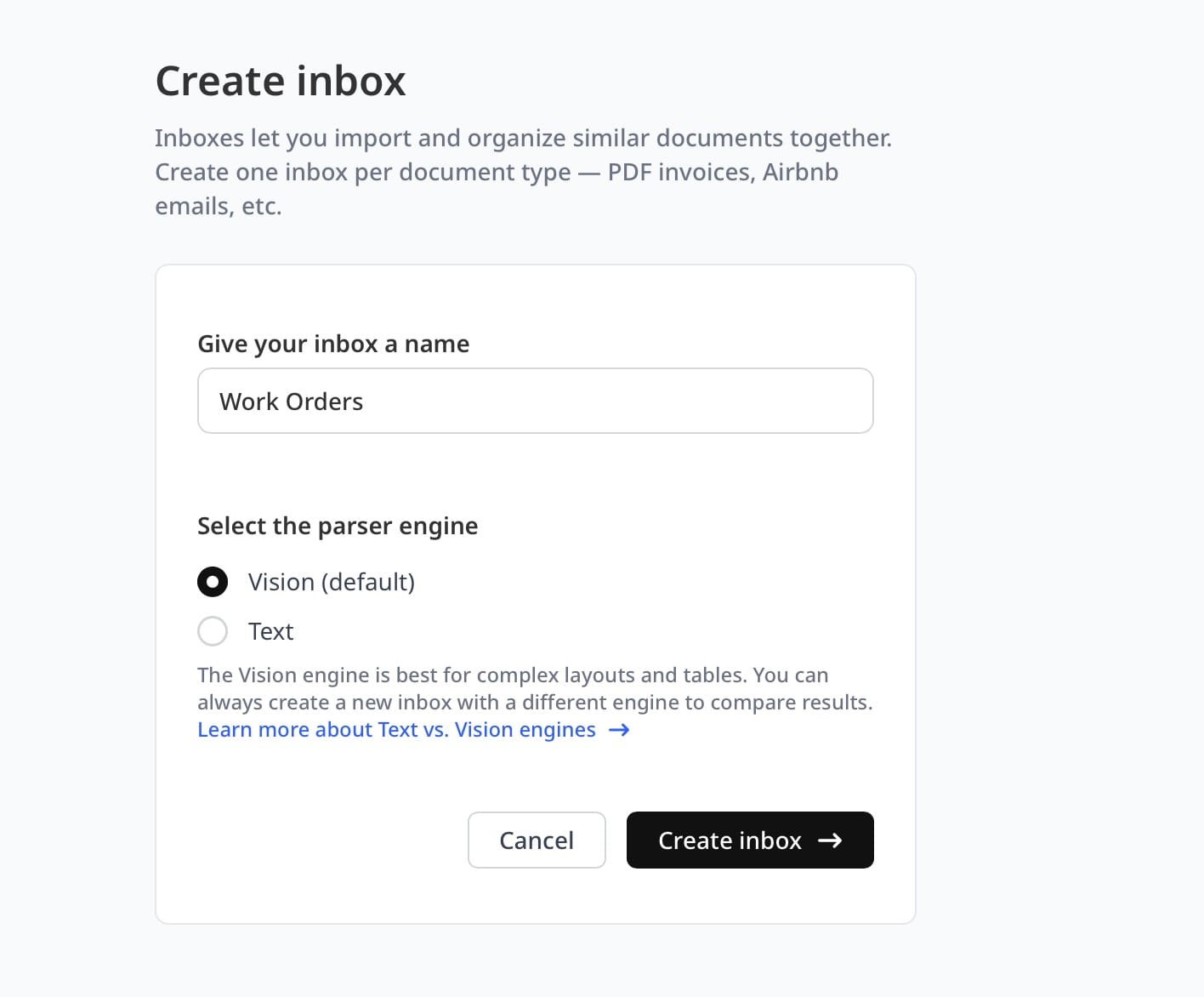
In Airparser, an inbox is a parsing context tied to one document type. Create a new inbox — name it something like "Work Orders — Field Service." Then choose an engine:
- Text engine — best for digitally created PDFs where the text layer is already embedded. Faster and more cost-efficient per document.
- Vision engine — best for scanned paper forms, photos of field documents, or layouts where spatial positioning matters more than linear text order.
For work orders exported from software like ServiceNow, SAP, or Salesforce Field Service, the text engine is usually the right choice. For paper-based forms photographed in the field or scanned carbon copies, use vision.
Step 2: Upload a sample document and define your schema
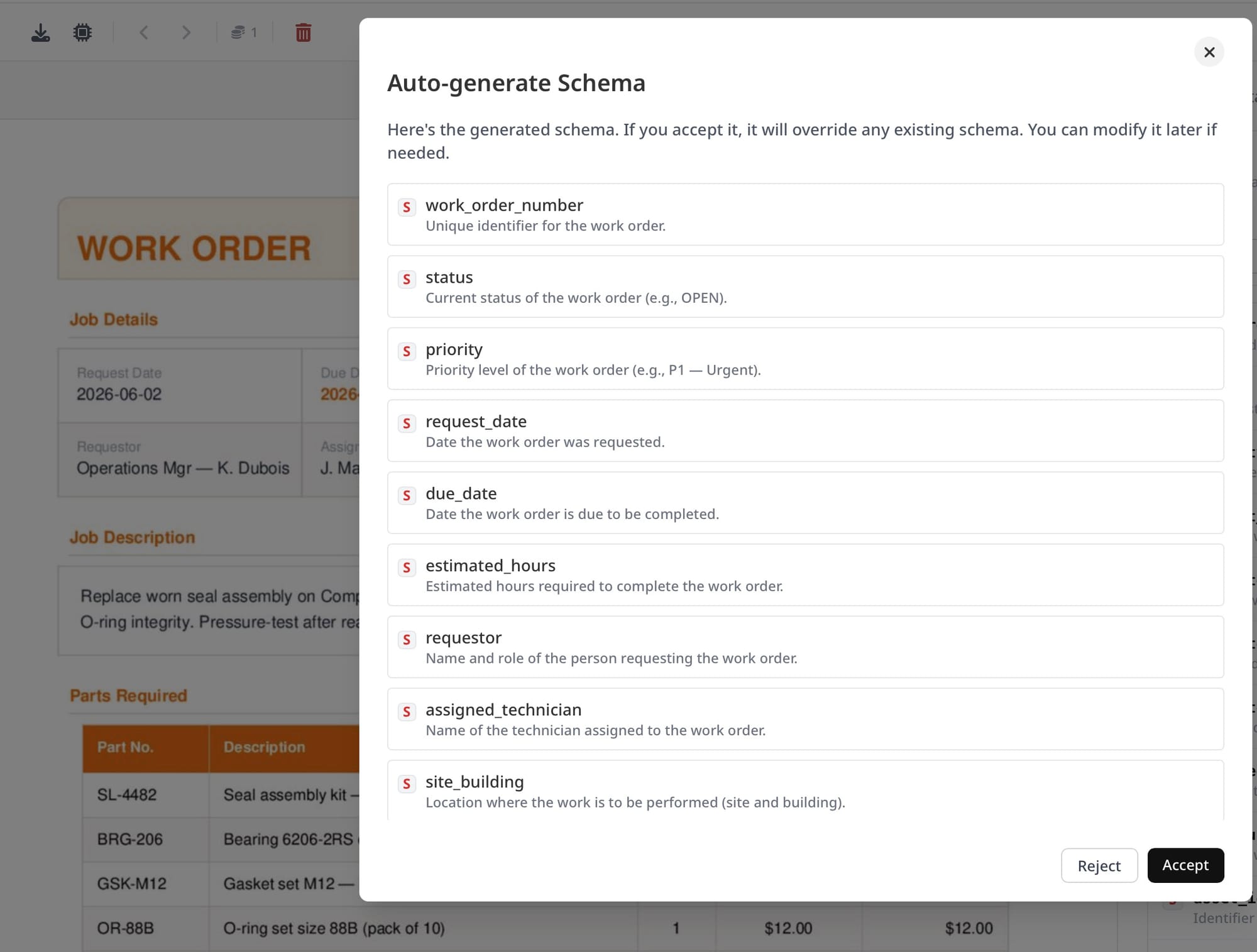
Upload one representative work order. Airparser analyzes the document and suggests a starting schema. Review the suggested fields and add anything missing — especially the parts table if your work orders include line items.
For parts lists, define the field as an array with sub-fields: part_number, description, quantity, unit_cost. Airparser extracts each table row as a structured object, which means every part lands as its own record in your downstream system rather than a single text block.
Step 3: Test with real documents
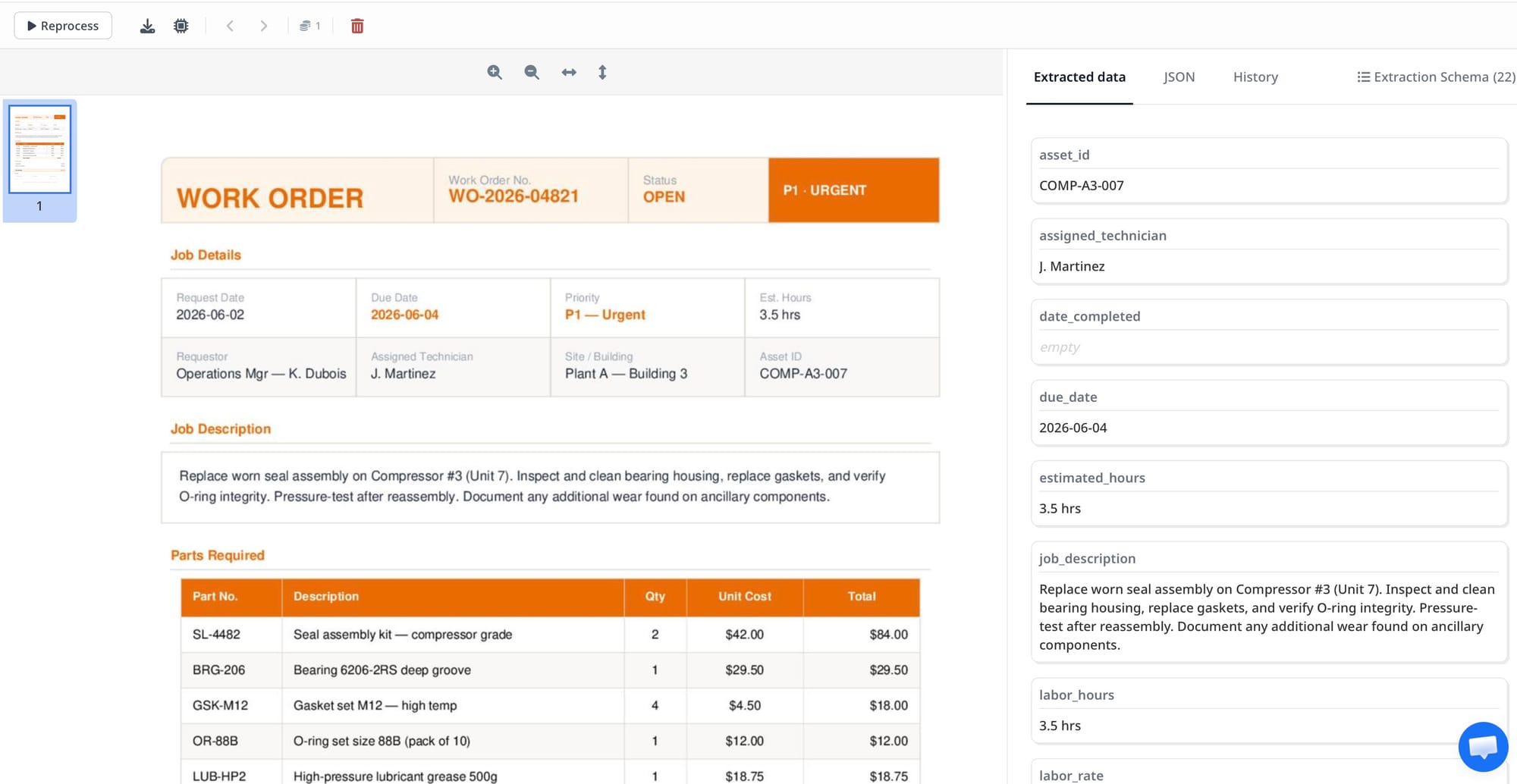
Run three to five actual work orders through the parser and compare the output to the source documents. Common issues to check:
- Priority vocabulary mismatches — "P1," "Critical," and "Emergency" all mean the same thing but will arrive as different strings. Use a post-processing rule to normalize them before the data reaches your downstream system.
- Date format variation — different vendors write dates as MM/DD/YYYY, DD-MM-YYYY, or plain text ("June 3, 2026"). Lock in an ISO output format in the schema to get consistent values regardless of the sender.
- Multi-page parts tables — Airparser handles page-spanning tables automatically, but test this explicitly with any work order that has more than a handful of line items.
Step 4: Connect your output destination
Once parsing is producing clean output, configure where the data goes. Options include Google Sheets (native built-in integration), webhooks to your ERP or CMMS, CSV export, or Zapier/Make/n8n for more complex conditional routing.
Where to Route Extracted Work Order Data
Automating extraction only delivers value when the structured data reaches a system that can act on it. These are the most common destinations for parsed work order data.
Field service and CMMS platforms
Tools like ServiceNow, UpKeep, Fiix, and Maintenance Connection accept inbound data via REST API. Connect Airparser to a webhook and map parsed fields to the corresponding API fields. This creates or updates work order records in your CMMS automatically as soon as a new document is processed — no copy-paste, no manual entry.
ERPs (SAP, Oracle, Dynamics)
Most ERP systems expose either a direct API or an intermediate layer such as a staging table or email-to-record connector. If your ERP supports CSV import, the simplest path is Airparser → Google Sheets → scheduled export. For real-time flows, use a webhook combined with a middleware connector or an iPaaS tool.
Google Sheets or Excel
The fastest integration for operations teams without a dedicated ERP. Airparser's native Google Sheets connector maps each parsed field to a spreadsheet column, and new work orders are appended as rows automatically. Useful for running open-job reports, tracking status, or feeding a dashboard.
Conditional notification and approval flows
Route high-priority work orders to Slack, email, or a ticketing system by adding a conditional step in Zapier or Make. For example: if priority equals "Emergency," create a Slack message with the WO number, site address, and assigned technician name. This means critical jobs get flagged immediately without anyone monitoring an inbox.
For a similar end-to-end document-to-system routing workflow, see how to automate purchase order data extraction.
Common Extraction Challenges and How to Handle Them
Work orders are less standardized than invoices. Different contractors, vendors, and internal platforms produce documents that look nothing alike. Here is what breaks most often and how to address it.
Variable layouts across vendors
If you receive work orders from multiple contractors, no two formats will look the same. Airparser's AI engine — especially the vision engine — reads documents by understanding content and structure rather than matching fixed coordinates. This means it can locate the work order number even if that field appears in a different position across vendors. For extreme layout variation, consider creating a separate inbox per vendor, each tuned to that format. Multiple inboxes can feed the same downstream webhook endpoint, so the output is still unified.
Handwritten fields mixed with printed text
Field technicians often add job completion notes, parts used, or signatures by hand on printed forms. The vision engine can extract handwritten text, though accuracy depends on legibility. For critical handwritten fields — actual hours, part numbers, technician sign-off — consider adding a lightweight review step where low-confidence extractions are flagged before the record is committed to your system of record.
Duplicate work orders from the same email thread
When work orders arrive by email, the same WO may arrive twice — once when created, once when updated or re-confirmed. Use the wo_number field as a deduplication key in your downstream system. If the WO number already exists, update the record rather than inserting a duplicate row.
For a broader look at what causes document automation workflows to fail, see what intelligent document processing is and how it handles document variability.
A Sample Work Order Extraction Schema
This is a representative schema for a field service work order. Use it as a starting point and trim fields that do not appear in your specific document type — leaner schemas produce more consistent extractions.
{
  "wo_number": "string",
  "request_date": "date",
  "due_date": "date",
  "priority": "string",
  "job_description": "string",
  "site_name": "string",
  "site_address": "string",
  "asset_id": "string",
  "requestor_name": "string",
  "requestor_email": "string",
  "assigned_technician": "string",
  "status": "string",
  "estimated_hours": "number",
  "parts": [
    {
      "part_number": "string",
      "description": "string",
      "quantity": "number",
      "unit_cost": "number"
    }
  ],
  "total_cost_estimate": "number",
  "completion_notes": "string"
}
The parts array extracts each line item as a separate object. If your work orders do not include parts, remove the array entirely — unnecessary fields can introduce noise into extraction results. Once this schema is saved in Airparser, every new work order processed through that inbox is parsed against it automatically.
FAQ
Can Airparser handle work orders from multiple vendors with different layouts?
Yes — this is one of the most important capabilities to test before scaling to production volume. Airparser's AI engine, especially the vision engine, reads documents by understanding content and structure rather than matching fixed templates or field coordinates. This means it can extract the work order number from a document even if that field appears at the top-left on one vendor's form and in the middle on another. In practice, test a sample from each major vendor before going live. If one vendor's format differs dramatically from the rest — for example, an entirely different table structure for parts — you can create a separate inbox with its own schema tuned for that specific layout. Multiple inboxes can feed the same downstream webhook endpoint or Google Sheet, so output from all vendors arrives in a unified format despite different input layouts. Template-based parsers struggle with layout variation because they hard-code field positions; AI parsers adapt as long as the underlying content is consistent.
What is the difference between extracting work orders via email versus file upload?
The extraction logic is identical in both cases — the difference is purely in how the document enters the pipeline. Email ingestion works best when work orders arrive unsolicited from external parties such as clients, contractors, or service platforms. You set a forwarding rule once in Gmail or Outlook, and every new WO is processed automatically without any team member needing to take action. File upload is better when work orders are generated internally from a CMMS or ERP and exported as PDFs. You can automate uploads using Zapier, Make, or n8n to watch a shared Google Drive or SharePoint folder and push files to Airparser as they appear. If work orders arrive both ways — some by email, some by upload — you can configure a single Airparser inbox to accept both. The parsed output format is identical regardless of how the document arrived, which simplifies the downstream routing logic considerably.
How do I extract a parts table from a work order when it spans multiple pages?
Multi-page tables are handled differently depending on which engine you choose. The text engine reads content in linear order and can fragment tables that span page breaks, especially if the PDF renderer does not include explicit table continuation markers. The vision engine analyzes the full document visually and handles table continuation reliably in most real-world cases because it sees the table as a spatial object rather than a sequence of text lines. If your work orders routinely include multi-page parts lists, use the vision engine and define the parts field as an array in your schema. When you test with your first sample documents, scroll through the full extracted output and verify that rows on the second and third pages are captured. If rows are missing, add a schema hint instructing the AI that the parts table may continue across pages — this small prompt cue is often enough to close the gap.
Can I normalize priority levels and other vocabulary differences across vendors?
Yes, and this is one of the most practical reasons to add post-processing rules to any work order workflow. Different vendors use completely different vocabulary for the same priority concepts — "P1," "Critical," "High Priority," "Emergency," and "Urgent" all signal the same urgency level but arrive as different string values. Airparser's post-processing rules let you map raw extracted values to a normalized vocabulary before the data leaves the parser. For example, a simple rule can check whether the priority field contains any of those strings and output a single canonical value like "P1-Emergency." This normalization step ensures your downstream CMMS or ERP receives consistent values regardless of which vendor sent the work order, which simplifies filtering, dashboard reporting, and conditional automation triggers. Post-processing rules are written in Python and run after each extraction, so they can also handle more complex logic like recalculating total cost from parts arrays or reformatting mixed date styles to ISO 8601.
How do I handle scanned or handwritten work orders from field technicians?
Scanned work orders and forms with handwritten fields require the vision engine. Unlike the text engine, which relies on an embedded text layer, the vision engine processes the document as an image — it can read printed text from scans, extract handwritten values, and interpret tables, checkboxes, and form structures based on their visual layout. Accuracy on handwritten content depends heavily on legibility: neatly printed block letters extract reliably, while hurried cursive or very faint pencil writing may produce lower-confidence results. For critical handwritten fields such as actual hours worked, technician sign-off name, or parts quantities filled in by hand, consider building a lightweight review step into your workflow. You can flag records where key fields are empty or contain unexpected values and route those to a human check before the record is committed to your CMMS or ERP. This human-in-the-loop approach lets you automate the vast majority of documents while catching the edge cases that need a second look before they create downstream problems.
What systems can I push extracted work order data into?
Airparser delivers structured extraction results as JSON via webhook, which means it can connect to any system that exposes a REST API. Common destinations for work order data include field service management platforms such as ServiceNow, UpKeep, Fiix, and FieldEdge; ERP systems including SAP, Oracle Fusion, and Microsoft Dynamics; CMMS platforms; Google Sheets and Excel for lightweight tracking and reporting; and CRMs for client-facing service workflows where the customer record needs to be updated when a job is opened or closed. If your target system does not expose a direct webhook endpoint, use Zapier, Make, or n8n as a middleware layer — these no-code tools receive the JSON output from Airparser and route it to hundreds of downstream applications without custom code. Google Sheets has a native Airparser integration that requires no middleware at all, making it the fastest path for teams that need a working pipeline today. For a walkthrough of the inbox-to-spreadsheet flow that applies directly to email-based work orders, see how to extract data from email attachments automatically.
Next Steps
If your team is still manually entering WO numbers, job descriptions, and parts lists from PDFs or emails, Airparser replaces that step with a pipeline that runs without ongoing effort. Define the schema once, connect the inbox or upload trigger, and every new work order is processed automatically.
Try it with a batch of your most common work order format. You can verify extraction accuracy against your real documents before connecting any downstream system — so there is no risk to your existing workflow while you evaluate whether the output meets your accuracy requirements.