How to Extract Data from Supplier Quotes Automatically
Procurement teams waste hours copying supplier quote data from PDFs and emails. Learn how to extract prices, line items, and terms automatically using AI — and send them straight to a spreadsheet or your ERP.

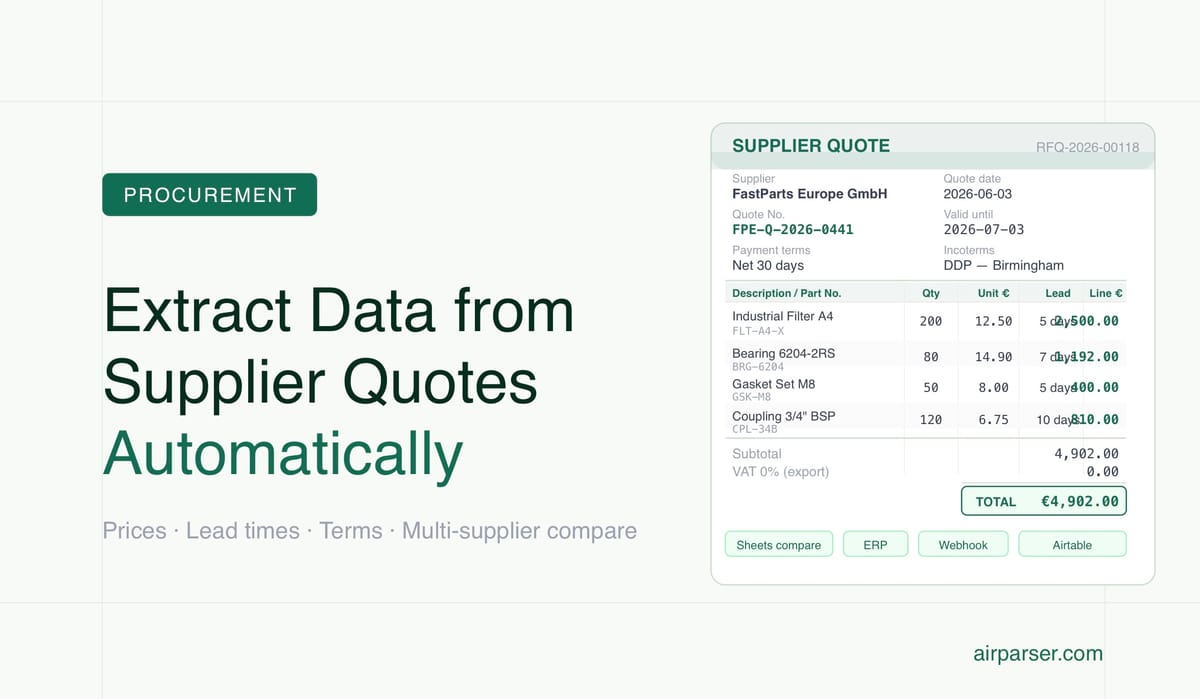
TL;DR
- Supplier quotes arrive as PDF email attachments with inconsistent layouts — making manual data entry slow and error-prone.
- AI document parsers like Airparser extract quote fields (part numbers, unit prices, lead times, terms) without templates or custom code.
- Set up an email inbox, define a schema, and every incoming quote is parsed automatically — data goes straight to Google Sheets, Excel, or your ERP.
- Use the Vision Engine for scanned or image-based quotes; use the Text Engine for digital PDFs with selectable text.
- The workflow scales to multi-supplier comparison: pull all extracted quotes into one spreadsheet and compare side-by-side in minutes.
You can extract structured data from supplier quotes automatically using an AI document parser. Set up an email inbox that accepts incoming quotes, define the fields you need — supplier name, quote number, line items, unit prices, lead times, and payment terms — and every new quote is parsed the moment it arrives, with results pushed to a spreadsheet or your procurement system. No template configuration per supplier, no manual copy-paste, no re-keying line items one by one.
Procurement and operations teams receive dozens of supplier quotes every week, each formatted differently. One vendor sends a tidy digital PDF with a product table. Another sends a scanned letterhead. A third emails a quote inline with a PDF attachment. The data you need is always roughly the same — product descriptions, part numbers, quantities, unit prices, lead times, validity dates, payment terms — but extracting it manually from every format burns hours that should go into actually comparing vendors and making decisions.
This guide shows you how to automate that extraction end-to-end: from the moment a supplier quote lands in your inbox to the moment the structured data appears in your spreadsheet or ERP, ready for comparison.
Why Supplier Quote Data Entry Is Harder Than It Looks
Supplier quotes seem simple — they're just tables of items with prices. But in practice they resist automation for a few reasons that matter when you're designing a parsing workflow.
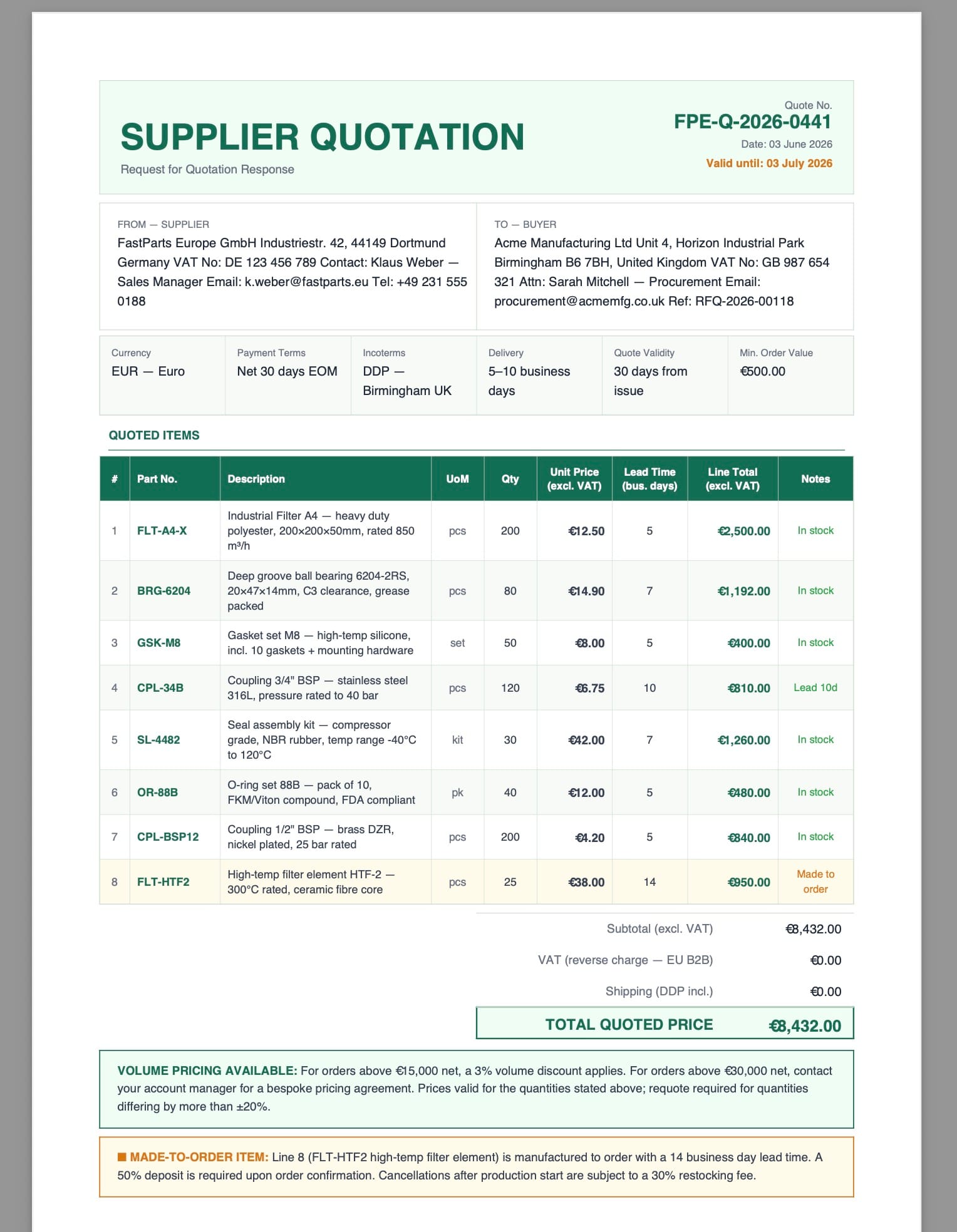
Every supplier uses a different format. A large manufacturer might send a well-structured PDF with a clear line-item table. A small local vendor might send a scanned document on company letterhead where the table runs across the page at an angle. A freelance supplier might embed the quote in the body of an email. Template-based OCR tools break immediately when a new vendor joins your supply chain, because each template needs manual configuration.
Line items are relational data. A quote isn't just a header record — it's a parent row (quote number, date, validity, supplier) plus multiple child rows (one per product or service). Extracting this correctly means capturing nested structure, not just flat key-value pairs. An AI parser that understands document layout and structure handles this naturally; a regex-based extractor does not.
Quotes arrive in multiple channels. Some come as email attachments. Others arrive via a supplier portal download. Some procurement teams use Zapier or Make to route documents from Google Drive or Dropbox into a parsing pipeline. Your extraction setup needs to handle all of these ingest paths without forcing you to manually upload each document.
What Fields to Extract from a Supplier Quote
Before you build an extraction schema, decide what your procurement workflow actually needs. Here is a practical field set that covers most use cases. You can trim it or extend it based on your industry.
Header fields (one per quote document):
- Supplier name
- Supplier email or contact
- Quote number or reference ID
- Quote date
- Quote validity date (how long the pricing holds)
- Currency
- Payment terms (e.g., Net 30, 50% upfront)
- Incoterms or delivery terms (for international suppliers)
- Total amount
Line item fields (one row per product or service):
- Line number
- Part number or SKU
- Product or service description
- Quantity
- Unit of measure
- Unit price
- Line total
- Lead time (days to delivery)
- Notes or conditions
You do not need to extract every field on day one. Start with quote number, supplier name, date, line items (description + unit price + quantity), and validity. Once the workflow is stable, add payment terms and lead times. Adding fields to an existing schema in Airparser takes seconds and applies immediately to future documents.
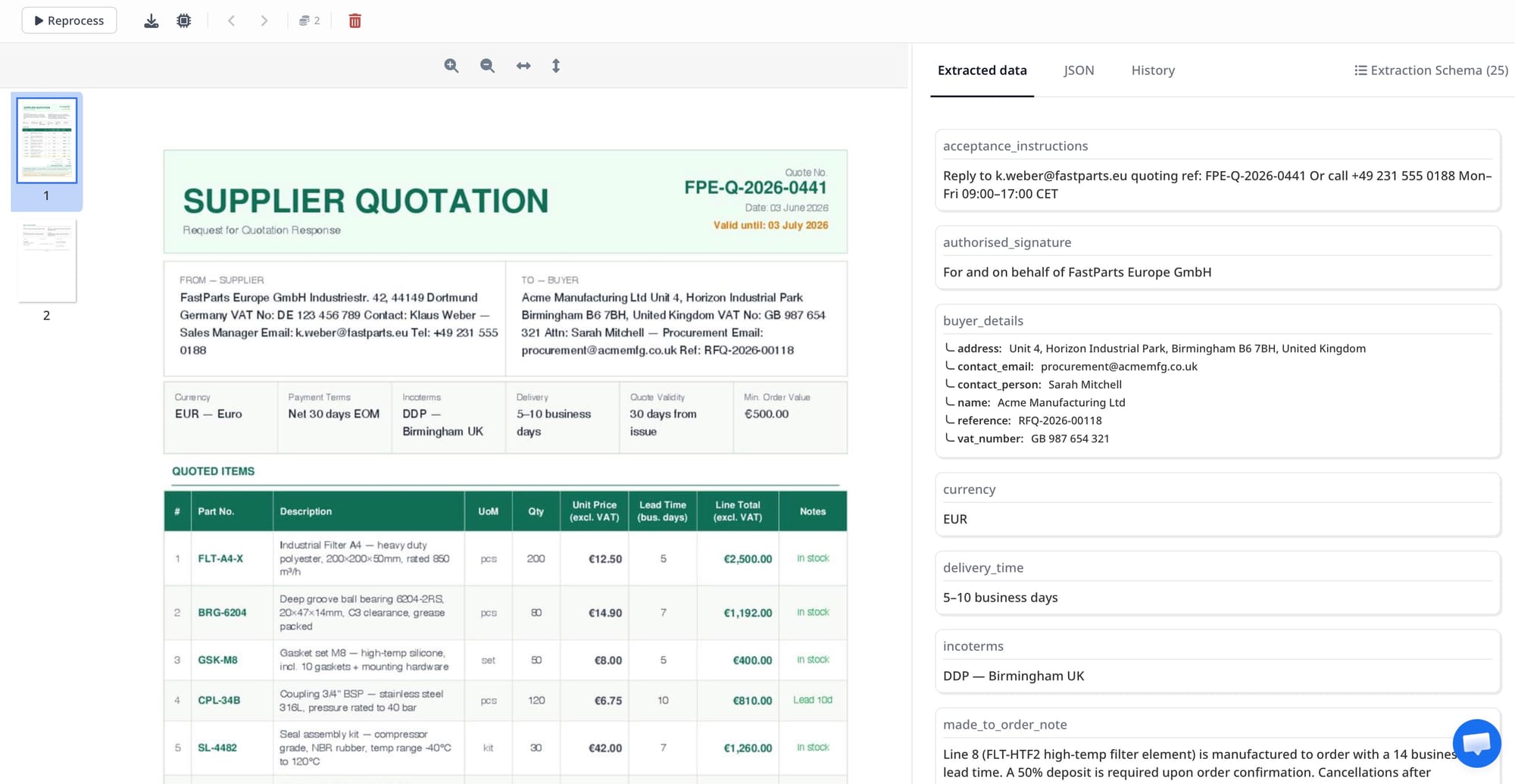
Airparser lets you define nested schemas with a repeating "line items" group. The AI reads the table in the PDF, identifies each row, and maps columns to the fields you named — even when different suppliers use different column headers for the same concept (for example, "Unit Cost", "Price Each", and "Rate" all map to unit price).
How to Set Up an Automated Quote Extraction Workflow in Airparser
Here is the full workflow from inbox creation to structured data output. Each step should take under fifteen minutes to configure for your first supplier.
Step 1 — Create an inbox
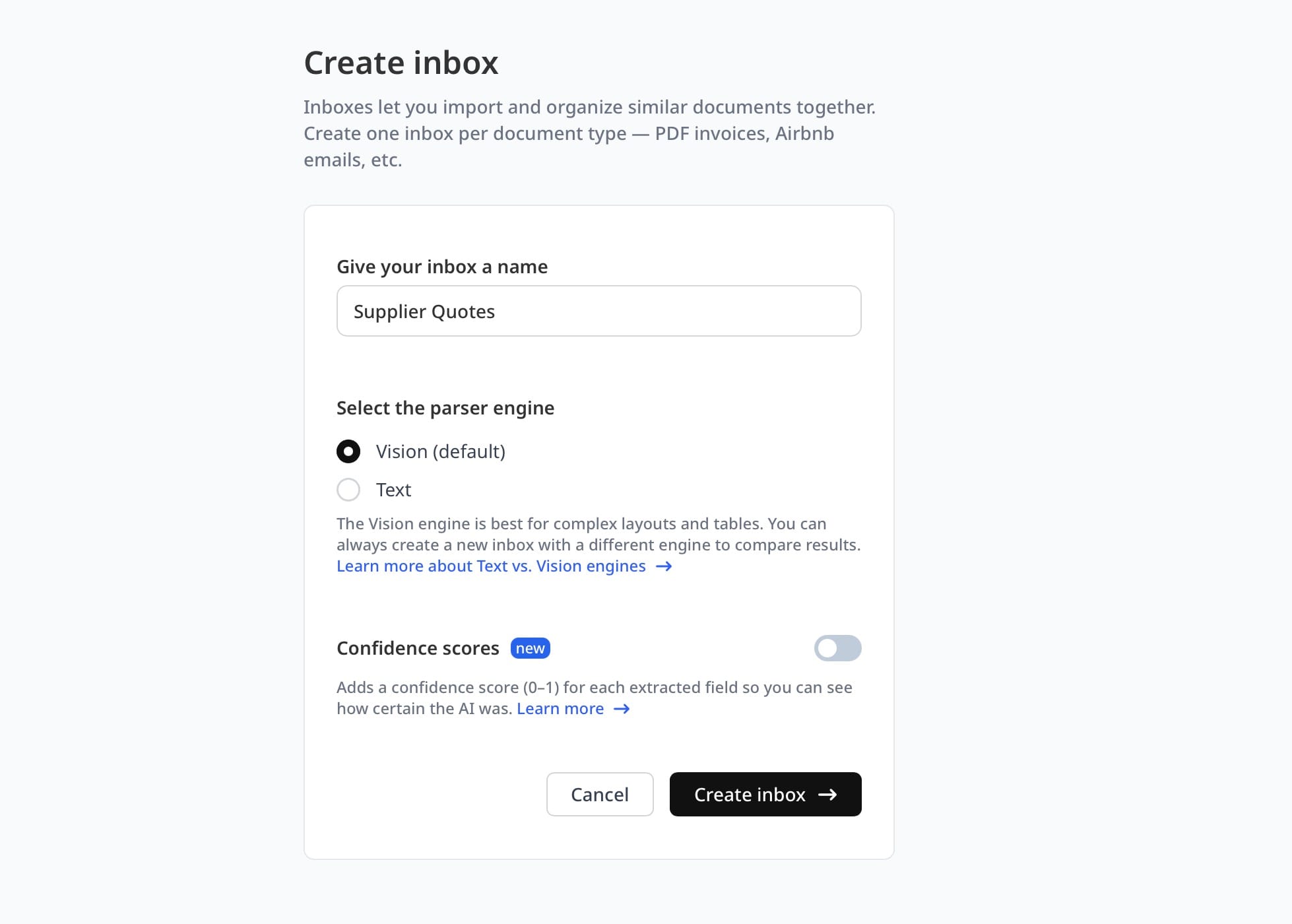
In Airparser, create a new inbox and choose a name like "Supplier Quotes" or "Vendor RFQs". Airparser assigns the inbox a unique email address (for example, [email protected]). This is where you or your suppliers will send quote documents.
If your procurement team has a shared mailbox like [email protected], you can configure a forwarding rule in Gmail, Outlook, or your email client to automatically forward every incoming supplier quote to the Airparser inbox. From that point on, every quote that arrives in your shared mailbox is automatically queued for extraction — you never need to manually upload anything.
Step 2 — Choose the parsing engine
Airparser offers two engines: Text and Vision. Choose based on your supplier quote type:
- Text Engine — use for digital PDFs where the text is selectable (you can highlight and copy text in your PDF reader). This is the fastest and most accurate option for clean digital files from modern accounting or quoting software.
- Vision Engine — use for scanned documents, photographed quotes, or image-based PDFs where no text layer exists. The Vision Engine reads the document visually, the way a human would, and works reliably even on low-quality scans.
If your supply chain includes a mix of modern and legacy vendors, the Vision Engine handles both reliably. For a more detailed comparison of when to use each, see Vision vs Text in LLM Document Parsing.
Step 3 — Upload a sample quote and define the schema
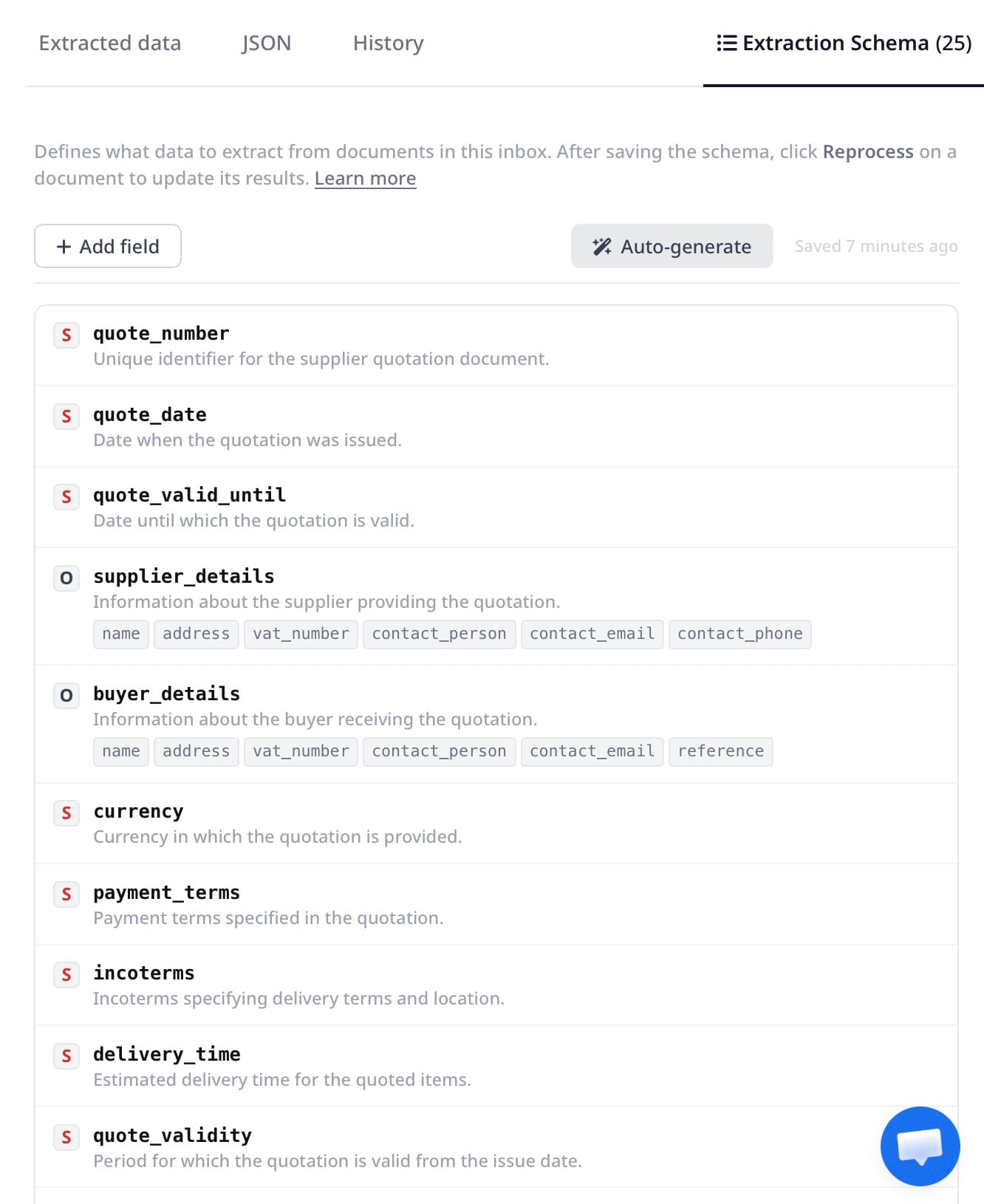
Upload one example quote from a representative supplier. Airparser will suggest an extraction schema based on what it sees in the document. Review the suggested fields, rename anything that doesn't match your terminology, and add the line items group with the nested fields listed above.
If you work with suppliers from several industries — construction materials, electronics components, professional services — the same schema handles all of them, because the AI understands field semantics rather than exact label positions. A "Unit Price" column at position 4 on one quote and position 6 on another are both correctly extracted as unit price.
Step 4 — Review a parsed quote and adjust
Once the schema is set, send or upload a second quote — ideally from a different supplier with a different layout. Check that line items are extracted correctly: each product on its own row, prices in the right column, lead times captured. If a field is mismatched, edit the schema description to be more specific (for example, change "Lead time" to "Lead time in business days"). Future documents are re-parsed automatically with the updated schema.
Step 5 — Export to your destination
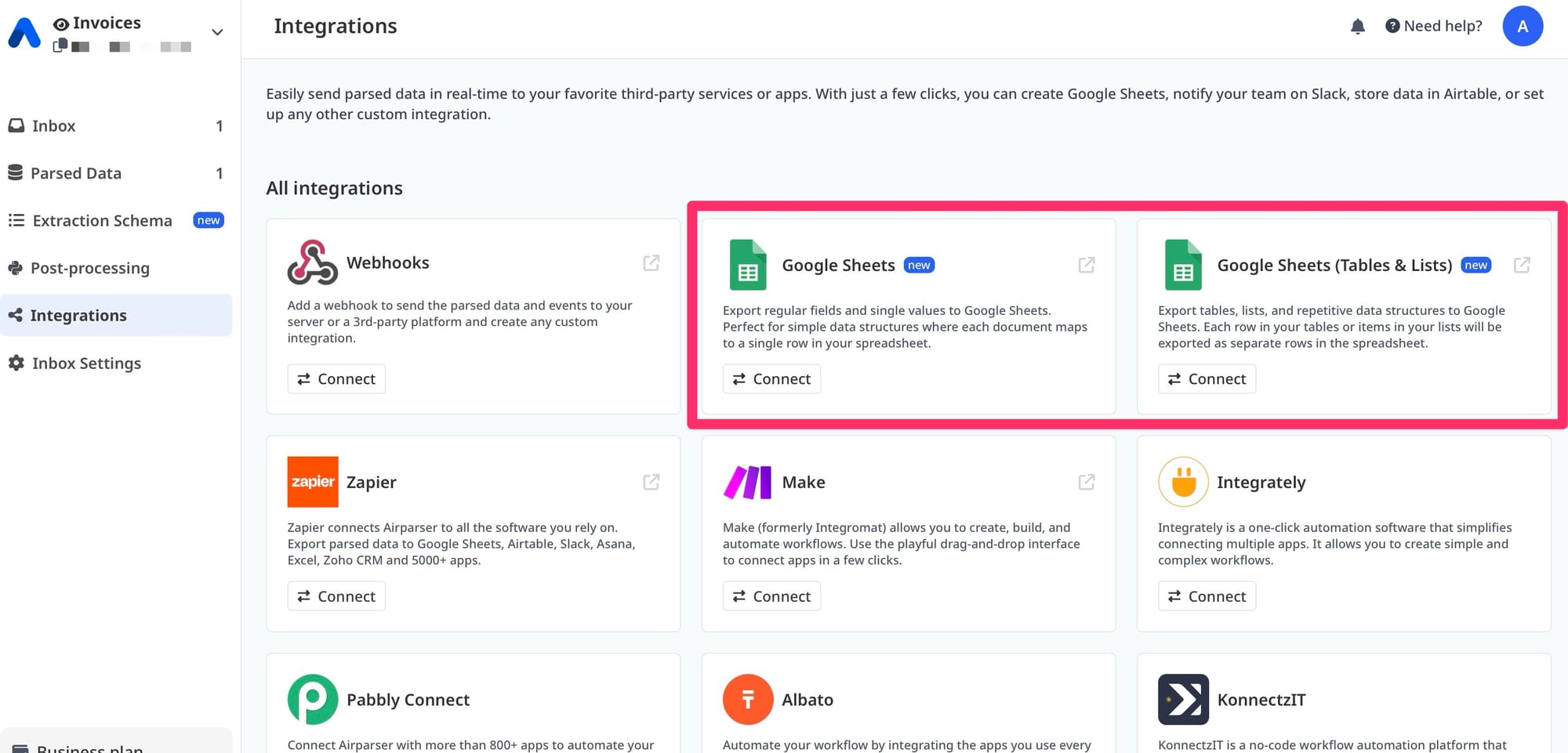
Airparser supports export to Google Sheets, Excel, CSV, and via webhook to any system that accepts JSON — ERPs, procurement platforms, Airtable, Notion, or a custom API. For spreadsheet users, the Google Sheets integration maps each parsed field to a named column. Header fields appear once per row. Line items appear as separate rows, each linked to the parent quote by quote number.
See How to Export PDFs to Google Sheets Automatically for the step-by-step Google Sheets connection walkthrough.
How to Handle Quotes That Arrive as Email Attachments
Most supplier quotes don't arrive as standalone PDFs you need to download and upload. They arrive as PDF attachments on emails from suppliers. This is where Airparser's email inbox model becomes the right fit: the inbox accepts the email, extracts the attachment, and runs it through your schema — with no manual step in between.
The email body itself is typically ignored (it's usually just "please find the attached quote"). Airparser processes the attachment. If an email arrives with multiple attachments, you can configure the inbox to process all of them, or only attachments matching a filename pattern like *.pdf.
For a full walkthrough of parsing documents from email attachments, including Word and Excel formats, see How to Automatically Extract Data from Attachments in Emails.
What about inline quotes? Some vendors — particularly smaller ones — paste their quote directly into the email body rather than attaching a file. Airparser can parse the email body as a document. Set the inbox to parse body content, and the AI reads the pricing table from the email text, extracts the same fields, and outputs structured data just like a PDF attachment.
Using Multiple Suppliers: Quote Comparison Without a Spreadsheet Marathon
The highest-value use of automated quote extraction is multi-supplier comparison. When you're sourcing a component or service, you might receive three to ten quotes from different vendors. Manually aligning them into a comparison spreadsheet — normalizing part numbers, matching descriptions across vendor-specific terminology, and checking that you're comparing like-for-like quantities — takes an hour or more.
With extraction in place, each quote is parsed as it arrives. All records go into the same Google Sheet or database, keyed by your internal part number or RFQ reference. By the time you're ready to compare, the data is already structured and consistent. You write a formula or pivot to show, for each line item, which supplier offers the best unit price, shortest lead time, or most favorable payment terms.
This workflow also helps with auditing. You have a record of every quote received, when it was received, its validity period, and the prices offered — useful when a supplier disputes a price adjustment or when finance asks why a particular vendor was chosen.
From Quote to Purchase Order: The Full Procurement Data Flow
Supplier quote extraction is most useful when it connects to the next step in your procurement cycle. Once you've selected a vendor and are ready to issue a purchase order, the extracted quote data — supplier name, part numbers, agreed quantities, unit prices, and payment terms — becomes the source of truth for drafting the PO. You can pull it directly from your spreadsheet instead of referencing the original PDF.
For teams using Airparser on both ends of this cycle, the purchase order confirmation that comes back from the supplier can also be parsed automatically. See How to Extract Data from Purchase Orders for how that workflow complements quote extraction.
For teams using ERPs or procurement platforms, the webhook export from Airparser sends parsed quote data as JSON to your system's API endpoint. Your ERP creates a draft RFQ response record, pre-populated with supplier and pricing data. The procurement team reviews, adjusts quantities, and issues the PO from within the ERP — without ever manually entering supplier pricing.
Common Problems When Extracting Supplier Quote Data (and How to Fix Them)
Line items merge into a single extracted field. This usually means the schema's line-items group isn't defined as a repeating array. Edit the schema, set the line items field type to "array of objects", and re-test with a sample quote. Airparser will re-parse and separate each row correctly.
Unit prices come back with currency symbols attached. AI parsers sometimes include the currency symbol as part of the value (for example, "$42.50" instead of "42.50"). Fix this with a post-processing rule — a simple regular expression strips the symbol and returns a numeric value. You can add Python post-processing rules in Airparser directly within the inbox settings.
Supplier quotes in a foreign language. If you work with international suppliers, quotes may arrive in French, German, Spanish, Japanese, or other languages. Airparser's Vision Engine handles multilingual documents. Define your schema field names in English; the AI extracts the correct values regardless of the source language.
Multi-page quotes with the table continuing across pages. Some complex quotes — particularly for professional services, construction projects, or large component orders — span several pages. Airparser processes the full document, not just the first page, so line items that continue across page breaks are captured as a single continuous table.
Quotes with conditional pricing or tiers. Some suppliers offer tiered pricing: one unit price for quantities under 100, a lower price for 100–999, and a bulk rate above 1,000. These can be extracted as separate line-item rows with a quantity-range field added to the schema, or as a notes field on the primary line item. The right approach depends on how your procurement system handles tiers.
FAQ
Can Airparser extract data from supplier quotes in any PDF format?
Yes, Airparser handles both digital PDFs (files with a text layer, created by quoting software or word processors) and scanned PDFs (image-only documents that started as paper and were photographed or faxed). For digital PDFs, use the Text Engine for speed and precision. For scanned or image-based quotes, use the Vision Engine. The Vision Engine reads the document visually — the way a human would — so it handles rotated tables, handwritten annotations, colored backgrounds, and unusual layouts without needing template configuration. If you're unsure which engine to use, start with the Vision Engine: it works on both document types and only costs slightly more per parse than the Text Engine.
How does Airparser handle supplier quotes where each vendor uses different column headers?
AI-based parsers like Airparser understand the semantic meaning of fields, not their exact label. "Unit Cost", "Price Each", "Net Price", and "Rate" are all understood as unit price, because the AI has learned from millions of documents that these labels mean the same thing in a pricing table. You don't need to configure a separate template for each supplier. Define your schema once with your internal field names, and the AI maps each vendor's column headers to the right field automatically. If a new supplier uses an unusual or highly domain-specific label, you can update the schema field description to guide the parser — for example, "the price per individual item, also labeled 'tariff unit' in some supplier documents".
What happens when a supplier sends the quote in the body of an email instead of as a PDF attachment?
Airparser can parse email body content as well as attachments. If a supplier pastes a pricing table directly into the email text rather than attaching a file, configure the Airparser inbox to process the email body. The AI reads the table from the email text, extracts header fields (supplier, date, quote reference) and line items (description, quantity, price) just as it would from a PDF. You can configure the inbox to handle body content only, attachment only, or both — depending on whether your suppliers are consistent or mixed in how they send quotes.
Can I use Airparser to extract data from RFQ responses (where multiple suppliers reply to the same request)?
Yes, and this is one of the highest-value use cases. Set up one Airparser inbox for your procurement team's RFQ process. When you send out an RFQ to ten suppliers, ask them to send their responses to your Airparser inbox address (or forward replies from your purchasing email to the inbox). Each response is parsed as it arrives. All extracted records land in the same Google Sheet or database, keyed by your RFQ reference number. By the time the quote deadline passes, you have a complete, structured comparison ready — without manually opening ten PDFs and copying data. You can add an internal part number field to the schema to make cross-supplier comparison even simpler.
How do I handle quotes that include taxes, discounts, and surcharges?
Define these as additional header fields or line-item fields in your schema. For a header discount (a percentage applied to the whole order), add a "Discount (%)" field to the header group. For line-item discounts, add a "Discount" column to the line items array. For taxes — VAT, GST, sales tax — add a "Tax Rate" and "Tax Amount" field. Surcharges like freight, handling, or expedite fees typically appear as separate line items in most supplier quotes, so the existing line-items array already captures them as rows. If your suppliers consistently label these differently (e.g., "freight surcharge" versus "shipping charge"), the AI will extract both correctly under the same schema field without needing configuration changes per vendor.
Does Airparser work with quotes that arrive via Zapier, Make, or n8n — not just direct email?
Yes. Airparser integrates with Zapier, Make, and n8n, so you can route documents from any source. If your team receives quotes via a procurement platform that doesn't support email forwarding, you can set up a Zapier or Make automation that watches for new files in a Google Drive folder, a Dropbox folder, or a cloud storage bucket, and sends each file to Airparser via the API or a native integration node. The extracted data comes back as structured JSON, which Zapier or Make then routes to your spreadsheet, ERP, or database. For detailed integration setup, see the Advanced Automations guide.
How accurate is AI extraction on complex supplier quotes with many line items?
For digital PDFs with clear table formatting, accuracy is typically above 95% for standard fields like part numbers, descriptions, quantities, and prices. The main sources of error are: tables that use merged cells across rows, pricing footnotes referenced by symbols rather than inline text, and abbreviated descriptions that require domain knowledge to interpret (for example, a 3-letter part code that maps to a product name). You can improve accuracy by refining schema field descriptions, by adding example values in the schema definition, or by enabling Airparser's post-processing rules to validate numeric fields and flag outliers. For very high-stakes procurement — where a mis-extracted unit price could result in a large financial commitment — add a human review step for line totals above a threshold before the data is pushed to your ERP.
If you want to skip the manual extraction work entirely, Airparser handles supplier quotes, purchase orders, and any other procurement document type — email attachments, uploaded PDFs, or files routed from your cloud storage. Try it on your own supplier quotes to see how the schema inference works on your vendor formats.