How to Extract Data from W-9 Forms Automatically
Automate W-9 form data extraction to capture vendor TINs, names, and entity types without manual entry. Set up Airparser to process PDF W-9s, export to Google Sheets, and stay IRS-compliant at scale.

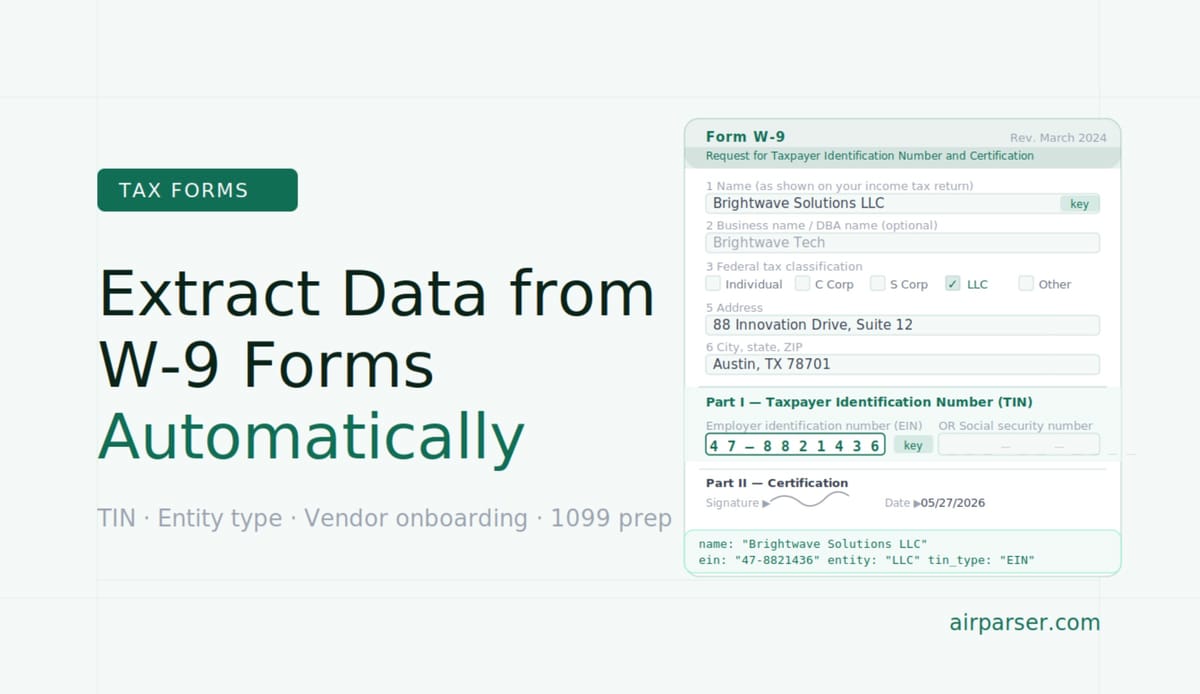
TL;DR
- A W-9 form collects a vendor's or contractor's legal name, entity type, and Taxpayer Identification Number (TIN) — required before you can issue a 1099.
- Manual data entry from W-9 PDFs is slow and error-prone, especially when managing dozens of vendors.
- AI document parsers like Airparser extract W-9 fields automatically from any PDF — scanned, digitally completed, or typed — with no template setup.
- Extracted data exports to Google Sheets, a CRM, or an accounting tool in seconds via webhook, Zapier, or Make.
- Setup takes under 10 minutes: create an inbox, upload a sample W-9, auto-generate the schema, start receiving vendor forms.
You can extract data from W-9 forms automatically using an AI document parser. Set up an inbox in Airparser, upload a sample IRS Form W-9, and let the AI suggest the extraction schema — then forward vendor W-9 PDFs to your inbox email. Within seconds, structured fields like legal name, TIN, entity classification, and address appear in your spreadsheet or system, with no manual re-keying. The same pipeline handles scanned W-9s, digitally completed PDFs, and typed forms without any template reconfiguration.
For most finance and operations teams, W-9 processing is a recurring bottleneck: a vendor submits a PDF, someone opens it, reads the TIN, and types it somewhere else. When you're onboarding five vendors a week, that's manageable. At fifty, it becomes a compliance risk — a mistyped EIN, a missed backup-withholding flag, or a form that got skipped before the first payment. Automated extraction removes the manual step entirely.
This guide covers what fields to extract, how to design a W-9 schema in Airparser, and how to route extracted data into your existing vendor management or accounts payable workflow.
What Is a W-9 Form and Why Does It Matter for Finance Teams?
IRS Form W-9 is the document a US business collects from a contractor, freelancer, or vendor before making a reportable payment. Its sole purpose is to capture the payee's Taxpayer Identification Number — either a Social Security Number (SSN) for individuals or an Employer Identification Number (EIN) for businesses — along with legal name, entity type, and address. The business keeps the W-9 on file and uses the TIN to file a 1099-NEC or 1099-MISC at year-end if payments exceed $600.
Every US business that works with independent contractors, freelancers, or unincorporated vendors is required to collect a W-9 before the first payment. The IRS can impose backup withholding (currently 24%) if a valid TIN is not on file. In practice, most companies collect W-9s during vendor onboarding, but the form arrives as a PDF attachment — scanned from a printed copy or digitally completed — and the data needs to land in an ERP, accounting tool, or vendor database.
The form has changed little over the years, which makes it a strong candidate for automated extraction: the field layout is consistent, the required fields are well-defined, and the document rarely exceeds one page.
What Fields to Extract from a W-9 Form
An AI parser can capture every meaningful field on Form W-9. Here are the fields worth including in your extraction schema:
- Legal name — The payee's full legal name (Line 1). For individuals, this is their personal name as shown on their income tax return.
- Business name or disregarded entity name — Line 2. Applicable when the payee operates under a DBA or is a single-member LLC disregarded for tax purposes.
- Federal tax classification — The checkbox selection on Line 3: Individual/Sole proprietor, C corporation, S corporation, Partnership, Trust/estate, LLC, or Other.
- LLC tax classification — If LLC is selected, the sub-classification: C, S, or P (Partnership).
- Exempt payee code — Line 4. Most vendors leave this blank, but it signals exempt status (e.g., corporations exempt from backup withholding).
- Exemption from FATCA reporting code — Also Line 4. Relevant for foreign account compliance; usually blank for domestic vendors.
- Address (street, city, state, ZIP) — Lines 5 and 6. The payee's mailing address.
- Account numbers — Line 7. Optional; used by the requester to identify the payee in their systems.
- Taxpayer Identification Number (TIN) — Part I. Either SSN (XXX-XX-XXXX) or EIN (XX-XXXXXXX). This is the most critical field.
- TIN type — Whether the TIN provided is an SSN or EIN.
- Signature date — The date the payee certified the form.
For most vendor management use cases, the high-priority fields are legal name, business name, entity classification, TIN, TIN type, and address. The others can be included but may not flow into every downstream system.
Why Manual W-9 Processing Fails at Scale
The problems with manual W-9 data entry are predictable, but they compound quickly as vendor volume grows:
TIN transcription errors. A nine-digit number typed from a scanned PDF will occasionally have a digit transposed. The IRS does not immediately notify you of a TIN mismatch — it appears months later as a B-Notice, requiring you to impose backup withholding and notify the vendor. By then you may have made multiple payments.
Missing or outdated forms. Vendors change entity structure, get a new EIN after incorporation, or move addresses. Without an automated intake system, your records silently go stale. The IRS expects you to have a current W-9 on file.
OCR-only tools misread formatted TINs. Traditional OCR extracts text by position. On scanned W-9s with poor scan quality — a common occurrence with forms printed, signed, and re-scanned — zonal OCR engines struggle with the SSN/EIN boxes. AI parsers that use vision models read the form as a whole, understanding field labels contextually rather than relying on fixed pixel coordinates.
No audit trail. Manually entered data has no link back to the source document. When a discrepancy arises — which is when it matters most — there's no way to verify what the vendor originally submitted. An automated pipeline stores the original PDF alongside the structured extraction, giving you a complete audit record.
How to Set Up Automatic W-9 Data Extraction with Airparser
Airparser processes PDF W-9 forms sent by email or uploaded manually. The setup follows four steps: create an inbox, upload a sample form, define the schema, and start receiving documents.
Step 1: Create an inbox
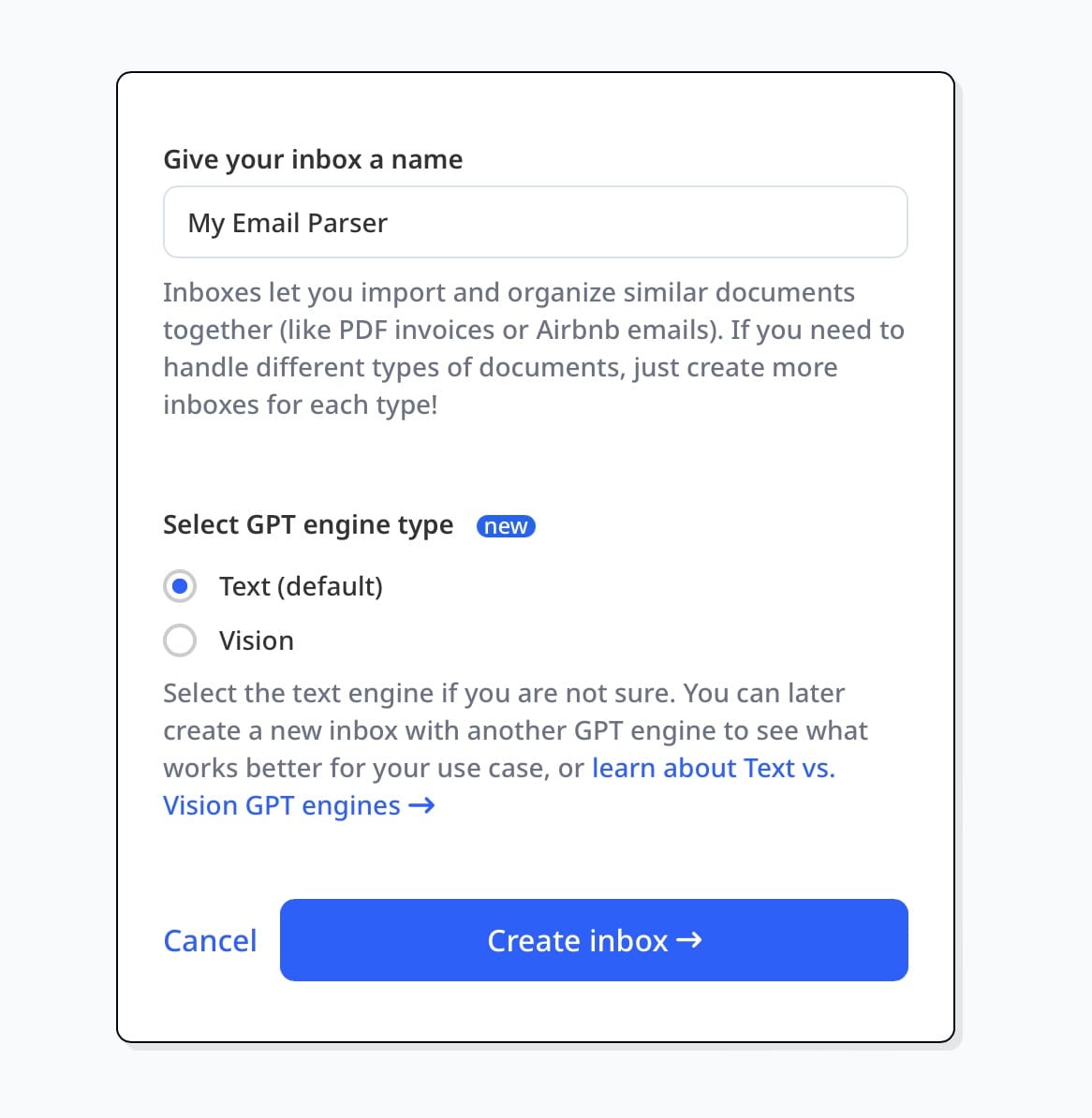
Go to Airparser and create a new inbox. Give it a name like "Vendor W-9 Forms." Airparser generates a unique inbox email address (e.g., [email protected]). You can forward vendor submissions directly to this address, or instruct vendors to email their W-9 PDF here. You can also upload PDFs manually through the Airparser interface if you already have forms on hand.
For the parsing engine, choose Vision. W-9 forms are often scanned — the vision model reads the layout visually and handles poor scan quality better than the text-only engine.
Step 2: Upload a sample W-9 and define the schema
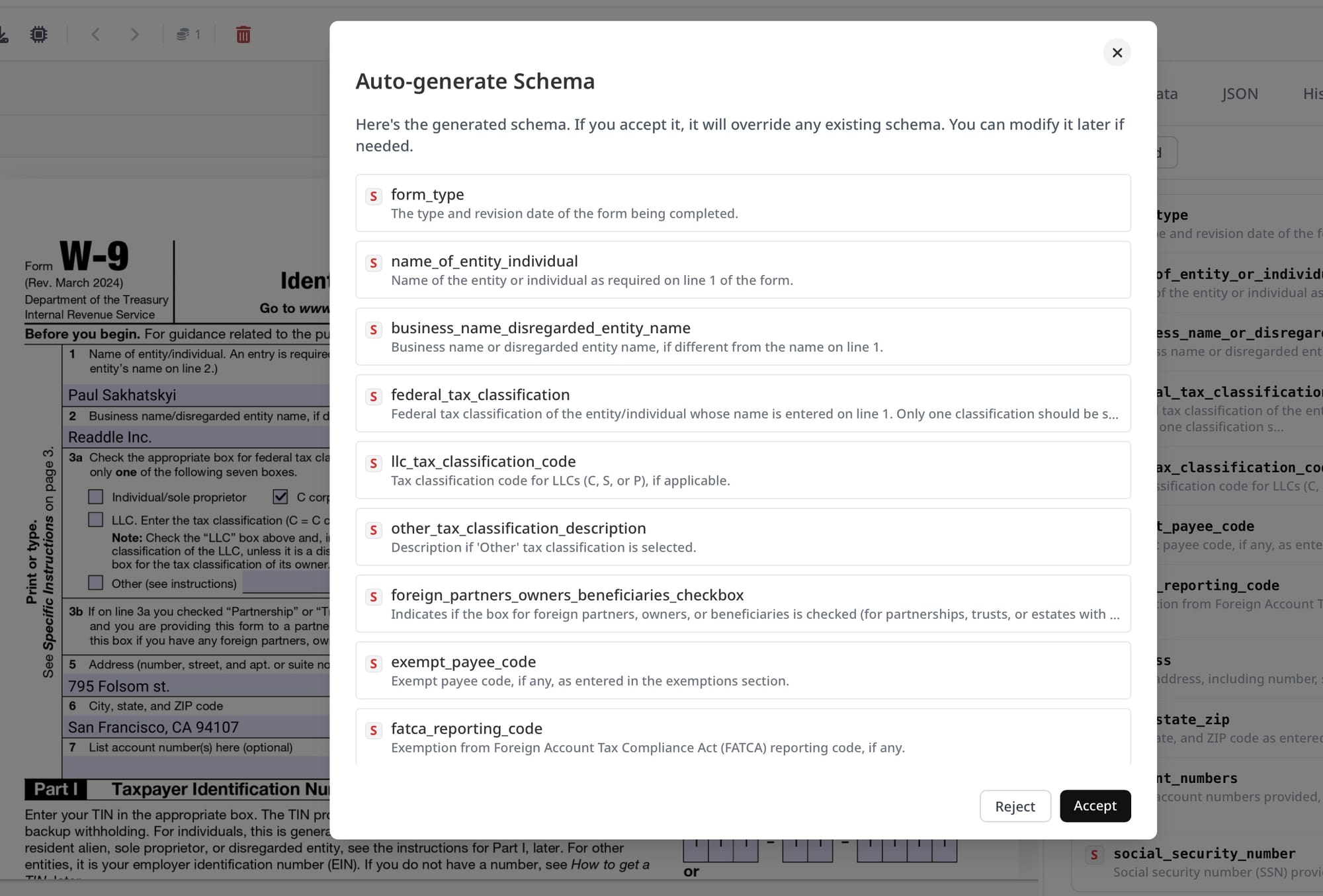
Upload a sample W-9 PDF (use a blank IRS Form W-9 or a completed test form). Click "Generate schema automatically." Airparser will propose an extraction schema based on the document layout. Review the suggested fields against the list above — add any fields that were missed, such as tin_type (SSN vs. EIN) or signature_date if you need them. Each field should have a clear label and a short description so the AI knows exactly what to look for.
Tip: add a field called tin_type with the description "Whether the TIN is an SSN or EIN as indicated by the checkbox." The vision model can reliably read checkbox selections on W-9 forms.
Step 3: Test the extraction
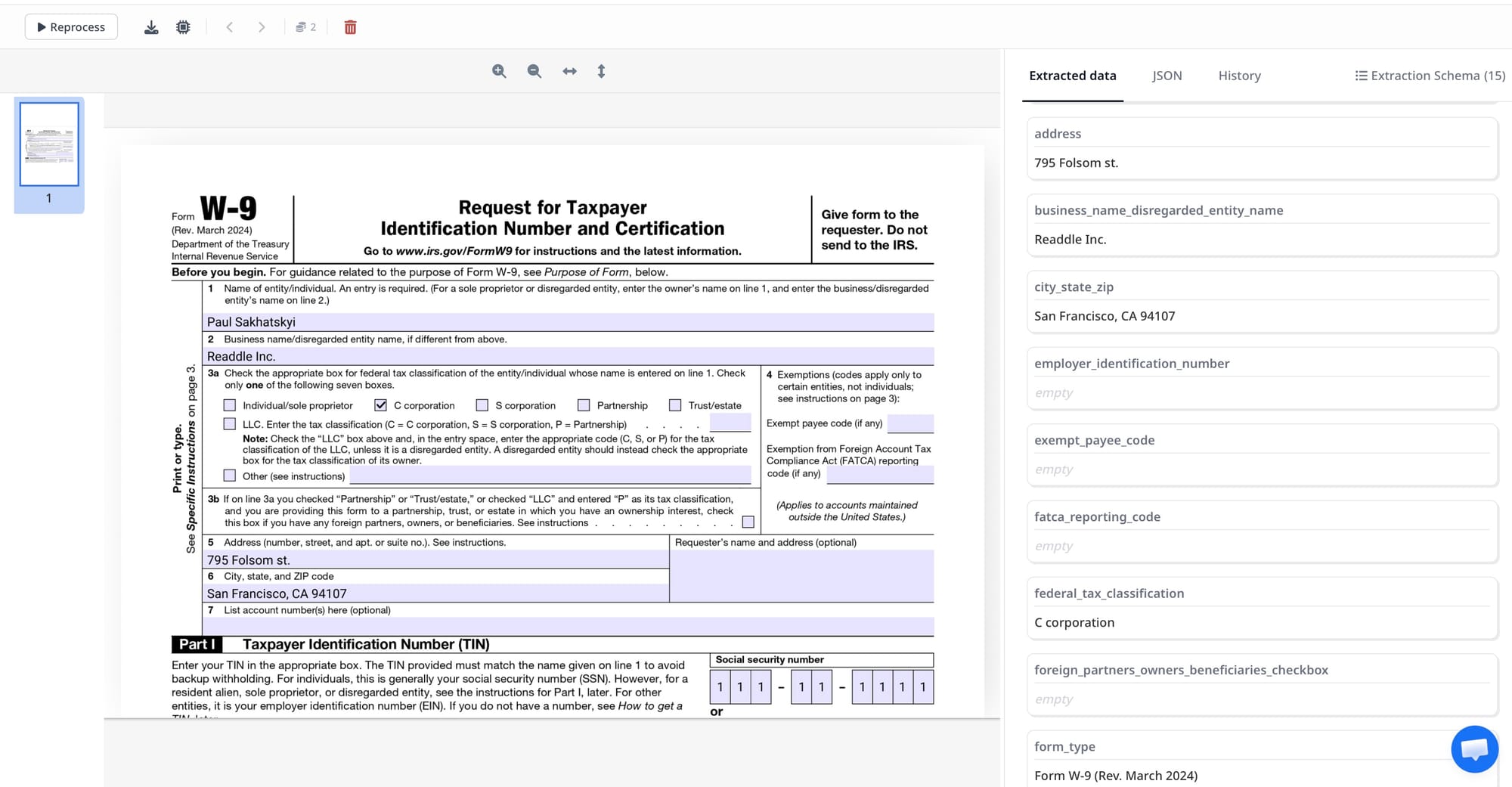
Upload a second W-9 — ideally from a different vendor or a different form variation — and verify the extraction results. Check that the TIN is extracted in the correct format, that entity classification is captured accurately, and that the address fields are split correctly. If any field is consistently missed, refine its description in the schema.
Step 4: Connect to your downstream systems
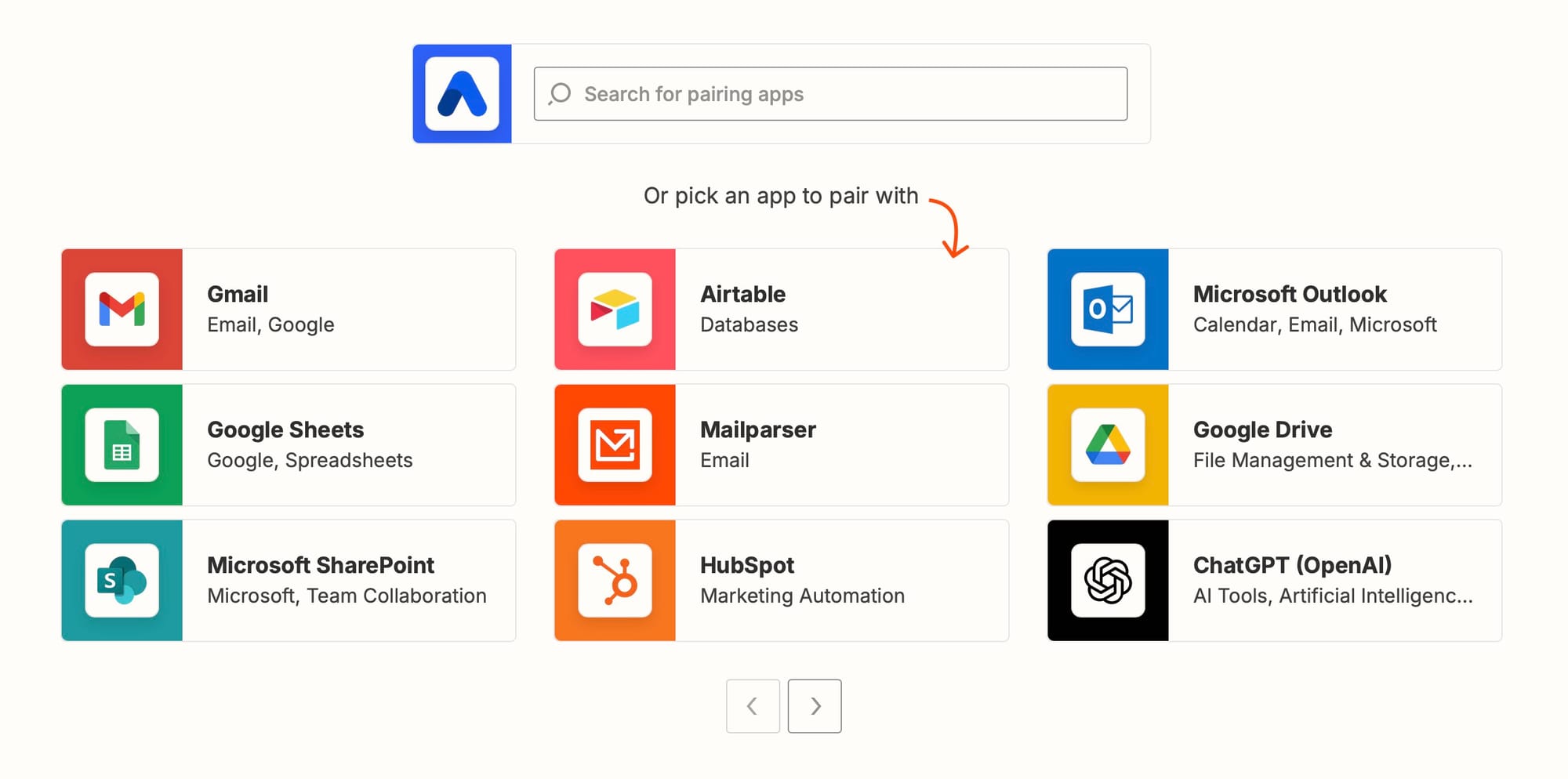
Once the schema is validated, configure your export. Airparser supports:
- Google Sheets — Each parsed W-9 adds a new row with all extracted fields.
- Webhook — POST the JSON payload to your ERP, vendor database, or internal API.
- Zapier, Make, or n8n — Route parsed W-9 data to any downstream tool: Airtable, HubSpot, QuickBooks, Salesforce.
- CSV/Excel export — Batch download of all parsed records from the inbox.
W-9 Extraction Schema Design Best Practices
A well-designed schema is the difference between reliable extraction and one that requires manual correction. A few practical guidelines for W-9 specifically:
Be explicit about TIN format. Include the format in the field description: "The taxpayer identification number (TIN) as printed, in XX-XXXXXXX format for EINs or XXX-XX-XXXX format for SSNs." This helps the model return the number in a consistent, processable format rather than as raw digits without formatting.
Separate TIN and TIN type into two fields. Do not ask the model to return "SSN: 123-45-6789" in a single field — you will spend time parsing that string downstream. Use tin and tin_type as separate fields.
Use a controlled vocabulary for entity classification. In the field description, list the accepted values: "One of: Individual/Sole Proprietor, C Corporation, S Corporation, Partnership, Trust/Estate, LLC-C, LLC-S, LLC-P, Other." This reduces variation in the returned values and makes downstream filtering straightforward.
Include an is_exempt_payee boolean. Most vendors leave the exempt payee code blank. Adding a boolean field ("Is the exempt payee code field filled in?") lets you flag those records for separate handling without parsing the code itself every time.
If you need to validate TINs against IRS format rules before they leave Airparser, use Airparser's Python post-processing step to add a simple regex check. For example, flag any TIN that does not match the expected SSN or EIN pattern, so those documents can be reviewed before the data reaches your accounting system.
How to Route Extracted W-9 Data into Your Vendor Management Workflow
Extracted W-9 data is most useful when it flows directly into the system that owns vendor records — not a separate spreadsheet that someone manually reviews. Here are the most common routing patterns:
Google Sheets as a vendor register. This is the simplest setup: every parsed W-9 appends a row to a shared sheet. Finance teams use this as the master vendor TIN registry, refreshed automatically as new W-9s arrive. You can add a column formula to flag rows where TIN format does not match the expected pattern.
Webhook to an ERP or AP system. If your accounts payable system has an API, Airparser's webhook sends the JSON payload directly when parsing completes. This eliminates the spreadsheet layer entirely. The vendor record is created or updated in your ERP without any manual step. See the guide to automating accounts payable data entry for a related workflow covering supplier invoices.
Zapier or Make to update a CRM or vendor database. If vendor records live in HubSpot, Salesforce, Airtable, or a similar tool, a Zap or Make scenario can create or update a contact record when Airparser parses a new W-9. Map the extracted fields — legal name, TIN, entity type, address — to the corresponding fields in your CRM.
n8n for custom logic. If you need conditional routing — for example, routing corporate vendors to one system and individual contractors to another based on entity classification — n8n workflows can apply that logic between Airparser's webhook output and your destination system.
For teams processing W-9s from email attachments, Airparser's inbox email address handles multi-attachment emails naturally. If a vendor sends a W-9 and a signed agreement in the same email, Airparser processes each attachment according to its type. See the guide to extracting data from email attachments for more on mixed-attachment workflows.
W-9 vs. 1099: How These Tax Documents Work Together
W-9 and 1099 forms are two halves of the same compliance workflow. The W-9 is collected from the vendor before payment — it provides the TIN and entity classification you need. The 1099-NEC or 1099-MISC is issued by you to the vendor at year-end, reporting the total payments made during the tax year. The IRS uses both to cross-check that income is reported.
This creates a natural data dependency: accurate 1099 filing depends on having a valid W-9 on file. If the TIN on the W-9 is wrong, the 1099 carries the same error. Automated W-9 extraction reduces this risk by capturing the TIN as it appears on the submitted document and making it available for validation before any payment is issued.
Some teams use Airparser for both sides of this workflow: W-9 forms are parsed into a vendor register, and 1099 PDFs received from clients are parsed into an income tracking spreadsheet. The same inbox and schema pattern applies to 1099 forms, which have a similarly consistent layout across issuers.
One practical note: W-9 forms do not have an expiration date, but best practice is to request a new W-9 whenever a vendor changes entity structure, gets a new EIN, or updates their legal name. An automated intake pipeline makes it easy to re-process updated forms without creating duplicate vendor records — you can use the TIN as a deduplication key in your spreadsheet or database.
Common W-9 Extraction Challenges and How to Handle Them
Scanned W-9s with low resolution. The IRS W-9 form printed, signed, and scanned at 150 DPI or lower can produce blurry text — especially in the TIN boxes, which use a small monospace font. Airparser's vision model handles this better than text-based OCR, but very degraded scans may return partial TINs. A practical workaround: add a validation rule in post-processing that checks TIN length (9 digits for SSN, 9 digits for EIN) and flags documents where the extracted TIN has fewer than 9 digits for manual review.
Handwritten W-9 forms. Some vendors — particularly individual contractors — print and handwrite their W-9. Airparser's vision engine can read handwriting, but accuracy depends on legibility. For handwritten forms, enable vision mode and include a field note in your schema: "If handwritten, extract as written." Adding a confidence_note field asking the model to flag if the TIN was handwritten helps you identify records to verify before use.
Vendor-submitted PDFs with non-standard formatting. Some payroll tools or HR platforms generate custom W-9 templates that look visually different from the standard IRS form. Because Airparser uses a schema-driven AI approach rather than a fixed template, it adapts to layout variations automatically — the extraction logic follows the field labels and context, not fixed page coordinates.
Multiple W-9 forms in one email. If a vendor sends multiple W-9 forms (e.g., for different legal entities) as attachments, Airparser processes each PDF independently. Each attachment becomes a separate extraction result with its own record in your spreadsheet or webhook payload.
Missing exempt payee code interpretation. The exempt payee code (Line 4) uses a numeric code (1–13) with specific IRS meanings. Most automated pipelines only need to know whether the field is blank or filled. If you need to interpret the specific code — for example, to apply the correct withholding treatment — add the interpretation logic in Airparser's Python post-processing step using a simple lookup dictionary.
Frequently Asked Questions
Can Airparser extract data from handwritten W-9 forms?
Yes. Airparser's vision engine reads handwritten text on W-9 forms, including handwritten TINs, names, and addresses. Accuracy depends on legibility — clearly printed handwriting extracts reliably, while very cursive or cramped writing may produce partial results. For handwritten W-9 workflows, the recommended approach is to enable vision mode, add a note in your schema description asking the model to flag uncertain characters, and build a review step for any TIN that returns fewer than 9 digits. This is more reliable than traditional OCR, which typically fails entirely on handwritten content. Airparser's multi-engine design means you can also fall back to a combination of OCR and vision processing if one engine underperforms on a specific document batch.
Is it safe to process W-9 forms containing SSNs through Airparser?
W-9 forms for individual contractors include a Social Security Number — sensitive personally identifiable information. Airparser encrypts data at rest (AES-256) and in transit, does not train models on customer documents, and supports configurable data retention so extracted records are automatically deleted after a defined period. For compliance purposes, consider setting a short retention window on your W-9 inbox (90 or 180 days) and routing the TIN to your encrypted ERP immediately via webhook rather than storing it in Airparser long-term. This approach mirrors best practices for handling TINs in any cloud-based document workflow: process and route, then let the source-of-record system (your ERP or vendor database) hold the authoritative copy under its own access controls.
How long does it take to set up a W-9 extraction pipeline in Airparser?
Most users complete the initial setup in under 10 minutes. The process is: create an inbox, choose the vision engine, upload a sample W-9 PDF, click "Generate schema automatically," review and adjust the suggested fields, test with a second document, then configure the export (Google Sheets, webhook, or Zapier). The extraction schema auto-generation step is where Airparser saves the most time — it reads the uploaded W-9 and proposes field definitions you can accept or modify, eliminating the need to define every field from scratch. If your W-9 workflow includes non-standard vendor templates or very degraded scans, allow an additional 15–30 minutes to refine the schema and validate extraction quality across a few sample documents.
What is the difference between an SSN and an EIN on a W-9, and can Airparser distinguish between them?
The TIN on a W-9 is either a Social Security Number (SSN, formatted as XXX-XX-XXXX, used by individuals and sole proprietors) or an Employer Identification Number (EIN, formatted as XX-XXXXXXX, used by corporations, partnerships, and multi-member LLCs). The W-9 form has separate boxes for each, and the payee checks a box indicating which type they are providing. Airparser's vision model reads both the checkbox and the number itself. By adding a tin_type field to your schema — with the description "Whether the TIN is an SSN or EIN as indicated by the checkbox selection in Part I" — you capture this distinction as a separate field, making downstream routing and validation logic straightforward. This is particularly useful if you have different processing rules for individual contractors (SSN) versus incorporated vendors (EIN).
Can I automate the entire vendor onboarding workflow using Airparser?
Airparser covers the document extraction step of vendor onboarding — reading the W-9 PDF and producing structured data. You can connect this to a broader onboarding workflow using Zapier, Make, or n8n: when Airparser parses a new W-9, a Zap creates a vendor record in your CRM or ERP, sends a confirmation email to the vendor, and adds a task to your AP team's queue. For purchase order workflows that follow vendor onboarding, see the guide to automating purchase order data extraction. The pattern — inbox email → Airparser extraction → webhook to your system — is reusable across document types. Many teams use the same architecture for W-9s, invoices, purchase orders, and contracts, with a separate inbox and schema for each document type.
Does Airparser work with all W-9 variations, including older form versions?
Yes. The IRS updates Form W-9 periodically (the most recent revision is from 2018, with minor layout changes), and vendors sometimes submit older versions. Because Airparser uses AI to understand document content rather than a fixed template, it handles different W-9 revisions without configuration changes. The field labels and structure are consistent enough across versions that a schema designed for the current form will extract the same fields from older versions. The main variation you will encounter in practice is not the form version but the input quality: a scanned older W-9 on a worn printed form may require the vision engine where a clean digital PDF of the same form would work with either engine.
W-9 extraction is a foundational step in vendor onboarding compliance. If your team receives more than a handful of W-9s per month, manual data entry is a liability — both for accuracy and for time. Airparser gives you a pipeline that handles scanned, typed, and handwritten W-9s from the same inbox, with structured output flowing directly to wherever your vendor records live.
Try Airparser free to set up your first W-9 inbox — no credit card required. The first 50 documents per month are free, which covers most small teams' vendor onboarding volume entirely.