How to Convert PDF to Excel Automatically (2026 Guide)
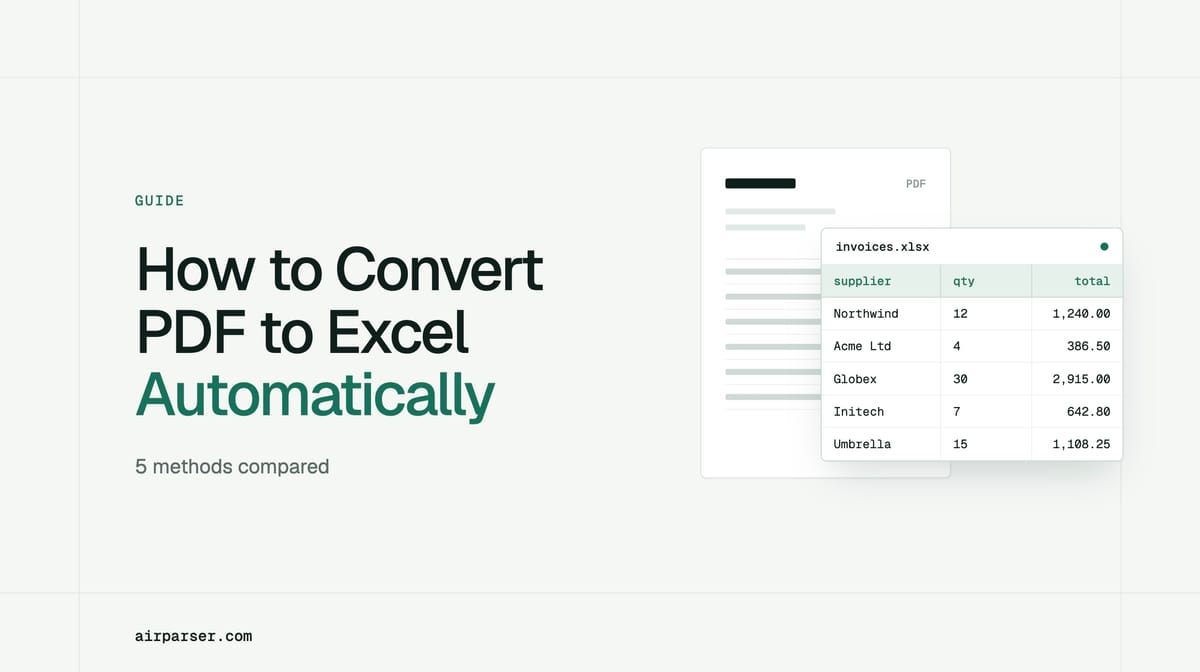
Five ways to convert a PDF to Excel, where each one breaks, and how to build an automatic PDF to Excel workflow with Airparser: define fields once, parse every document, export XLSX or CSV.

TL;DR
To convert a PDF to Excel once, use Excel's built-in PDF connector or a converter and clean up the result. To convert PDFs to Excel every day, use a document parser. In Airparser you describe the fields and tables once, send PDFs by email, upload, or API, and every document is parsed the same way. You then export the data as XLSX or CSV, or send it to Google Sheets and other tools automatically. A vision engine reads scans and changing layouts that break most converters.
"PDF to Excel" can mean two very different jobs. One is converting a single file so you can work with its numbers. The other is turning a stream of invoices, statements, and reports into rows in a spreadsheet, every time, without anyone retyping them. The first needs a converter. The second needs a process.
This guide compares the main ways to convert a PDF to Excel, explains where each one breaks, and shows how to set up an automatic PDF to Excel workflow with Airparser.
How can you convert a PDF to Excel?
There are five common approaches. They differ in how well they handle scans, changing layouts, and volume.
| Method | Best for | Limits |
|---|---|---|
| Copy and paste | One small table, one time | Slow, tables often paste as one column, no repeatability |
| Excel's built-in connector (Data > Get Data > From File > From PDF) | Text-based PDFs with clear tables | No text to read in scanned PDFs; tables across pages need cleanup; each layout needs its own steps |
| PDF editors and online converters | Occasional conversions of a whole file | Whole-page output, so you clean up; uploading sensitive files to a third-party site |
| Scripts and libraries | Developers with consistent digital PDFs | You write and maintain the code; weak on scans and changing layouts |
| AI document parser | Recurring documents, scans, changing layouts, and automation | Needs a one-time setup; blurry text can still be misread, so review matters |
If the PDF is clean, has one table, and you need it once, the built-in connector is usually enough. The other methods earn their cost when layouts vary, pages are scanned, or the work repeats.
Why PDF to Excel conversion is hard
- A PDF has no cells. It stores where text sits on the page, so columns have to be guessed.
- Scans have no text. A scanned PDF is an image, and a converter needs OCR to read it first.
- Every sender uses a different layout. A conversion that works for one supplier breaks for the next.
- Tables span pages. Repeated headers, footers, and totals on the last page end up in the wrong rows.
- The goal is usually data, not a copy of the page. You want supplier, date, and total in columns, not the page layout recreated in cells.
How to convert PDF to Excel automatically with Airparser
Airparser turns PDFs into structured data. You describe what you want, and Airparser applies it to every document. Here is the workflow, step by step:
1. Create an inbox. Each inbox collects one type of document, such as supplier invoices or bank statements, and has its own email address.
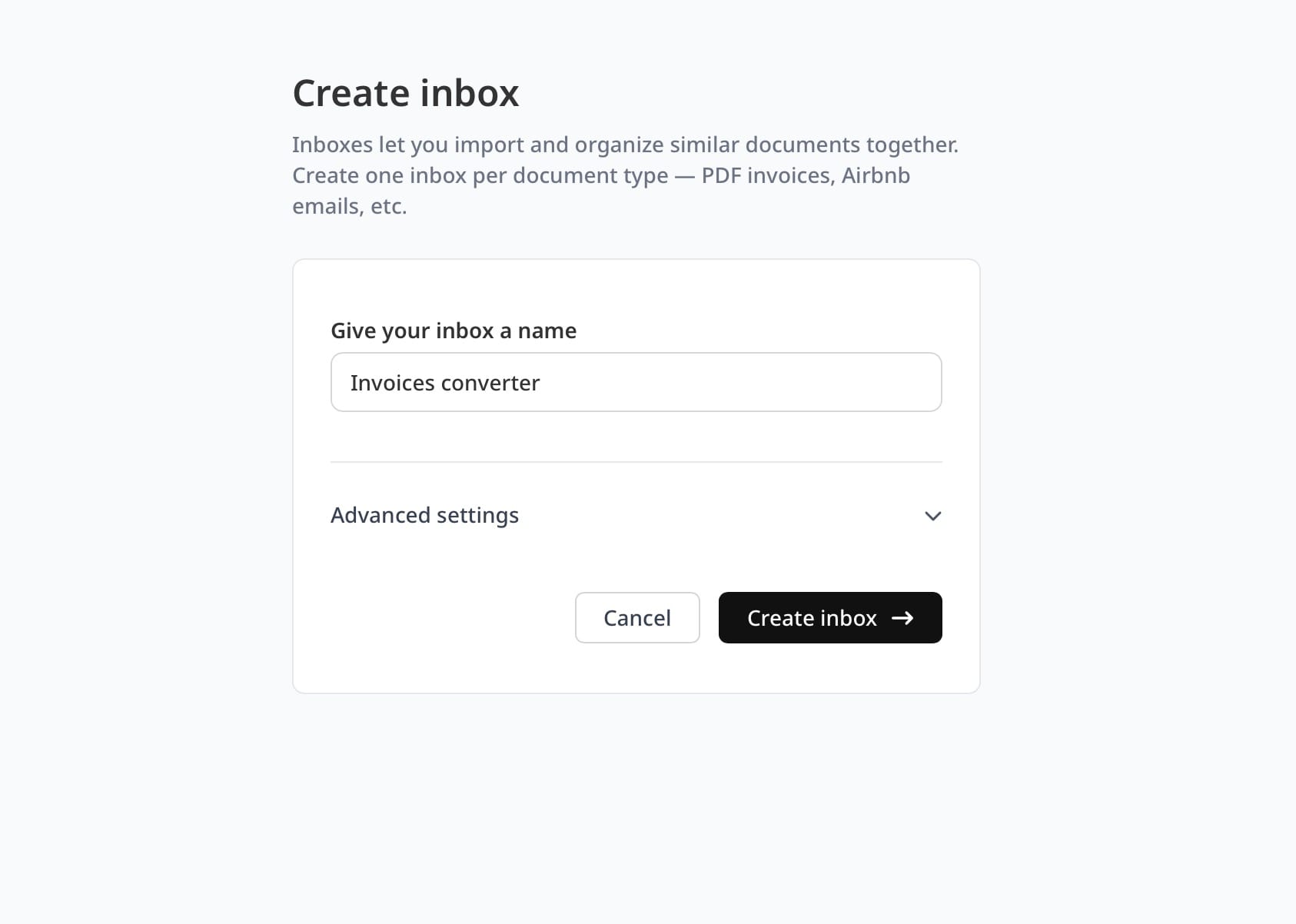
2. Choose the engine. The vision engine is the default. It reads the page in its original visual form, so tables, layout, and scans are handled together. The text engine converts the file to text first and suits simple, machine-generated documents.
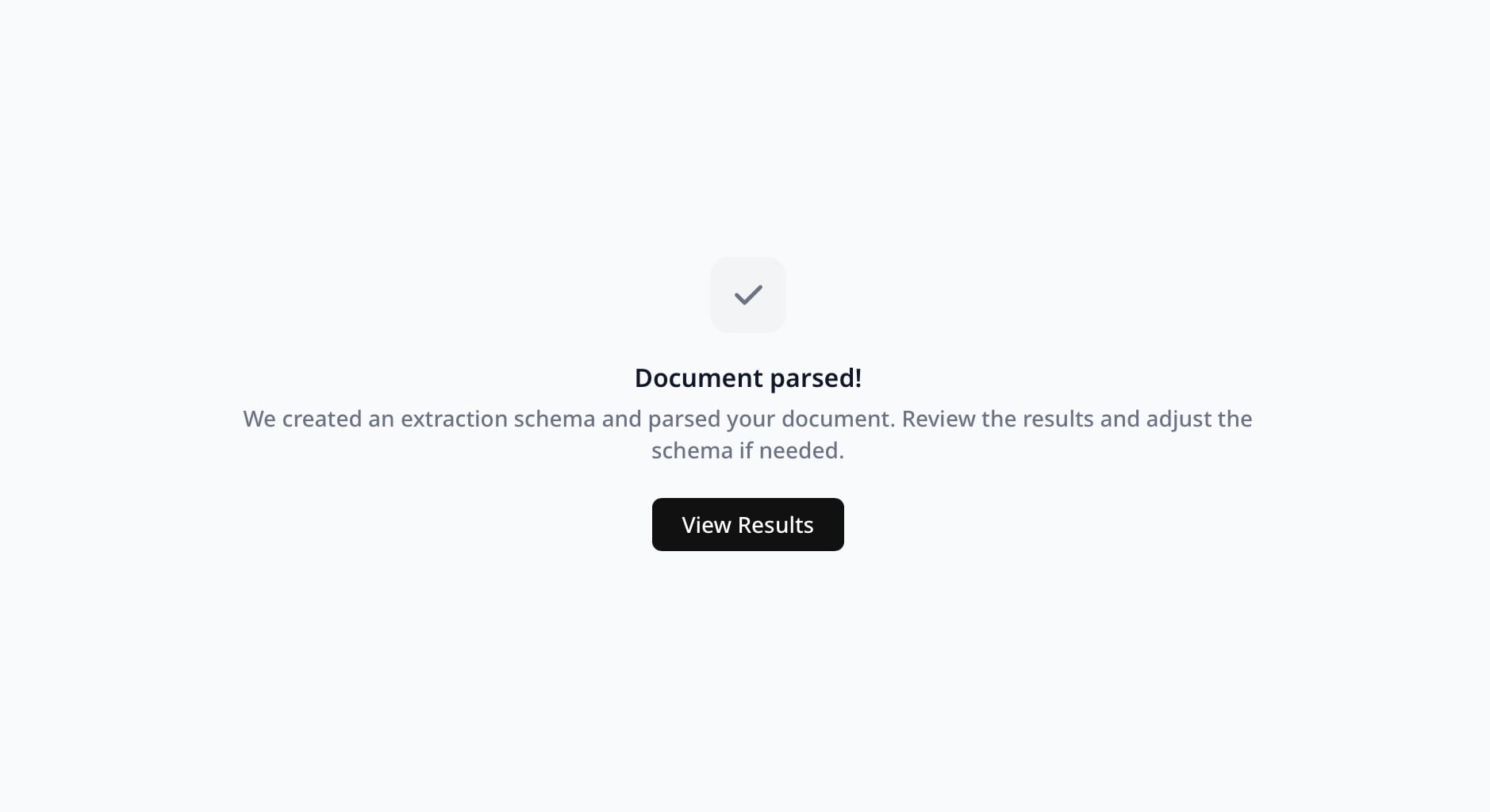
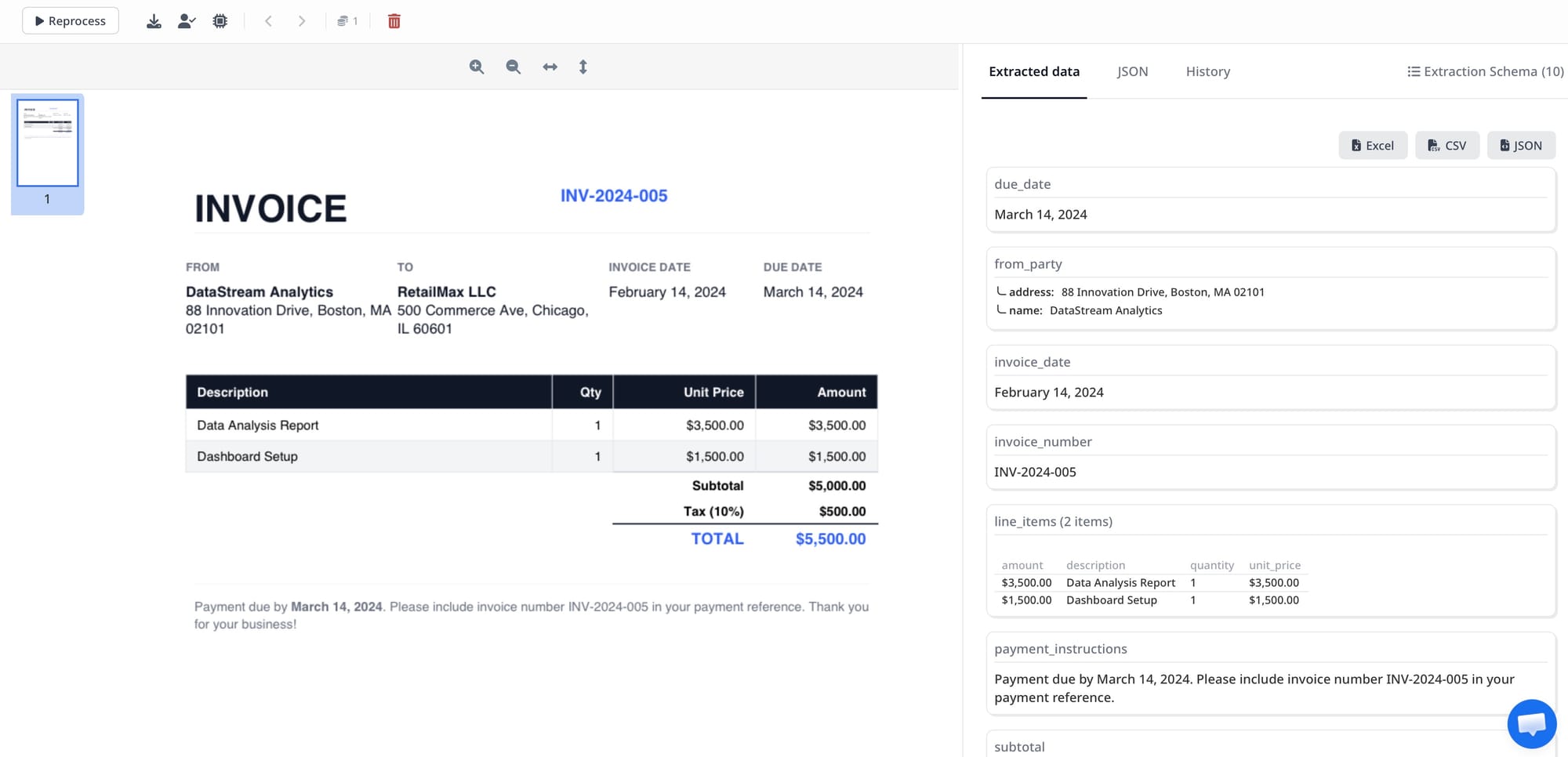
3. Define your schema. Add the fields you want as columns. For repeating rows, such as line items or transactions, add a List (Table) field where each attribute is a column header. You can write the schema yourself or let Airparser suggest one from a sample document.
4. Send your PDFs. Forward emails with attachments to the inbox, upload files, use the API, connect Zapier or Make, or import existing emails from a mailbox. Scanned PDFs, images, Word files, and spreadsheets are supported too.
5. Review the results. Open Parsed Data to see a table of every document with its extracted values, and open any row to compare it with the original.
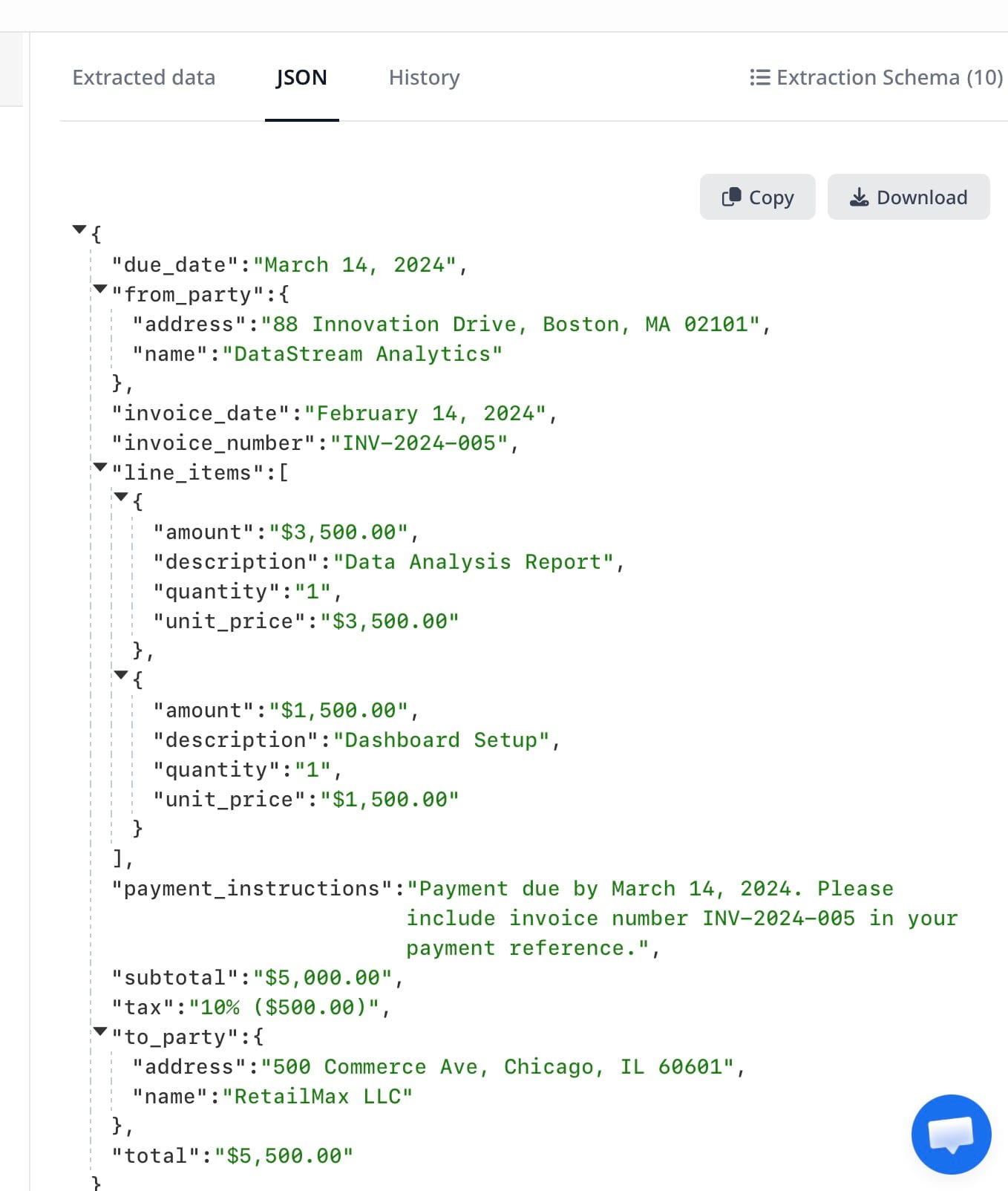
6. Export to Excel. Use Export and choose XLSX or CSV. Select all fields, or the table field for the line items, set a date range, pick the columns, and check the preview before you download.
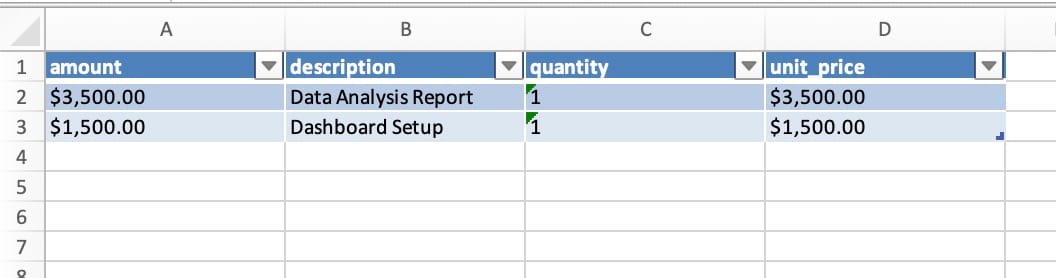
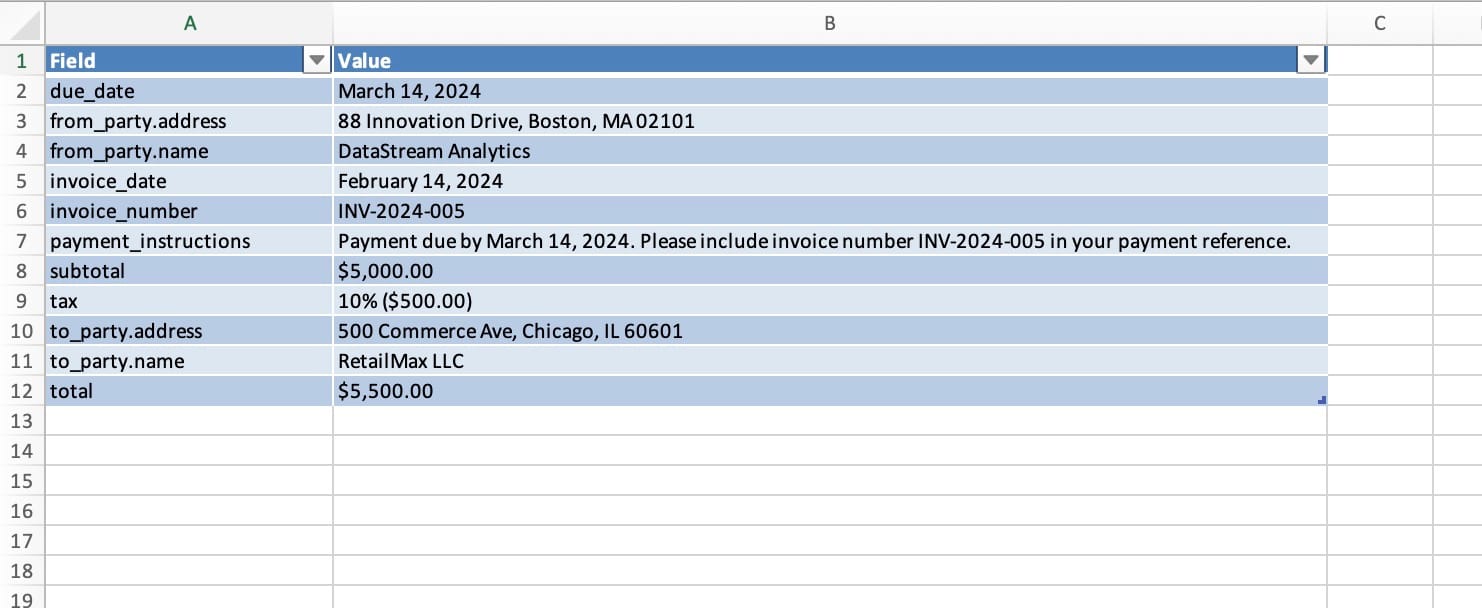
From then on, every new PDF follows the same setup. If a supplier changes its layout, you do not rebuild anything, because Airparser works from your field descriptions, not a template. For the schema step in detail, see how to create custom extraction schemas.
Send data to Excel, CSV, or Google Sheets automatically
You do not have to download a file each time. Airparser can send parsed data to:
- Google Sheets. Rows arrive as documents are parsed. See how to export PDFs to Google Sheets automatically.
- Zapier, Make, and n8n. Build multi-step flows that add rows to spreadsheets, notify a team, or create records in other apps. Our comparison of Zapier, Make, and n8n helps you choose.
- Webhooks and the REST API. Push the data to your own system.
Use XLSX or CSV downloads when you want a file, and an integration when you want the data to land in a spreadsheet on its own.
Keep the Excel output clean
- One schema per document type. Keep invoices and bank statements in separate inboxes so each file has a consistent set of columns.
- Fix formats in the schema. Date fields reformat any source date into the format you choose, for example YYYY-MM-DD.
- Use defaults for empty fields. A default value gives you a predictable cell when data is missing.
- Add a total check. Extract the document total as its own field and compare it with the sum of the line totals. See data validation in document parsing.
- Reshape with post-processing. If you need a value split, merged, or recalculated before it reaches Excel, Python post-processing applies your rules to every document.
Common PDF to Excel use cases
- Invoices. Supplier, number, dates, tax, and line items into one sheet. See automating accounts payable data entry.
- Bank statements. Transactions in rows for reconciliation. See bank statement data extraction.
- Purchase orders and delivery notes. Items and quantities for matching.
- Financial and operational reports. Table figures ready for analysis and charts.
- Price lists and catalogs. Products and prices in structured columns.
Limits and when to review
A converter, an AI parser, or a person can all make mistakes, so it is worth planning for them. Very small, blurry, or low-quality text may be misinterpreted. Check totals, and review documents the parser is unsure about before they reach your books. See human-in-the-loop document extraction.
Financial PDFs often contain personal data. Airparser encrypts data in transit and at rest, lets you choose how long documents are kept, and offers a Data Processing Agreement. Read how Airparser protects your documents for the details.
Frequently asked questions
Can Excel convert a PDF to a spreadsheet by itself?
Recent versions of Excel can import tables from a PDF through Data > Get Data > From File > From PDF. It works best with text-based PDFs and clear tables. It cannot read scanned PDFs, and each layout usually needs its own cleanup steps.
How do I convert a scanned PDF to Excel?
A scan has no text, so it needs OCR or a vision engine to read the page. Airparser's vision engine reads the page image directly and keeps the table positions. See how to convert a scanned PDF to text.
How do I convert many PDFs to Excel at once?
Use an inbox. Forward or upload the files, or connect an automation, and every document is parsed with the same schema. Then export all of them to one XLSX or CSV file for a date range.
Can I convert PDF to Excel for free?
For occasional use, Excel's built-in connector and free online converters can work for clean files. For recurring or sensitive documents, a parser with a setup you control is more reliable than uploading each file to a converter site.
Will the Excel file keep my table formatting?
A parser returns data, not a copy of the page. You get clean columns and rows, which is usually what you want for analysis. Visual formatting such as colors and borders is not recreated.
What file formats can I export to?
XLSX, CSV, and JSON downloads, plus Google Sheets, webhooks, the REST API, and automation platforms such as Zapier, Make, and n8n.
Does Airparser need a template for each PDF layout?
No. You describe the fields and tables in plain language. The same setup applies when a sender changes the layout.
Can I send emails with PDF attachments instead of uploading?
Yes. Every inbox has its own email address, so you can forward emails with attachments, and you can also import existing emails from Gmail, Outlook, iCloud, Yahoo, or an IMAP mailbox.
Bottom line
Converting one PDF to Excel is a small task. Converting them continuously is a workflow: define the fields once, let documents flow in, review exceptions, and let the data reach the spreadsheet on its own.
To see it on your own files, try Airparser and export your first parsed PDF to Excel.