How to Extract Tables from PDFs with AI (2026 Guide)
Why tables in PDFs are hard to extract, how the main methods compare, and how to set up repeatable table extraction with Airparser, from schema tips to XLSX, CSV, and JSON export.

TL;DR
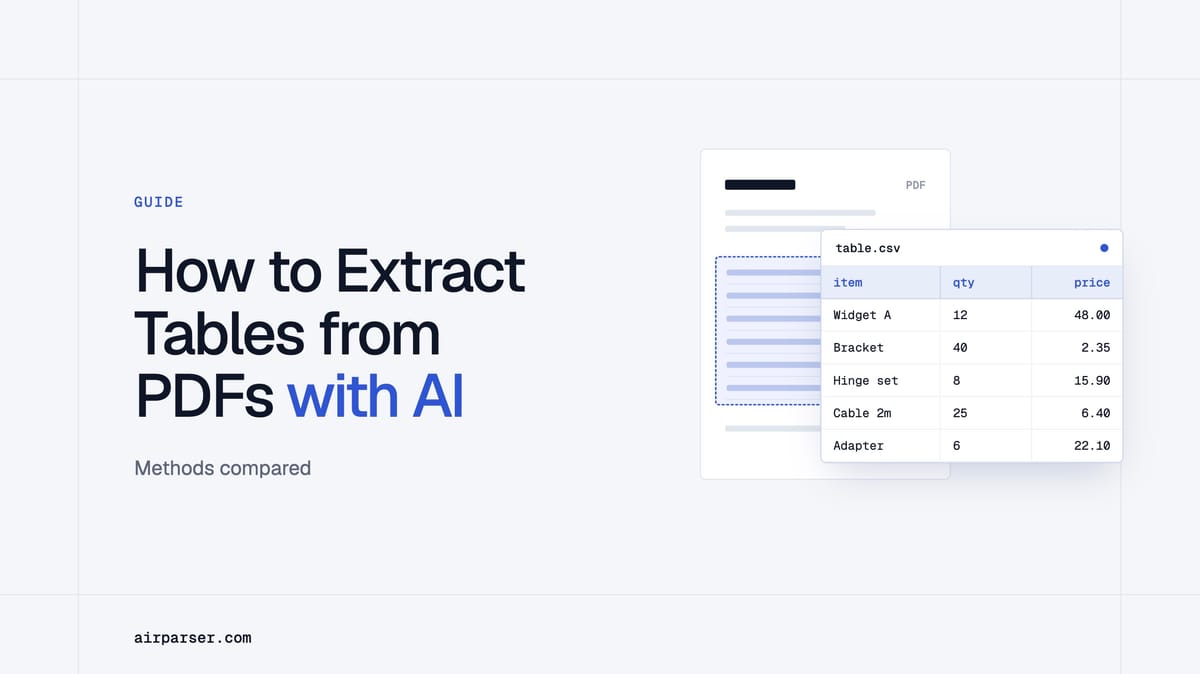
The reliable way to extract tables from PDFs in 2026 is to read the page as a document with its layout intact, not as a stream of text. In Airparser, you define the table once as a List (Table) field, where each attribute is a column. The vision engine reads the page layout, and every new PDF is parsed with the same setup. You can export the rows as XLSX, CSV, or JSON, or send them on to Google Sheets, Zapier, Make, n8n, a webhook, or the API.
Tables are the hardest part of a PDF to extract. A PDF stores where characters sit on a page, not which characters belong to which cell, so a table that looks obvious to a person is only a scatter of text to a program. Merged cells, repeated headers, rows that break across pages, and scans make it worse.
This guide explains why tables fail, compares the main extraction methods, and shows how to set up repeatable table extraction with Airparser, including the schema tips that make the biggest difference.
Why tables in PDFs are hard to extract
A PDF is built to look the same everywhere. It has no table object that a tool can simply read. That creates several recurring problems:
- No real cell structure. Columns are inferred from how far apart words are, so uneven spacing breaks them.
- Merged and nested cells. A heading that spans three columns, or a subtotal row, does not match a simple grid.
- Tables that continue across pages. Headers repeat, footers interrupt, and totals appear only on the last page.
- Scanned documents. A scan is a picture. There is no text to read until OCR creates it, and OCR can distort table structure.
- A different layout from every sender. The same invoice or statement looks different from each supplier or bank.
Methods for extracting tables from PDFs compared
| Method | Works well for | Where it breaks |
|---|---|---|
| Copy and paste | One small, clean table | Slow, loses structure, does not scale |
| Rule-based or template tools | Documents with one fixed layout | Break when a sender changes the layout; every new layout needs a new template |
| Open-source libraries | Text-based PDFs with ruled tables, for developers | Weak on scans and borderless tables; you maintain the code |
| OCR then parse | Scanned pages with simple tables | The OCR step can distort table structure and alignment |
| AI document parser with a vision engine | Mixed layouts, scans, and tables whose layout carries meaning | Very small or blurry text can still be misread, so review matters |
For a deeper comparison, see traditional OCR vs LLM parsing and why a vision engine parses documents that break traditional OCR.
How Airparser extracts tables
Airparser reads a document with one of two engines. The vision engine is the default. It analyzes the document in its original visual form, including text placement, tables, and formatting, so it is the right choice when layout and tables carry meaning. The text engine converts the document to text first. For scans, that means an OCR step, which can remove or distort table structure, so it is better kept for simple, machine-generated files.
You tell Airparser what a table contains by creating a field of type List (Table). The documentation recommends thinking of each attribute as a column header: every attribute you add becomes a column of the repeating data. Because you describe the columns in plain language instead of drawing a template over a layout, the same setup keeps working when the layout changes. Our article on vision vs text engines explains how to choose.
How to extract tables from PDFs with Airparser, step by step
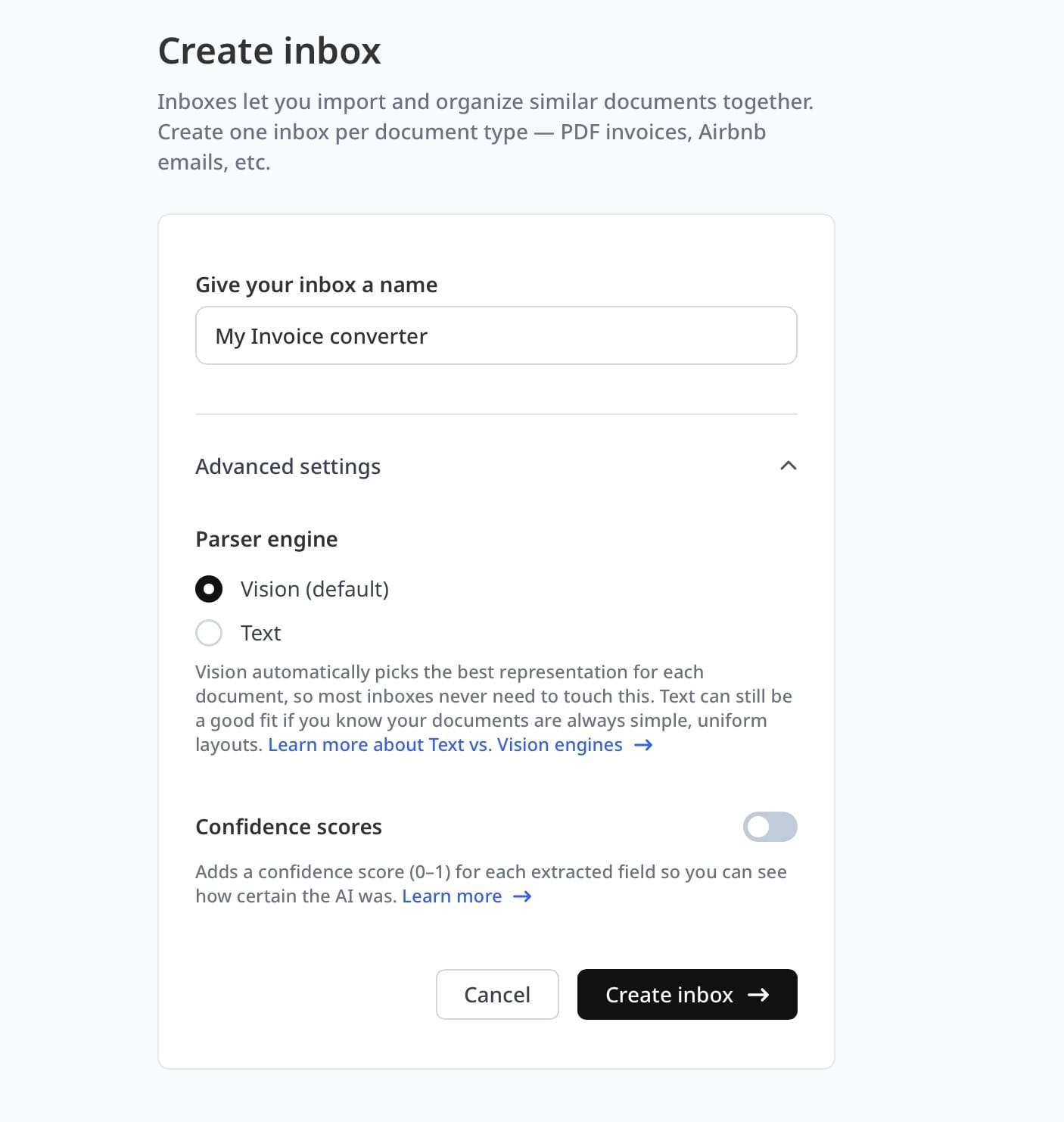
- Create an inbox. An inbox holds the documents of one kind, such as supplier invoices or bank statements, and has its own email address.
- Choose the engine. Keep the vision engine for scans, complex layouts, and tables that depend on position. Use the text engine for simple, machine-generated documents.
- Add the document fields. Add the single-value fields you need, such as supplier, document number, and date. Date fields reformat any source date into the format you choose, for example YYYY-MM-DD.
- Add a List (Table) field for the table. Name it, for example,
line_items, then add one attribute per column:description,quantity,unit_price,line_total. You can also let Airparser suggest a schema from an uploaded sample. - Describe each column. Add a short description with where to look and what a value looks like. This is where accuracy is won.
- Send documents. Forward emails with attachments, upload files, use the API, connect Zapier or Make, or import existing emails from a mailbox.
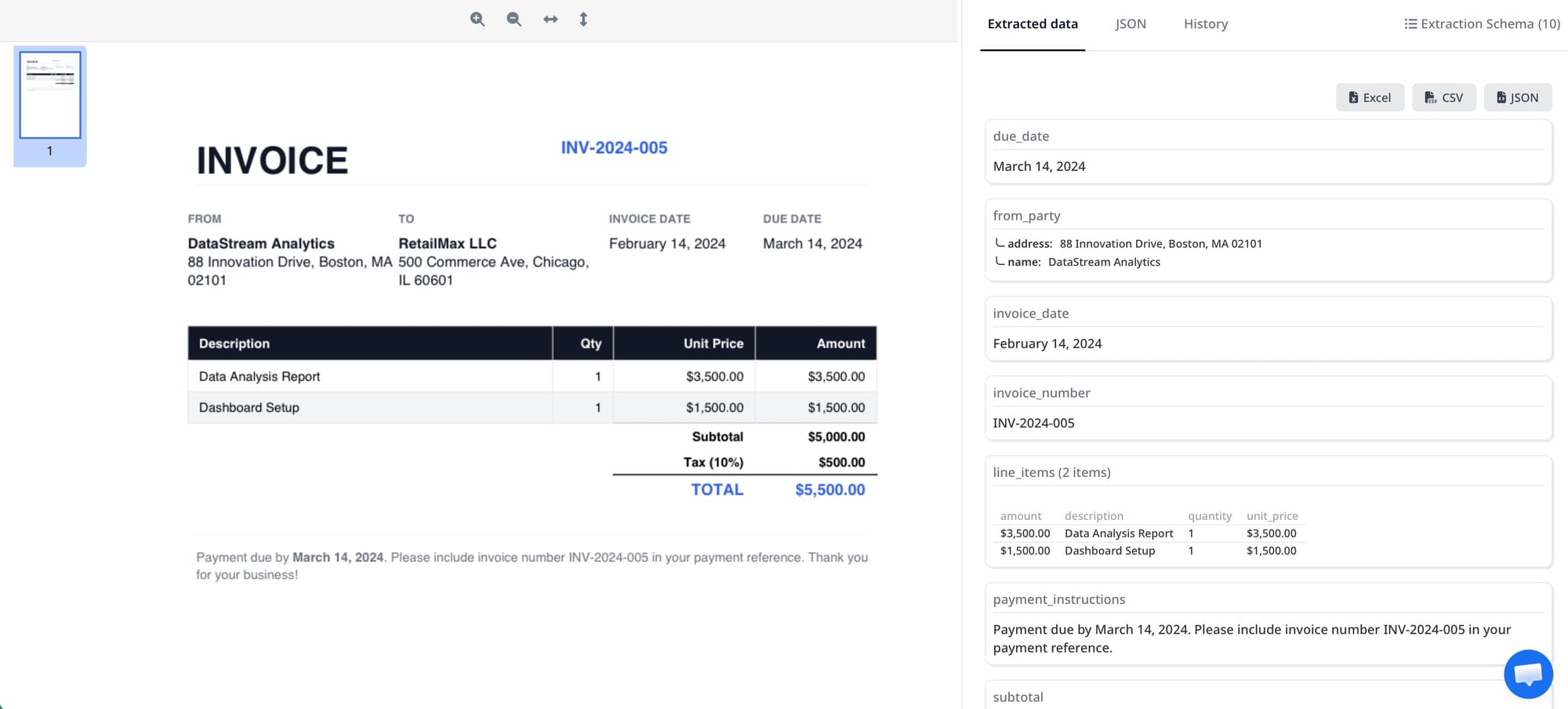
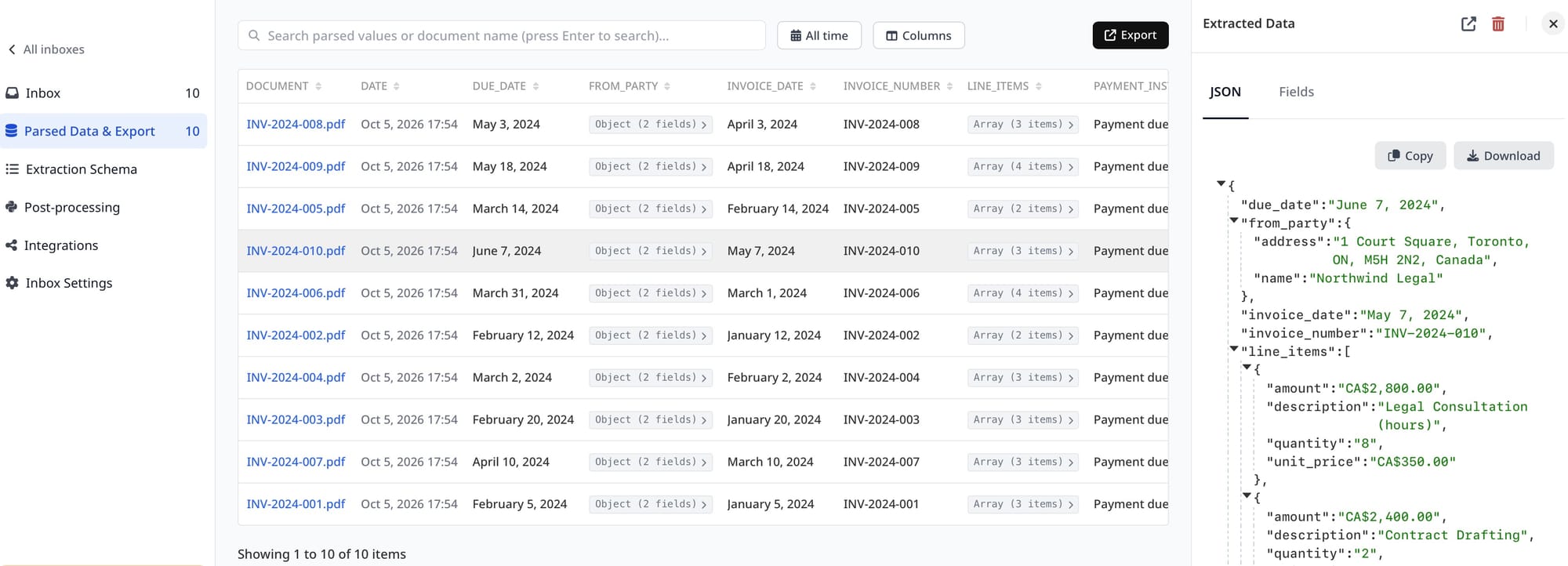
- Review and export. Open Parsed Data to see the values next to the original document. Use Export to download XLSX, CSV, or JSON, choosing all fields or the table field as the source, and preview the columns before you download.
Schema tips for cleaner table extraction
- Describe columns the way the document labels them. If a column is headed "Qty." or "Amount due", say so in the description.
- Say what to skip. State whether subtotal, tax, and shipping rows belong in the table or not.
- Handle multi-page tables explicitly. Tell the parser that headers repeat on each page and that the table continues.
- Specify number formats. Say whether amounts use a decimal comma or point, and whether currency symbols should be stripped.
- Use a default value. A default gives you a predictable result when a cell is empty.
- Add a total check. Extract the document total as a separate field and compare it with the sum of the line totals. A mismatch is the fastest way to find a misread row. See data validation in document parsing.
Common use cases for table extraction
- Invoice line items. Pull descriptions, quantities, and prices into rows. See how to extract invoice line items from PDFs.
- Bank statements. Turn transactions into rows you can reconcile. See bank statement data extraction.
- Purchase orders and packing slips. Capture item lists and quantities for matching.
- Product catalogs and price lists. Move SKUs, descriptions, and prices into a structured file.
- Financial reports. Extract table figures for analysis instead of retyping them.
Limits to plan for
No extraction method is perfect. Very small, blurry, or low-quality text may be misinterpreted, even by a vision engine, so a scan of a faded page deserves a second look. Keep a check on the totals and send low-confidence documents to review before the data is exported. Our guide to human-in-the-loop document extraction covers when to add a review step.
Where the data goes next
Once a table is extracted, you can keep it as a file or send it onward automatically: XLSX, CSV, and JSON downloads; Google Sheets; Zapier, Make, and n8n; webhooks; and the REST API. If you want to reshape values before they leave, post-processing with Python lets you apply your own rules. See Airparser Python post-processing.
Your documents often contain personal and financial data. Airparser encrypts data in transit and at rest and lets you set how long documents are kept, as described in how Airparser protects your documents.
Frequently asked questions
What is the best way to extract tables from a PDF?
For a single clean table, copy and paste or a built-in tool is enough. For tables that keep arriving in different layouts, or for scanned pages, use an AI parser that reads the page layout, so the same setup keeps working when the layout changes.
Can AI extract tables from scanned PDFs?
Yes. A vision engine reads the scanned page as an image and keeps table positions, so you do not depend on a separate OCR step that can distort the structure. Very blurry or tiny text can still be misread, so review the results.
How do I extract a table that spans multiple pages?
Define one table field and describe the behavior in plain language: the headers repeat on every page, and the table continues until the last row. Then compare the extracted total with the document total to confirm that no row was lost.
How do I handle merged cells?
Describe what the merged cell means in the column description, for example "the category heading applies to the rows below it". A vision engine uses the layout to decide which rows the heading belongs to.
Can I extract a table without writing a template?
Yes. You describe the columns instead of drawing zones or rules over a layout, so there is no template to rebuild when a sender changes the design.
How do I get table data into Excel?
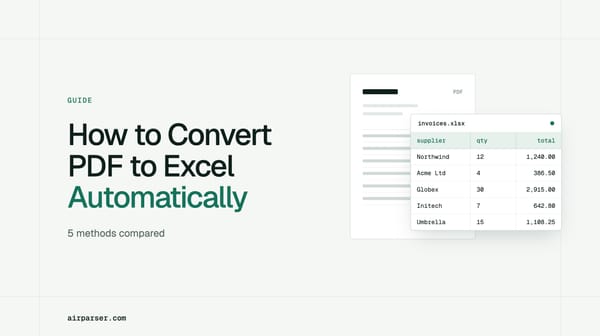
Open Parsed Data and use Export to download XLSX, CSV, or JSON, choosing the table field as the source. You can also send the rows to Google Sheets or other tools. For a full walkthrough, see how to convert PDF to Excel automatically.
What file types can Airparser read besides PDF?
PDFs, including scanned ones, images (JPG, PNG, BMP), Word documents, text, HTML and Markdown files, emails (EML), and Excel and CSV files.
Can I extract tables via API?
Yes. You can send documents to an inbox through the API and receive structured JSON back. See how to parse documents via API.
Bottom line
Tables fail when a tool treats a page as a flat stream of text. Reading the layout, describing columns instead of drawing templates, and checking totals turn table extraction into something you can run on every incoming document.
If you handle tables regularly, try Airparser with a few of your own PDFs and see the rows it returns.