How to Extract Data from Handwritten Forms and Notes with AI (2026 Guide)
Can AI read handwriting? Yes, when it is legible. How to extract fields, checkboxes, and tables from handwritten forms and notes, test accuracy on your own scans, and export to Excel.


TL;DR
Yes, AI can read handwriting and turn it into structured data, as long as the writing is reasonably clear and the scan is readable. For handwritten forms, define the fields once (names, dates, checkboxes, amounts, tables) and let a vision engine read every new scan the same way. For handwritten notes and letters, you get the text itself. In Airparser you create an inbox, describe the fields, send scans or photos by email, upload, or API, review the results next to the original, and export to Excel, CSV, JSON, Google Sheets, or your other tools. Test it on 20 to 30 of your own forms before you rely on it.
Handwritten forms are still everywhere: patient intake sheets, delivery notes signed on the road, survey cards, customs declarations, field inspection checklists, order forms filled in at a counter. The information on them is valuable, and someone usually retypes it.
Old OCR was built for print and fails on handwriting. Modern AI that reads the page as an image does far better, though it is not magic. This guide explains what to expect, how forms and notes differ, how to set up extraction step by step, and how to measure accuracy on your own documents so you do not rely on a demo.
Can AI read handwriting accurately?
Often yes, with limits. Airparser's documentation states that it can extract data from handwritten text as long as the handwriting is reasonably clear and readable in the scanned document or image. Very small, blurry, or low-quality text can still be misread, even by a vision engine, so quality in means quality out.
Here is what usually makes the difference:
| Factor | Easier to read | Harder to read |
|---|---|---|
| Writing style | Block capitals, separated letters | Joined cursive, very small writing |
| Ink and paper | Dark ink on light paper | Faint pencil, colored paper, smudges |
| Scan or photo | Flat, sharp, evenly lit, straight | Shadows, skew, blur, glare |
| Form layout | One value per box, printed labels next to the fields | Text crossing lines, notes in margins, stamps over writing |
| Content | Names, dates, and numbers with clear context | Unusual abbreviations, free-form notes |
Printed labels help more than people expect. When a field is labeled "Date of birth", the reader knows what kind of value to expect, which makes an ambiguous digit easier to settle.
Handwritten forms vs handwritten notes
"Handwriting recognition" covers two different jobs, and the right setup depends on which one you have.
- Handwritten forms. The layout repeats and you want specific fields: name, date, address, a ticked box, a quantity, rows of items. The output is structured data, one record per form, ready for a spreadsheet, CRM, or database.
- Handwritten notes and letters. The layout is free-form and you want the text itself, so you can search, edit, or archive it. The output is a block of text, or a few fields such as author, date, and topic.
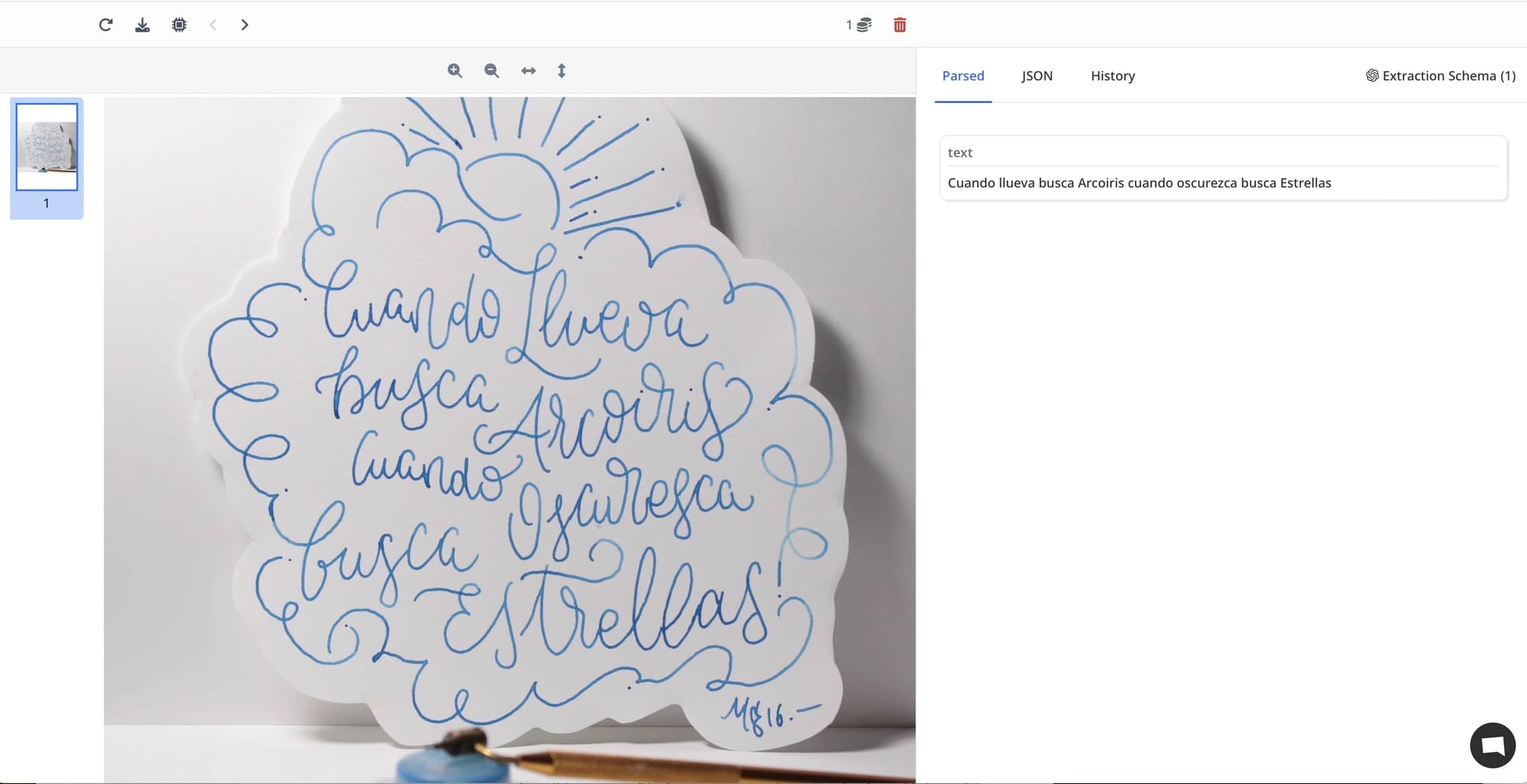
Airparser handles both with the same inbox logic. For a note, a single text field is enough. For a form, you add a field for each value you need. The figure below shows the vision engine reading a hand-lettered Spanish note from a photo. The extracted text matches the note.
Ways to get data out of handwritten documents
| Method | Good for | Where it falls short |
|---|---|---|
| Manual typing | A handful of forms | Slow, error-prone, does not scale |
| Handwriting-to-text apps | Personal notes turned into plain text | No fields, no checkboxes, no export into your systems |
| Classic OCR or intelligent character recognition tools | Structured print and neat hand-printed boxes | Needs templates per layout; weak on varied handwriting |
| Cloud OCR services you wire up yourself | Teams with developers and time | You build the schema, validation, review, and exports yourself |
| AI document parser with a vision engine | Recurring forms, photos, scans, changing layouts | Needs a one-time setup; illegible writing still needs a human |
For a closer look at why a vision engine copes where traditional OCR does not, see why a vision engine parses documents that break traditional OCR and what a vision engine is.
How to extract data from handwritten forms with Airparser
- Create an inbox for one form type. Each inbox collects one kind of document and has its own email address. Keep, for example, intake forms and delivery notes in separate inboxes.
- Choose the vision engine. It reads the page in its original visual form, so handwriting, checkboxes, and layout are processed together. The text engine converts the file to text first, which suits clean, machine-generated documents.
- Define the schema. Add a field for every value you need. You can write the schema yourself or upload a sample form and let Airparser suggest one.
- Describe each field. Add where to look and what a value looks like, for example "Patient date of birth, top right, written as day, month, year".
- Send scans or photos. Forward emails with attachments, upload files, use the API, connect Zapier or Make, or import existing emails from a mailbox. JPG, PNG, BMP, and scanned PDFs are supported. If your scanner or multifunction printer can scan to email, point it at the inbox address and forms arrive on their own.
- Review next to the original. Open Parsed Data, click a row, and compare the extracted values with the scan in a side panel.
- Export or automate. Download XLSX, CSV, or JSON, or send the data to Google Sheets, Zapier, Make, n8n, webhooks, or the API.
Schema tips that improve handwriting results
The field types you choose do much of the work. Airparser offers String, Integer, Decimal, Boolean, Date, Enum, Object, and List (Table).
- Use Boolean for checkboxes. Describe what counts as checked, for example "true if the box is ticked or crossed, false if empty".
- Use Enum for fixed choices. For a status, gender, or yes/no/unknown field, a predefined list stops the output from drifting into free text.
- Use Date for dates. Dates are reformatted into the format you choose, for example YYYY-MM-DD, even if the writer used a different order.
- Use Integer or Decimal for numbers. Say whether to expect digits only, and whether a comma or a point is the decimal mark.
- Use List (Table) for handwritten rows. Each attribute is a column. This is how you capture items on a delivery note or entries in a log.
- Add example values in the description. "Format like AB-12345" tells the reader what a plausible answer looks like.
- Set default values. A default gives you a predictable result when a field is empty or unreadable.
For the full schema walkthrough, see how to create custom extraction schemas.
Get a better scan before you blame the AI
- Scan flat and straight. A page scanned at an angle, or a photo with a curved sheet, costs accuracy.
- Light evenly. Avoid shadows across the writing and glare on glossy paper.
- Keep contrast high. Dark pen on light paper reads better than pencil or colored forms.
- Use a sharp image. Blurry phone photos and low resolution are the most common reasons for misreads.
- Keep documents short. Airparser recommends keeping documents within 1 to 5 pages and advises splitting PDFs longer than 10 pages before sending them.
For scans that are mostly printed, see our guide to converting a scanned PDF to text.
How to test accuracy on your own forms
A demo on a neat sample says little about your documents. A small pilot tells you what to expect and where to add review.
- Collect 20 to 30 real forms. Include your messiest ones. If only the neat forms are in the test, the result will be too optimistic.
- Type the correct values for a few forms once. This is your answer key.
- Run the forms through an inbox with your schema, then compare field by field.
- Measure accuracy per field, not per document. A form with 12 correct fields and one wrong ID is mostly right, but the wrong field may be the one that matters.
- Rank fields by risk. IDs, amounts, and dates need stricter checks than a free-text comment.
- Decide what goes to a person. Hold risky or uncertain documents for review before they reach your systems.
Airparser has a built-in review queue: documents can be held when a field's confidence score falls below your threshold (when confidence scores are enabled), flagged from post-processing rules, or sent manually. A reviewer approves the data or corrects it, and with the "wait for approval" delivery setting nothing is sent to webhooks, Zapier, Make, or n8n until that approval happens. Read how the review queue works and our guide to human-in-the-loop document extraction.
Add a check for values you can verify, such as totals that must add up or dates that must be in a valid range. See data validation in document parsing.
Handwriting to Excel and other formats
Once the fields are extracted, you do not have to retype anything:
- Excel and CSV. Open Parsed Data and use Export to download XLSX or CSV. Choose all fields, or a table field to export its rows, set a date range, pick the columns, and check the preview.
- JSON. Download JSON, or receive it through the REST API or a webhook.
- Google Sheets. Send rows to a sheet as documents are parsed.
- Zapier, Make, and n8n. Create records in a CRM, send a notification, or start another workflow.
For rows of handwritten entries, define a table field first. Our guide to extracting tables from PDFs with AI covers how tables are set up, and converting PDF to Excel automatically covers the export side.
Common use cases
- Delivery notes and logistics documents. Signed and annotated paperwork from drivers and warehouses. See packing slips and delivery notes and bills of lading.
- Work orders and inspection checklists. Field technicians fill them in on paper. See work order data extraction.
- Intake and registration forms. Names, contact details, dates, and ticked options from clinics, events, and offices.
- Surveys and feedback cards. Ratings, ticked answers, and short comments digitized for analysis.
- Handwritten receipts and expense slips. See converting scanned receipts to structured data.
- Notes, letters, and archives. Searchable text from handwritten pages, with a text field and a few descriptive fields.
Limits, and when to keep a human in the loop
Handwriting is the hardest input a document parser sees. Plan for these limits:
- Illegible writing stays illegible. If a person struggles to read it, the AI will too.
- Look-alike characters. Digits such as 1 and 7, or 0 and 6, and letters in IDs are the usual errors. Use review and validation for these fields.
- High-stakes data. For medical, legal, or financial entries, keep a person approving the fields that matter.
- Do not assume one result fits all writers. Accuracy varies by person, so keep checking a sample after launch.
For why a model can return a confident but wrong value, see why AI extracts the wrong data from your documents.
Privacy and security
Handwritten forms often contain personal details, and sometimes health information. Airparser encrypts data in transit and at rest, lets you set how long documents are kept, and offers a Data Processing Agreement. Read how Airparser protects your documents for the details, and check any sector-specific rules that apply to your data with your compliance team.
Frequently asked questions
Can AI read handwriting?
Yes, when the handwriting is reasonably clear and the scan or photo is readable. Block letters read best, and very small, blurry, or faint writing is where mistakes occur.
How accurate is AI handwriting recognition?
It depends on the writer, the form, and the image quality, so there is no single number to trust. Test 20 to 30 of your own forms, measure accuracy per field, and add review for fields that matter.
How do I convert handwriting to Excel?
Define the fields, and a table field for repeating rows, in an inbox, send the scans, and then export XLSX or CSV from Parsed Data. You can also send the rows to Google Sheets automatically.
Can it extract data from a handwritten PDF or a photo?
Yes. Airparser accepts scanned PDFs and JPG, PNG, and BMP images, so a phone photo of a form works as long as it is sharp and readable.
Can it read checkboxes?
Add a Boolean field and describe what counts as checked, for example a tick or a cross. Review the first results to confirm how your forms are marked.
Does it work on cursive handwriting?
Cursive is harder than block letters, and results vary by writer. Test cursive samples specifically and use review for important fields.
Does it work in languages other than English?
Yes, a vision engine can read documents in many languages, and the example above is a Spanish note. Test samples in your language and with your writers before you rely on it.
Can I convert handwritten notes into plain text?
Yes. Add a single text field to read the whole note, or add a few fields for the author, date, and topic. Check names and numbers against the original.
How many pages can I send at a time?
For the best accuracy, keep documents within 1 to 5 pages, and split PDFs longer than 10 pages before sending them.
Can scans arrive automatically?
Yes. Every inbox has its own email address, so you can forward emails with attachments or point a scan-to-email scanner at it. You can also upload files, use the API, or connect Zapier or Make.
Do I need a template for each form?
No. You describe the fields in plain language instead of drawing zones over a layout, so the same setup keeps working when a form's layout changes.
Bottom line
Reading handwriting is now practical for forms and notes, provided you set expectations honestly: clear writing and sharp scans work well, and illegible or high-stakes fields need a person. Define the fields once, test on your own documents, route uncertain results to review, and send the rest straight to your spreadsheet or system.
To try it on your own forms, start with Airparser and run a small batch of real scans through a vision-engine inbox.