Connect Airparser to Cursor
Let Cursor's agent work with your real Airparser account from your editor: upload documents, read parsed JSON, and create or update extraction schemas.
Before you start
- Cursor, installed and signed in
- An Airparser account (you can start free, no credit card required)
- Your Airparser email and password, or your API key from the Account page of the Airparser app
Add Airparser to Cursor
Airparser's MCP server is at https://mcp.airparser.com. It supports OAuth sign-in, so you only need to add the server address and sign in.
- 1
Create .cursor/mcp.json in your project, or ~/.cursor/mcp.json in your home directory to use Airparser in every project.
- 2
Add the Airparser server:
mcp.json{ "mcpServers": { "airparser": { "url": "https://mcp.airparser.com" } } } - 3
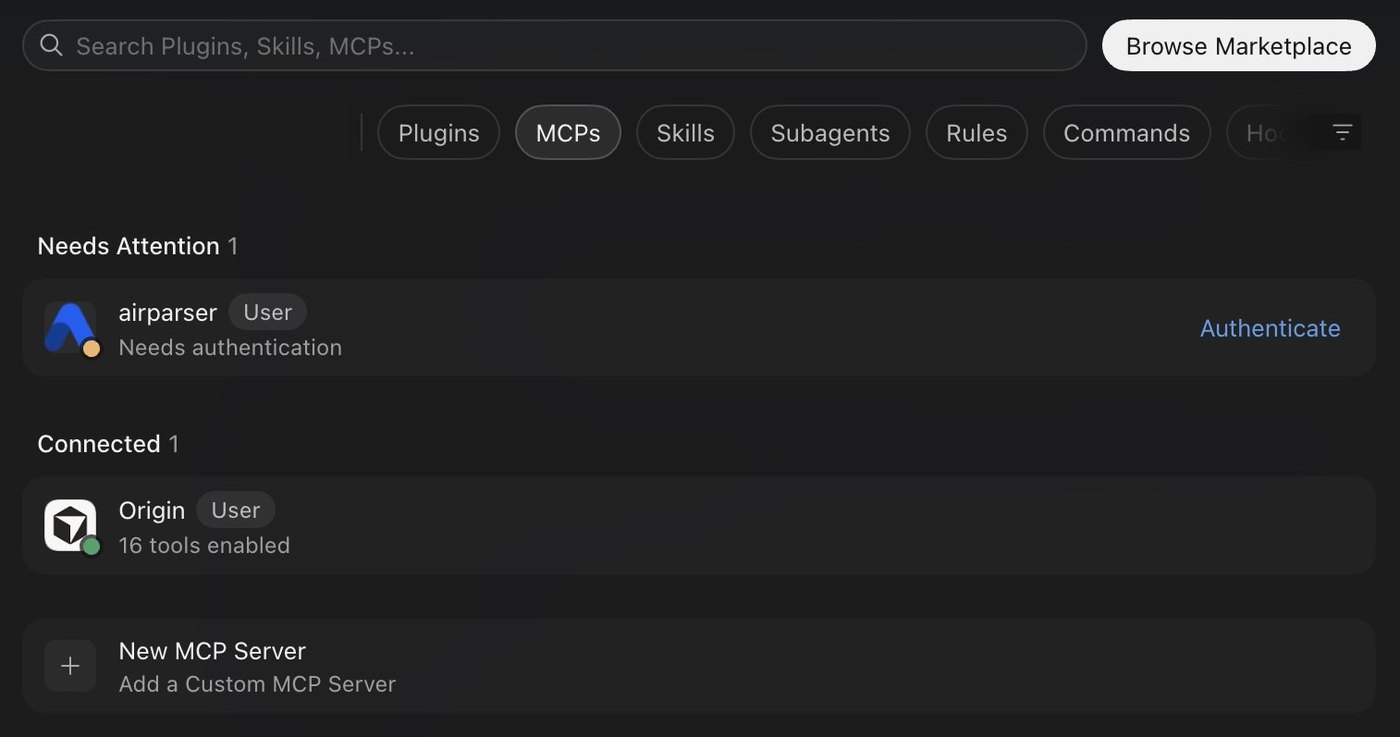
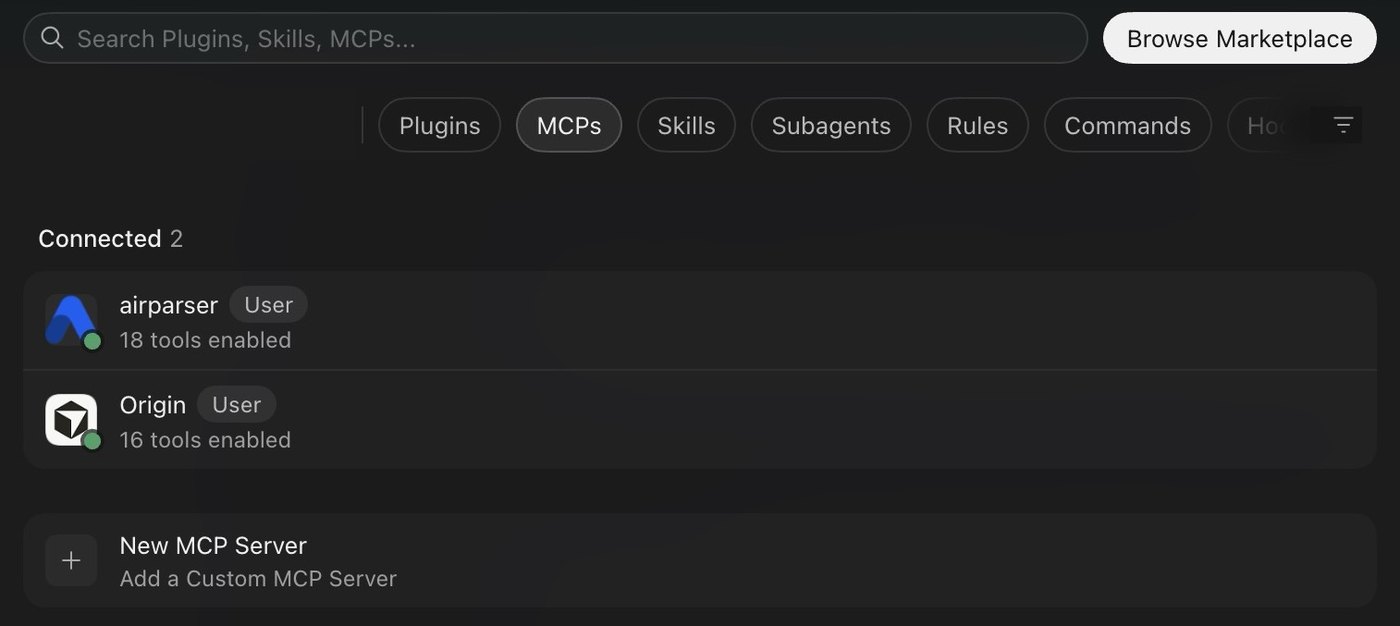
Open Customize in the Cursor sidebar and select MCPs. Airparser shows Needs authentication: click Authenticate.
- 4
Airparser opens a sign-in page in your browser. Enter your Airparser email and password (or paste your API key) and click Connect to Airparser. If you signed up with Google, set a password first at app.airparser.com/forgot.
- 5
In a chat, ask the agent to list your Airparser inboxes. Listing inboxes does not parse anything, so it is a quick way to check the connection.
Alternative: use an API key header
If you prefer not to sign in, for example in an automated setup, send your API key in the x-api-key header. Keep the key in an environment variable set in your shell profile or system environment, and restart Cursor.
{
  "mcpServers": {
    "airparser": {
      "url": "https://mcp.airparser.com",
      "headers": {
        "x-api-key": "${env:AIRPARSER_API_KEY}"
      }
    }
  }
}
What the agent can do with Airparser
- List your Airparser inboxes and the documents inside them
- Create an inbox
- Show or update the extraction schema of an inbox
- Generate an extraction schema from a sample document
- Upload a document and get the parsed JSON back
- Retrieve the parsed JSON of a document
- Test, save or switch on post-processing Python code
Try it
Ask the Cursor agent, for example:
- “Show me my Airparser inboxes.”
- “Create an Airparser inbox called 'Test invoices', upload invoice.pdf from this folder and show me the extracted data.”
- “Show the extraction schema for my 'Supplier invoices' inbox.”
New inboxes created by an assistant use the Vision engine unless you ask for the text engine. You can then open the inbox in the Airparser app to see the document and its fields.
You stay in control of what the agent runs
Cursor asks for approval before running MCP tools by default, and you can expand a tool call to see its arguments. We suggest keeping approval on for tools that change data, such as the ones that replace an extraction schema or saved post-processing code, because replacing them overwrites what was saved. Keep the API key in the environment variable instead of pasting it into a file you commit.
Things to know
- Parsing uses credits from your plan as usual.
- The connection works on the account you signed in with, or whose API key you use.
- With sign-in, access lasts 90 days. After that, sign in again. Changing or resetting your Airparser password ends the access of every connected assistant.
- Very large files may not fit in one request, because assistants send the file encoded as text. For those, upload in the Airparser app or by email to the inbox address.
- If a parse takes more than 15 seconds, the agent gets the document ID and fetches the result a moment later; the file does not need to be uploaded again.
Frequently asked questions
Does the Airparser MCP server cost extra?
Parsing uses the credits of the connected Airparser account, and you can start with a free trial without a credit card.
What data can the agent see?
Only the inboxes and documents of the account you signed in with, or whose API key you use.
The sign-in did not start. What should I check?
Check that the URL is exactly https://mcp.airparser.com and that Airparser is enabled in Customize. Open the Output panel (Cmd+Shift+U on a Mac) and choose MCP Logs. You can also use the API key header instead.
Can I use another editor or client?
Any MCP client that supports remote servers can use the same URL, with OAuth sign-in or the x-api-key header. See the guides for Claude and ChatGPT.
Related
Parse your first document from your editor
Start free, add the server and ask the agent to parse a document.
