AI Business Card Parser
Automatically extract contact information, company details, and professional data from business cards using AI.

Why Automate Contact Capture?
Manually entering contacts is time-consuming. If you attend a trade show, conference, or meeting with many prospects, it can take hours or days to type all the details into your CRM.
Manual entry also increases the risk of typos in names, emails, or phone numbers, duplicate contacts, and lost cards or incomplete records.
By automating contact capture, you can:
- Save time for your sales, marketing, or recruiting teams
- Reduce errors and keep clean CRM records
- Follow up faster with new contacts
- Share accurate data with everyone on your team
What is an AI Business Card Parser?
An AI-powered business card parser is an intelligent tool that automatically extracts structured contact information from business cards using advanced machine learning and computer vision. Unlike manual data entry, our AI understands card layouts, text orientation, and contact information patterns.
Airparser's custom AI technology uses LLM and vision models to process business cards like a human would, automatically identifying and extracting key information such as:
- Name and job title
- Company name and industry
- Email address and phone numbers
- Physical address and location
- Website and social media links
- LinkedIn profile and professional details
Transform Your Contact Management
Complete Business Card Data Extraction
Extract Every Detail
Personal Information
Full name, job title, department, professional designation
Company Details
Company name, industry, company size, website
Contact Information
Email, phone, mobile, fax, office address
Online Presence
Website, LinkedIn, Twitter, Facebook, other social media
Location Data
Street address, city, state, zip code, country
Sample Extracted Data:
{
  "name": "Sarah Johnson",
  "job_title": "Marketing Director",
  "company": {
    "name": "Tech Solutions Inc.",
    "industry": "Technology",
    "website": "www.techsolutions.com"
  },
  "contact": {
    "email": "[email protected]",
    "phone": "+1 (555) 123-4567",
    "mobile": "+1 (555) 987-6543",
    "fax": "+1 (555) 123-4568"
  },
  "address": {
    "street": "123 Business St",
    "city": "San Francisco",
    "state": "CA",
    "zip": "94102",
    "country": "USA"
  },
  "social": {
    "linkedin": "linkedin.com/in/sarahjohnson",
    "twitter": "@sarahjohnson"
  }
}
How AI Business Card Parsing Works
1. Create an Inbox
Log into Airparser and create a new inbox for your business cards. Each inbox has its own unique email address for forwarding documents or uploading files manually.
2. Upload Business Cards
Send scanned cards or clear smartphone photos to your Airparser inbox. You can also forward them via email if you receive cards digitally.
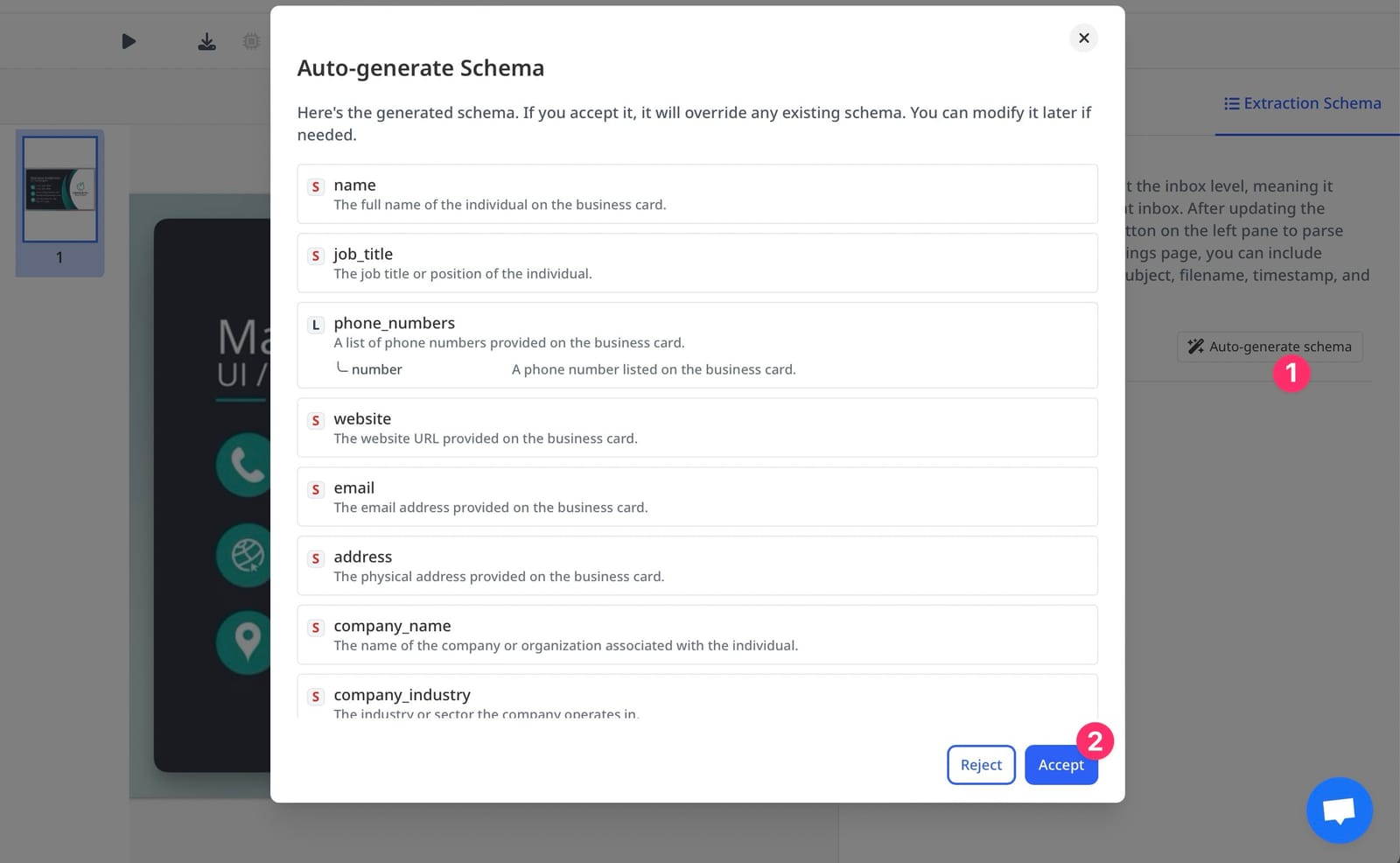
3. Create Extraction Schema
List the fields you want to extract: Full Name, Job Title, Company Name, Email, Phone Number, Website. Airparser's LLM-powered parser understands the card's layout automatically.

Tips for Best Accuracy
- Use high-resolution scans or clear, well-lit photos
- Place cards on a plain background
- Avoid reflections on glossy cards when photographing
Send Parsed Contacts to Your CRM Automatically
Once Airparser extracts contact data, you can send it to your CRM automatically using Zapier or Make. Here's how:
1. Connect to Zapier or Make
Sign up or log into your Zapier or Make account. Create a new automation (Zap or Scenario).
2. Set Airparser as the Trigger
Choose Airparser as the trigger app. Set the trigger event to "Document Parsed". Connect your Airparser account and select your inbox.
3. Add Your CRM as the Action
Choose your CRM as the action app (e.g., HubSpot, Salesforce, Pipedrive). Then select "Create Contact" or "Update Contact" as the action event.
4. Map Airparser Fields
Map each extracted field from Airparser to your CRM fields, like: Airparser's "Full Name" → CRM's "Name", Airparser's "Email" → CRM's "Email", Airparser's "Phone" → CRM's "Phone Number".
5. Test Your Automation
Upload a sample business card to your Airparser inbox. Run your automation to check that the data appears correctly in your CRM.
Real-World Use Cases
Trade Show Sales Teams
Scan business cards at events and instantly add prospects to the CRM. No more manual data entry after long networking days.
Recruiters
Digitize candidate cards or resumes and add them to applicant tracking systems (ATS) automatically.
Event Organizers
Collect attendee info from registration forms and sync it with email marketing tools like Mailchimp or HubSpot.
Consultants
Save contact details after meetings and update their CRMs automatically. Never lose a contact again.
CRM Integration
Seamlessly integrate business card data with HubSpot, Salesforce, Pipedrive, and other CRM systems via Zapier or Make.
Contact Management
Build and maintain contact databases by extracting data from business cards automatically. Scale from tens to thousands of contacts.
Best Practices for Scaling Contact Automation
Test Before Scaling
Test your setup with several business cards before using it at scale to ensure accuracy.
Prevent Duplicates
Use deduplication features in your CRM to avoid creating duplicate records.
Add Notifications
Add automations to notify your team in Slack or email when new contacts arrive.
Tag Contacts
Tag contacts based on source or event (e.g., "Trade Show 2025") to track ROI later.
Regular Reviews
Regularly review your parsed data to ensure accuracy as card designs or formats change.
High-Quality Images
Use clear, well-lit photos or high-resolution scans for best extraction accuracy.
What our customers say